

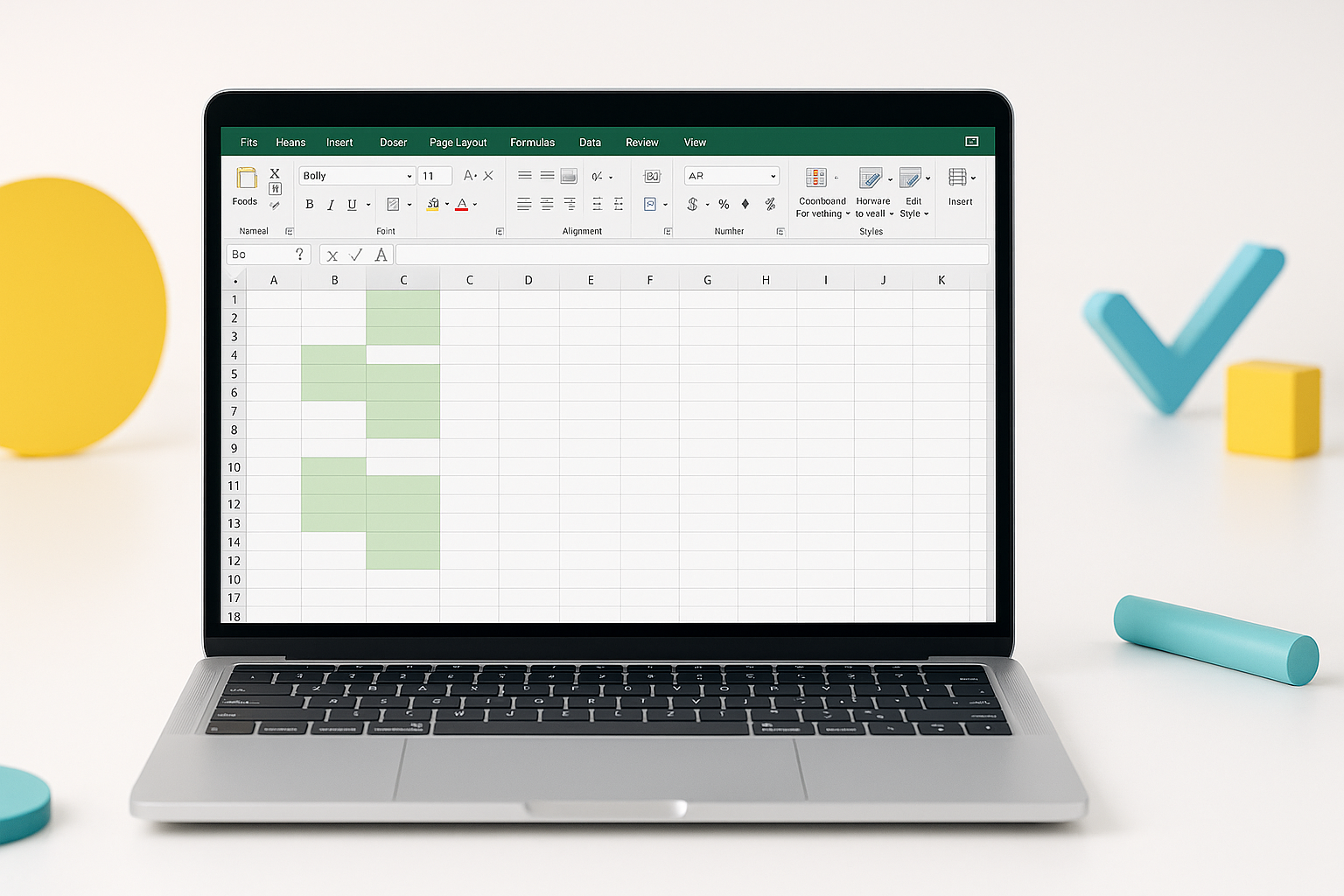
Working with large amounts of data in Excel can be overwhelming, especially when you need to highlight duplicates in Excel. Whether you’re managing customer lists, inventory records, or financial data, duplicate entries can cause serious problems. They can mess up your calculations, create confusion, and lead to poor business decisions.
Finding and marking duplicate values doesn’t have to be difficult. Excel offers several built-in tools that make this task simple and fast. In this guide, you’ll learn multiple ways to spot and highlight duplicate entries in your spreadsheets. We’ll cover everything from basic highlighting techniques to advanced filtering methods.
By the end of this article, you’ll know exactly how to clean up your data and make it more reliable. Let’s dive into the most effective methods to identify duplicate values in Excel.
Understanding Duplicate Values in Excel
Before we learn how to highlight duplicates in Excel, it’s important to understand what duplicates actually are. A duplicate is any value that appears more than once in your selected range of cells. This could be numbers, text, dates, or any combination of these.
Duplicates can happen for many reasons. Sometimes people enter the same information twice by mistake. Other times, you might combine data from different sources that contain overlapping records. For example, if you merge two customer lists, some customers might appear in both lists.
Excel treats duplicates in a specific way. When you use duplicate-finding tools, Excel compares the exact content of each cell. This means “John” and “john” would be considered different values because of the capital letter. Similarly, “100” (as text) and 100 (as a number) would also be treated as different.
Understanding this behavior helps you prepare your data better. You might need to clean up formatting or convert text to numbers before looking for duplicates. This ensures you catch all the actual duplicate entries in your spreadsheet.
Using Conditional Formatting to Highlight Duplicates
Conditional formatting is the easiest way to highlight duplicates in Excel. This feature automatically changes the appearance of cells based on rules you set. When cells contain duplicate values, Excel will color them or change their formatting to make them stand out.
Here’s how to use conditional formatting to find duplicates:
- Select the range of cells where you want to find duplicates
- Go to the Home tab in the Excel ribbon
- Click on “Conditional Formatting” in the Styles group
- Choose “Highlight Cells Rules” from the dropdown menu
- Select “Duplicate Values” from the submenu
- Pick a formatting style (like red fill or yellow text)
- Click “OK” to apply the formatting
The great thing about this method is that it works instantly. As soon as you apply the rule, all duplicate values will be highlighted with your chosen formatting. If you add new data later, Excel will automatically check for duplicates and highlight them too.
You can also customize the highlighting. Instead of using the preset options, click “Custom Format” to choose your own colors, borders, or text styles. This helps you create a system that works best for your specific needs.
Advanced Conditional Formatting Options
Conditional formatting offers more advanced options for finding duplicates. You can highlight only the first occurrence of each duplicate, or mark only the repeated instances. You can also create rules that ignore the first duplicate and only highlight subsequent ones.
To access these options, choose “New Rule” instead of “Duplicate Values” when setting up conditional formatting. Then use formulas like =COUNTIF($A$1:$A$100,A1)>1 to create custom duplicate detection rules.
Finding Duplicates with Excel’s Remove Duplicates Tool
Sometimes you don’t just want to highlight duplicates – you want to remove them completely. Excel’s Remove Duplicates tool is perfect for this task. However, you can also use it just to identify where duplicates exist before deciding whether to delete them.
The Remove Duplicates feature is located in the Data tab. Here’s how to use it:
- Select your data range including headers
- Click on the Data tab in the Excel ribbon
- Find the “Remove Duplicates” button in the Data Tools group
- Check which columns Excel should examine for duplicates
- Click “OK” to see a summary of duplicates found
Before you remove duplicates permanently, Excel will show you a message telling you how many duplicate values were found and how many unique values remain. This gives you a chance to cancel if the numbers don’t look right.
One advantage of this method is that it can check multiple columns at once. For example, you might want to find rows where both the first name AND last name are identical. The Remove Duplicates tool can handle complex scenarios like this easily.
Remember to make a backup copy of your data before using this tool. Once you remove duplicates, you can’t easily undo the action if you close the file. It’s always better to be safe when working with important data.
Comparing Multiple Columns for Duplicates
When working with customer data or inventory lists, you might need to check multiple columns together. For instance, two people might have the same first name but different last names. The Remove Duplicates tool lets you select specific columns to include in the duplicate check.
Using Filters and Sorting to Identify Duplicates
Another effective way to spot duplicates is by using Excel’s sorting and filtering features. While this method requires more manual work, it gives you complete control over the process and helps you understand your data better.
Start by sorting your data. When identical values are grouped together, duplicates become much easier to spot. Here’s the process:
- Select your entire data range
- Go to the Data tab and click “Sort”
- Choose the column you want to sort by
- Click “OK” to arrange the data
- Scroll through the sorted data to find identical values
After sorting, you can use Excel’s AutoFilter feature to narrow down your view. Turn on filters by selecting your data and clicking “Filter” in the Data tab. Then use the dropdown arrows in each column header to filter your data in different ways.
This method works especially well when you want to examine duplicates manually. You can see the context around each duplicate entry and make informed decisions about which ones to keep or remove.
For larger datasets, consider using the Advanced Filter option. This tool can copy unique values to a new location, leaving you with a clean list that contains no duplicates. You can then compare the original and filtered lists to see exactly which entries were duplicated.
Creating a Helper Column for Duplicate Detection
You can also create a helper column that uses formulas to identify duplicates. Use the COUNTIF function to count how many times each value appears in your data. If the count is greater than 1, you know it’s a duplicate. This formula approach gives you numerical data about your duplicates that you can sort and filter.
Advanced Techniques and Troubleshooting
When working with complex datasets, you might encounter situations where basic duplicate detection doesn’t work perfectly. Here are some advanced techniques and solutions to common problems.
Sometimes duplicates aren’t exactly identical. For example, “Microsoft Corp” and “Microsoft Corporation” refer to the same company but have different text. In these cases, you might need to use partial matching or text manipulation functions before highlighting duplicates.
Another common issue is dealing with case sensitivity. Excel’s duplicate detection is case-sensitive by default, meaning “APPLE” and “apple” are treated as different values. If you need case-insensitive duplicate detection, you’ll need to use custom formulas or convert all text to the same case first.
For very large datasets, Excel’s built-in tools might work slowly or run out of memory. In these situations, consider breaking your data into smaller chunks or using Power Query (Get & Transform) for more efficient processing.
When working with dates and numbers, make sure your formatting is consistent. Excel might not recognize “01/15/2023” and “1/15/2023” as duplicates if one is formatted as text and the other as a date. Use the TEXT or VALUE functions to standardize your data format before checking for duplicates.
Handling Partial Matches and Fuzzy Duplicates
Real-world data often contains near-duplicates that aren’t exactly identical. You might need to use functions like SEARCH, FIND, or FUZZY LOOKUP (if available) to catch these similarities. This requires more advanced Excel skills but can significantly improve your duplicate detection accuracy.
Now that you know how to highlight duplicates in Excel using multiple methods, you’re ready to clean up your data and make it more reliable. Each technique has its strengths – conditional formatting for visual identification, Remove Duplicates for quick cleaning, and manual sorting for detailed analysis.
Choose the method that best fits your specific situation and data size. Remember to always backup your original data before making changes. With these tools in your toolkit, you can confidently manage duplicate values in any Excel spreadsheet.
Ready to clean up your Excel data? Start with the conditional formatting method to see where your duplicates are located. Then decide whether you want to remove them permanently or just keep them highlighted for reference. Practice these techniques on a sample dataset first to build your confidence.
