

Getting Started with RustDesk Remote Access on Windows
Remote desktop software has become essential for managing computers from anywhere, but many solutions come with hefty price tags or privacy concerns. RustDesk offers a refreshing alternative—an open-source remote desktop tool that puts you in control of your data while delivering reliable performance on Windows systems.
This powerful application lets you access Windows computers remotely without monthly subscriptions or vendor lock-in. Whether you’re supporting family members, managing work computers, or accessing your home PC while traveling, learning how to use RustDesk on Windows opens up secure remote access possibilities.
Installing RustDesk on Your Windows Computer
Setting up RustDesk requires just a few minutes and works on Windows 7 through Windows 11. Start by downloading the installer from the official RustDesk website—avoid third-party download sites that might bundle unwanted software.
The installation process is straightforward:
- Run the downloaded installer with administrator privileges
- Accept the license agreement and choose your installation directory
- Allow Windows Defender or your antivirus to scan the files
- Complete the installation and launch RustDesk
Windows might display security warnings during installation since RustDesk needs system-level access for remote control features. This is normal behavior for legitimate remote desktop software.
Configuring Your Windows System for Remote Access
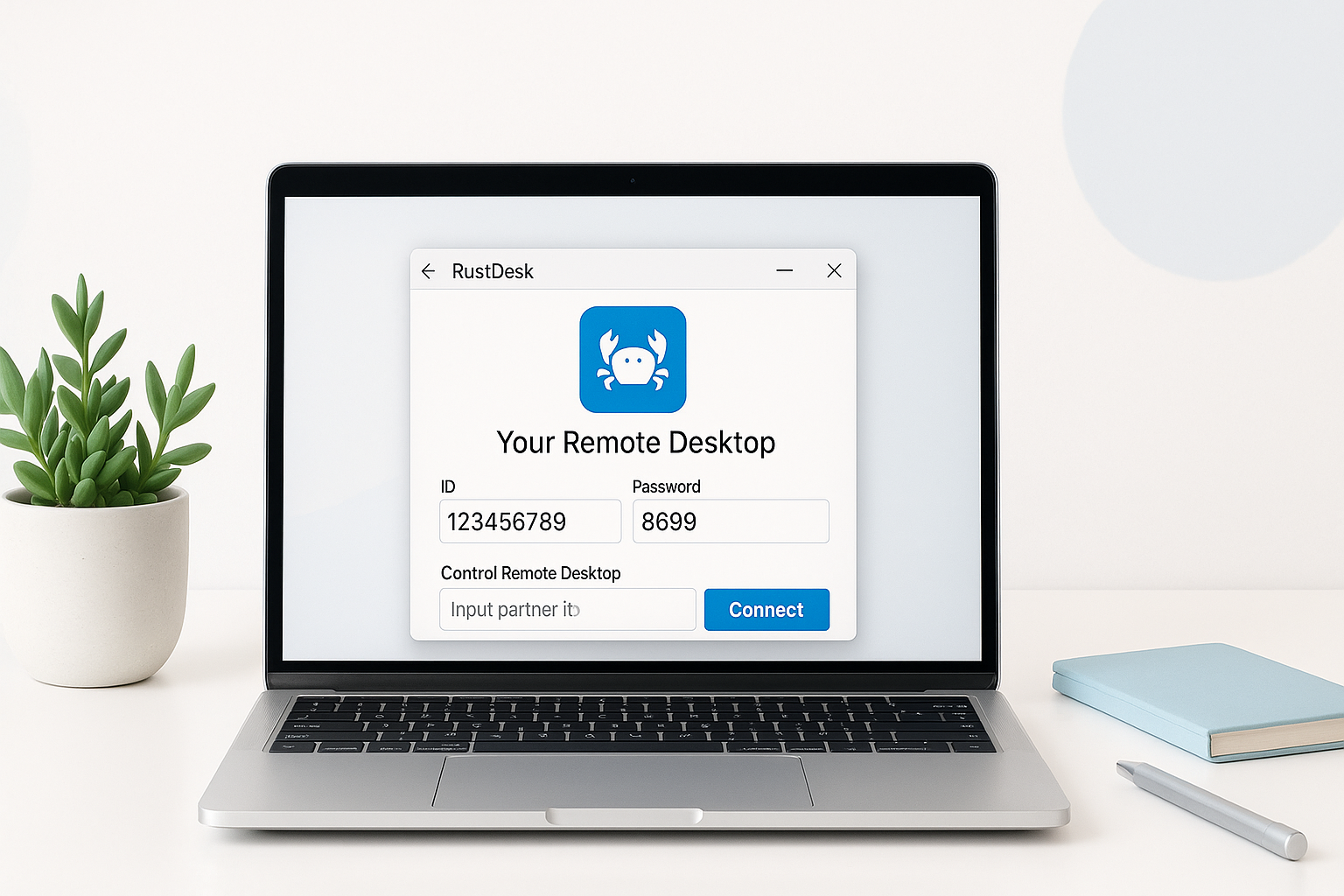
Before others can connect to your Windows computer, you’ll need to configure a few essential settings. RustDesk displays a unique ID number and temporary password on its main window—these credentials allow incoming connections.
For enhanced security, set a permanent password instead of relying on the changing temporary one:
- Click the menu icon (three lines) in RustDesk’s interface
- Select “Settings” then navigate to “Security”
- Enter your desired password in the “Password” field
- Consider enabling “Approval” mode for connection requests
The approval feature adds an extra security layer by requiring you to manually accept incoming connection attempts. This prevents unauthorized access even if someone obtains your ID and password.
Windows Firewall and Network Considerations
RustDesk automatically handles most firewall configurations, but some network setups require additional attention. Corporate networks or restrictive home routers might block the necessary ports.
If connections fail, check these common issues:
- Ensure Windows Firewall allows RustDesk through both private and public networks
- Verify your router isn’t blocking outbound connections on ports 21115-21119
- Consider using RustDesk’s relay servers if direct connections aren’t possible
Connecting to Remote Windows Computers
Once RustDesk is installed and configured, connecting to other computers becomes remarkably simple. You’ll need the target computer’s RustDesk ID and password—information the remote user can find in their RustDesk window.
To establish a connection:
- Enter the remote computer’s ID in the “Remote ID” field
- Click “Connect” and wait for the connection dialogue
- Input the remote computer’s password when prompted
- Choose your connection type (desktop control, file transfer, etc.)
RustDesk offers multiple connection modes depending on your needs. Desktop control provides full remote access, while view-only mode lets you observe without making changes. File transfer mode focuses specifically on moving files between computers.
Optimizing Connection Quality
Connection performance depends heavily on your internet speed and the remote computer’s capabilities. RustDesk automatically adjusts quality settings, but manual tweaking can improve your experience.
During an active session, access quality controls through the toolbar:
- Image Quality: Lower settings reduce bandwidth usage
- Codec: VP9 offers better compression than VP8
- Frame Rate: Reduce for slower connections
- Audio: Disable if not needed to save bandwidth
Essential Features for Windows Users
RustDesk includes several features specifically useful for Windows environments. The clipboard synchronization automatically shares copied text between local and remote computers, making it easy to transfer information quickly.
File transfer capabilities eliminate the need for separate FTP software or cloud storage. Simply drag files between the local and remote computer windows, or use the dedicated file manager interface for more complex operations.
Multi-monitor support handles Windows setups with multiple displays gracefully. You can view all remote screens simultaneously or switch between them as needed.
Keyboard and Mouse Handling
RustDesk captures keyboard shortcuts and mouse movements accurately, but some Windows-specific combinations require special handling. The software automatically translates most shortcuts, but you might need to use RustDesk’s virtual key combinations for certain system commands.
Common Windows shortcuts work as expected:
- Alt+Tab for application switching
- Windows key for Start menu access
- Ctrl+Alt+Delete through RustDesk’s menu
- Function keys for laptops and specialized keyboards
Security Best Practices When Using RustDesk on Windows
While RustDesk uses end-to-end encryption for all connections, following security best practices protects your Windows systems from potential threats. Never share your RustDesk ID and password publicly or through insecure channels like email or text messages.
Consider these security enhancements:
- Enable two-factor authentication through RustDesk Pro accounts
- Use complex, unique passwords for each computer
- Regularly update RustDesk to receive security patches
- Monitor connection logs for suspicious activity
- Disable RustDesk when remote access isn’t needed
For business environments, consider setting up a private RustDesk server instead of relying on public relay servers. This keeps all remote desktop traffic within your organization’s network infrastructure.
Troubleshooting Common Windows Issues
Most RustDesk problems on Windows stem from network connectivity or permission issues. If connections fail consistently, start by testing from different networks to isolate the problem.
Common solutions include:
| Problem | Solution |
| Connection timeout | Check firewall settings and network stability |
| Poor image quality | Adjust codec settings or reduce resolution |
| Audio not working | Verify Windows audio services are running |
| File transfer fails | Ensure sufficient disk space and permissions |
Windows UAC (User Account Control) can sometimes interfere with RustDesk’s operation. Running RustDesk as an administrator often resolves permission-related issues, especially when accessing system settings or installing software remotely.
Advanced Configuration Options
Power users can customize RustDesk extensively through its advanced settings. The configuration file allows modifications that aren’t available through the standard interface, including custom relay servers and specialized encryption settings.
Network administrators might want to deploy RustDesk across multiple Windows computers using group policies or automated installation scripts. The silent installation options support enterprise deployment scenarios.
For users who need RustDesk to start automatically with Windows, enable the service mode during installation or configure it afterward through Windows Services management console.
Making the Most of Your Remote Desktop Setup
RustDesk transforms how you interact with Windows computers remotely, offering professional-grade features without the typical costs or privacy compromises. The combination of easy setup, robust security, and reliable performance makes it an excellent choice for both personal and business use.
Success with remote desktop software depends on proper configuration and understanding your specific use cases. Take time to explore RustDesk’s various modes and settings to find the combination that works best for your Windows environment and network conditions.
Regular maintenance, security updates, and monitoring ensure your remote access remains both convenient and secure as your needs evolve.
