

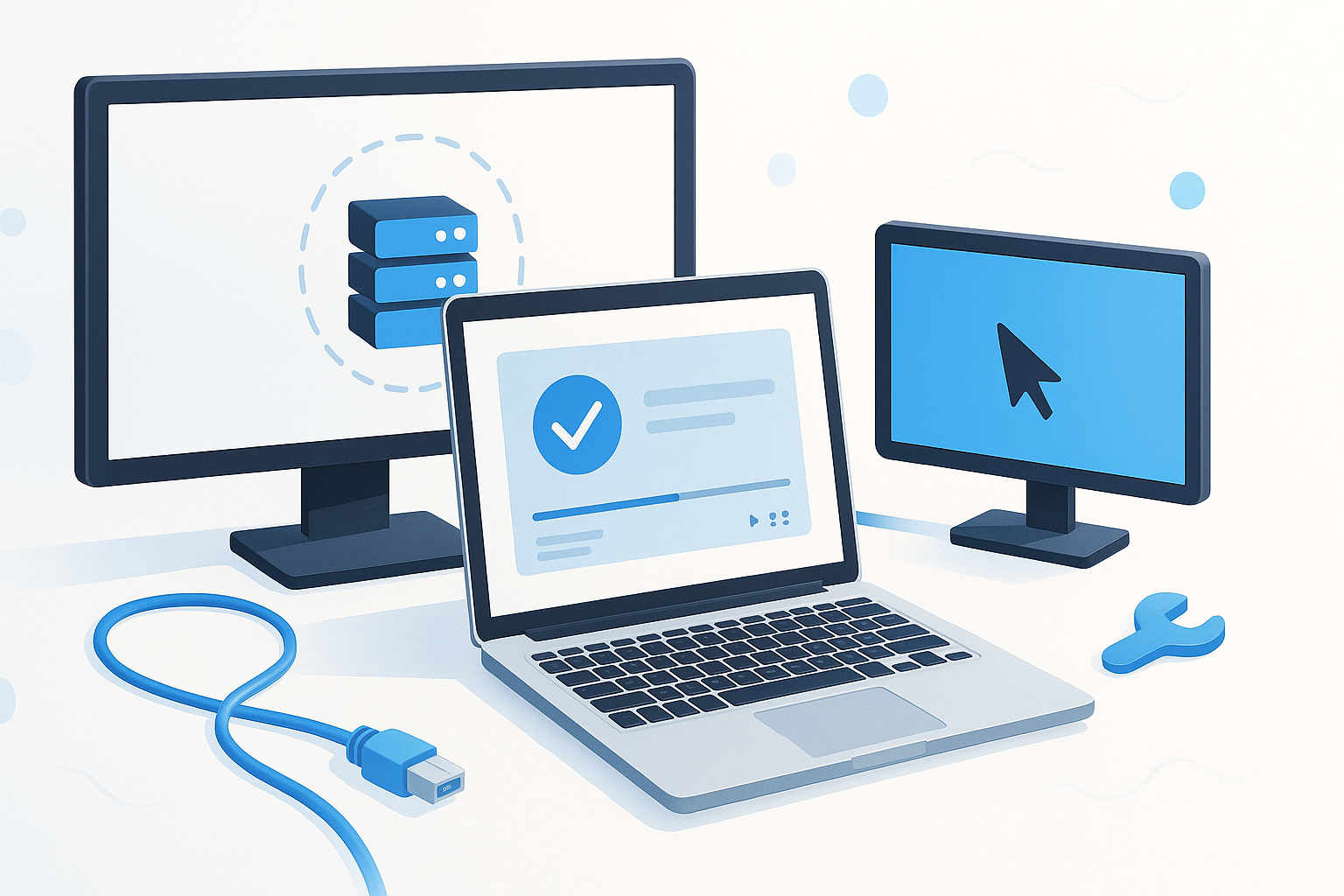
Setting Up Your Multi-Computer Workspace with Barrier KVM
Managing multiple computers simultaneously becomes effortless when you know how to install Barrier KVM properly. This powerful software solution eliminates the need for multiple keyboards and mice, letting you control several machines with a single set of peripherals through your network connection.
Barrier operates as a software-based KVM (keyboard, video, mouse) switch that works across Windows, macOS, and Linux systems. Unlike traditional hardware KVM switches, Barrier uses your existing network infrastructure to create seamless control between your devices.
Understanding Barrier’s Server-Client Architecture
Before diving into installation, you need to understand Barrier’s basic structure. The system works with one computer acting as the server (where your keyboard and mouse are physically connected) and other computers functioning as clients.
The server machine shares its input devices across the network, while client machines receive and respond to these input signals. This setup means you can move your cursor from one screen to another as if they were part of a single, extended desktop.
Your network connection handles all communication between machines, so ensure all computers are connected to the same local network for optimal performance.
How to Install Barrier KVM on Windows Systems
Windows installation requires downloading the appropriate installer for your system architecture. Visit the official Barrier GitHub releases page and download the latest Windows installer.
Follow these installation steps:
- Run the downloaded installer as an administrator
- Accept the license agreement and choose your installation directory
- Select whether to install for all users or current user only
- Complete the installation and restart your computer if prompted
Windows users should pay attention to firewall settings during installation. Barrier needs network access to communicate between machines, so you may need to create firewall exceptions.
After installation, launch Barrier from the Start menu. The interface will prompt you to configure your setup as either server or client mode.
Installing Barrier on macOS Devices
macOS installation follows a straightforward process using the DMG package. Download the macOS version from the official repository and mount the disk image.
The installation process involves:
- Opening the downloaded DMG file
- Dragging Barrier to your Applications folder
- Launching Barrier from Applications
- Granting necessary accessibility permissions
macOS requires specific privacy permissions for Barrier to function correctly. Navigate to System Preferences > Security & Privacy > Privacy tab, then add Barrier to both “Accessibility” and “Input Monitoring” sections.
Without these permissions, Barrier cannot capture or send keyboard and mouse events between your machines.
Linux Installation Methods and Considerations
Linux users have multiple installation options depending on their distribution. Most major distributions include Barrier in their official repositories, making installation simple through package managers.
For Ubuntu and Debian-based systems:
- Update package lists: sudo apt update
- Install Barrier: sudo apt install barrier
- Launch from applications menu or terminal
Fedora and Red Hat users can install using:
- sudo dnf install barrier (Fedora)
- sudo yum install barrier (older versions)
Arch Linux users will find Barrier in the official repositories accessible through pacman or their preferred AUR helper.
For distributions without Barrier in repositories, compile from source code available on GitHub. This method requires development tools and dependencies like Qt5, OpenSSL, and X11 libraries.
Configuring Your Server Machine
Server configuration determines how your input devices control client machines. Start by launching Barrier and selecting “Server” mode from the main interface.
The server configuration screen displays a grid representing your monitor layout. Drag screen icons to match your physical monitor arrangement. This step is crucial because it determines cursor movement patterns between machines.
Key server settings include:
- Screen name: Identify your server machine
- Port number: Default is 24800 (change if conflicts exist)
- Enable SSL: Encrypts communication for security
- Auto-start: Launches Barrier automatically with your system
Click “Start” to activate your server. The interface will display connection status and any error messages that require attention.
Setting Up Client Connections
Client setup requires knowing your server’s IP address or hostname. Launch Barrier on client machines and select “Client” mode from the main interface.
Enter your server’s network information in the designated field. You can use either the IP address (like 192.168.1.100) or the computer’s network name if DNS resolution works properly.
Configure these client options:
- Server address: IP or hostname of your server machine
- Enable SSL: Must match server SSL settings
- Auto-start: Automatically connects when system boots
Start the client connection and monitor the status display. Successful connections show “Connected” status with server information.
Troubleshooting Common Installation Issues
Connection failures often stem from network configuration problems. Verify all machines connect to the same network segment and can ping each other successfully.
Firewall blocking represents the most frequent issue. Barrier uses TCP port 24800 by default, which many firewalls block automatically. Create specific rules allowing Barrier traffic on this port.
SSL certificate mismatches cause authentication errors between server and clients. Either enable SSL on all machines or disable it completely for initial testing.
Screen resolution differences can create cursor positioning problems. Barrier works best when server and client machines use similar display resolutions and scaling factors.
Permission issues on macOS and Linux prevent Barrier from accessing input devices. Double-check accessibility and input monitoring permissions on macOS, or run Barrier with appropriate user privileges on Linux systems.
Optimizing Performance and Security
Network latency affects Barrier’s responsiveness, especially over wireless connections. Use wired Ethernet connections when possible for the smoothest experience.
Enable SSL encryption for secure environments, though this adds slight processing overhead. Generate and distribute certificates properly between all connected machines.
Configure clipboard sharing settings based on your security requirements. While convenient, clipboard synchronization can pose security risks in sensitive environments.
Adjust mouse sensitivity and acceleration settings to match your preferences across different operating systems. Each platform handles mouse movement differently, so fine-tuning improves consistency.
Advanced Configuration Options
Barrier supports hotkey combinations for switching between machines manually. Configure these shortcuts for situations where automatic cursor movement doesn’t work as expected.
Screen saver synchronization keeps all machines locked or unlocked together. This feature proves useful in shared workspaces where security policies require consistent screen locking.
Custom key mappings help overcome differences between keyboard layouts on different operating systems. Configure these mappings when working with machines that have different regional keyboard settings.
Logging options provide detailed information for troubleshooting persistent issues. Enable verbose logging temporarily when diagnosing connection or performance problems.
Successfully learning how to install Barrier KVM transforms multi-computer workflows by eliminating the complexity of managing multiple input devices. With proper installation and configuration, you’ll control multiple machines seamlessly while maintaining security and performance standards that meet your specific requirements.
