

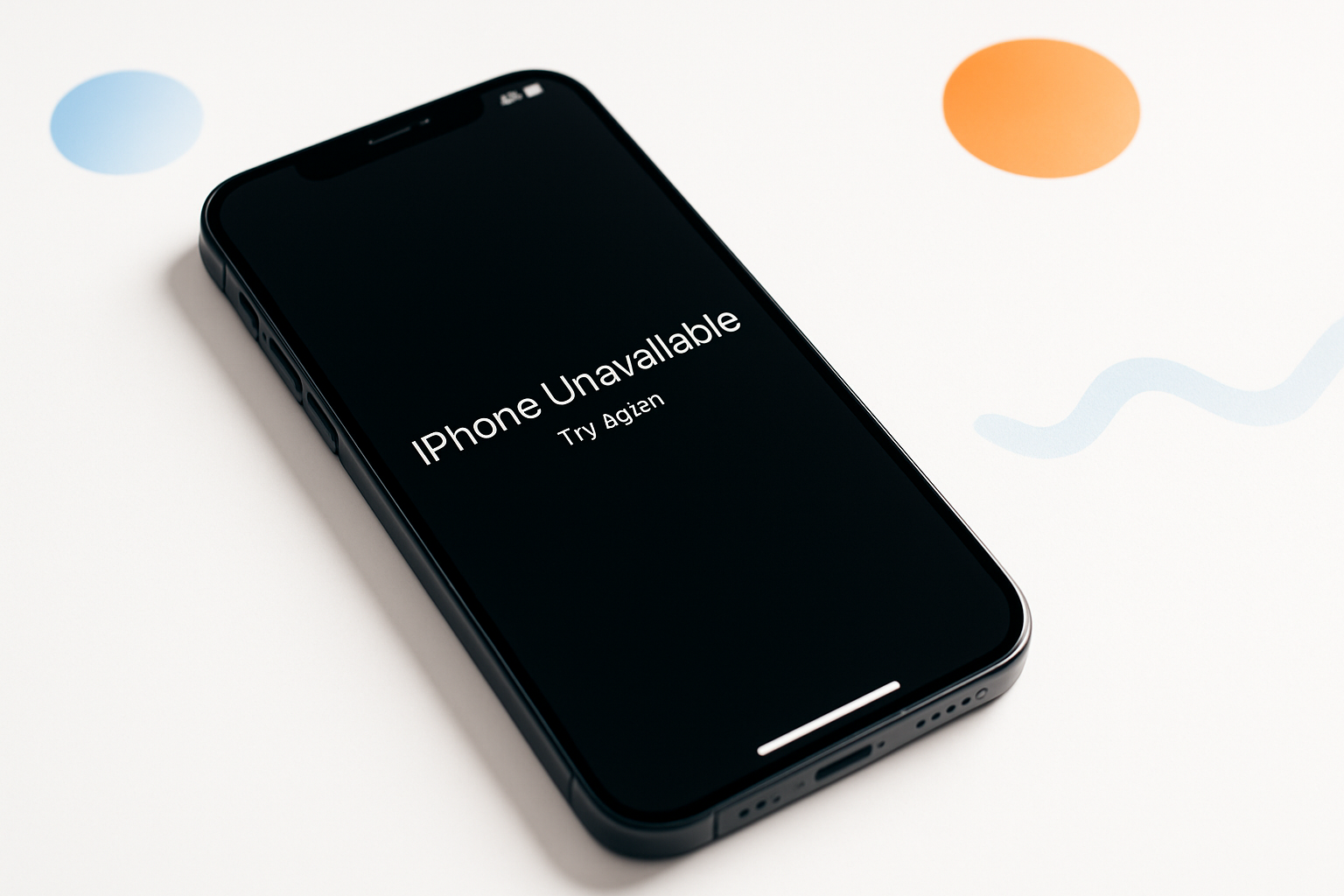
Nothing sends iPhone users into a panic quite like seeing the dreaded “iPhone unavailable try again” message flash across their screen. This security feature can lock you out of your device for minutes, hours, or even days, depending on how many incorrect passcode attempts you’ve made.
The frustrating reality is that this lockout mechanism exists to protect your personal data from unauthorized access. While it serves an important security purpose, getting locked out of your own device feels like being trapped outside your own home with the keys inside.
Understanding why this happens and knowing your options can save you significant time and stress when facing this digital roadblock.
Why Your iPhone Shows the Unavailable Message
Apple introduced the “iPhone unavailable” screen as part of iOS 15.2, replacing the older “iPhone is disabled” message. This security measure activates after multiple failed passcode attempts, creating increasingly longer waiting periods to prevent brute force attacks.
The lockout timeline works on a progressive scale:
- After 5 incorrect attempts: 1 minute lockout
- After 6 incorrect attempts: 5 minutes
- After 7 incorrect attempts: 15 minutes
- After 8 incorrect attempts: 60 minutes
- After 10 incorrect attempts: iPhone becomes unavailable
This system protects against thieves or unauthorized users trying to guess your passcode through repeated attempts. However, legitimate users often trigger it accidentally through fat-finger typing, forgotten passcodes, or family members attempting to use the device.
Quick Solutions When Your iPhone Unavailable Try Again Appears
Before panicking about data loss or expensive repairs, try these immediate solutions that might resolve the issue without drastic measures.
Wait Out the Timer
The simplest approach is patience. If you see a timer counting down, your iPhone will automatically allow another passcode attempt when it reaches zero. Use this waiting period to recall your correct passcode or consider alternative numbers you might have used.
Use Face ID or Touch ID
Sometimes the biometric sensors still function even when the passcode entry is locked. Try using Face ID or Touch ID if your device supports these features. Success will bypass the unavailable screen entirely.
Check for Emergency Options
Look for “Erase iPhone” or “Try Again in [time]” options on your screen. The erase option appears on devices running iOS 15.2 or later after multiple failed attempts, but only if you have Find My iPhone enabled and remember your Apple ID credentials.
Professional Recovery Methods
When quick fixes don’t work, you’ll need more comprehensive solutions to regain access to your device.
Recovery Mode Restoration
Recovery mode allows you to restore your iPhone through iTunes or Finder, erasing all content but removing the passcode lock. This method requires a computer and will delete all data unless you have a recent backup.
Steps for recovery mode:
- Connect your iPhone to a computer with iTunes or Finder
- Force restart your device using the specific button combination for your model
- Hold the buttons until the recovery mode screen appears
- Select “Restore” when prompted by iTunes/Finder
- Wait for the restoration process to complete
DFU Mode for Severe Cases
Device Firmware Update (DFU) mode provides deeper system access than recovery mode. This option works when standard recovery fails, but it completely wipes your device and requires precise timing to enter correctly.
DFU mode is more complex and typically reserved for situations where recovery mode doesn’t respond or complete successfully.
Using Find My iPhone for Remote Solutions
Apple’s Find My service offers remote management capabilities that can resolve lockout situations without physical access to a computer.
Through iCloud.com or another Apple device, you can:
- Remotely erase your iPhone to remove the passcode
- Check the device’s current status and location
- Prepare for restoration using your most recent backup
This method requires your Apple ID credentials and that Find My was previously enabled on the locked device. The process erases all content but allows you to restore from backup during the setup process.
Preventing Future Lockouts
Taking proactive steps can help you avoid the “iPhone unavailable try again” situation in the future.
Passcode Management
Choose a memorable but secure passcode. Avoid obvious combinations like birthdates or repeated numbers that others might guess. Consider using a six-digit passcode instead of four digits for better security without sacrificing memorability.
Biometric Setup
Properly configure Face ID or Touch ID as backup authentication methods. These systems provide convenient access while maintaining security, reducing your reliance on passcode entry for daily use.
Regular Backups
Maintain current backups through iCloud or iTunes. Regular backups ensure that even if you need to erase your device, you won’t lose important data, photos, or app configurations.
What Not to Do When Locked Out
Desperation often leads to counterproductive actions that can worsen your situation or cause permanent damage.
Avoid these common mistakes:
- Continuously guessing passcodes, which extends lockout periods
- Using third-party “unlock” software that may contain malware
- Attempting hardware modifications or repairs
- Paying for expensive “guaranteed” unlock services
Legitimate solutions for lockout situations are available through Apple’s official channels and don’t require questionable third-party interventions.
When to Contact Apple Support
Certain situations warrant professional assistance from Apple’s support team or authorized service providers.
Consider professional help when:
- Standard recovery methods fail repeatedly
- Your device shows unusual behavior beyond the lockout
- You’re unfamiliar with technical procedures
- The device contains critical data without backup
Apple Support can provide personalized guidance and may offer solutions not available through standard troubleshooting procedures.
Data Recovery Considerations
Understanding your data recovery options before proceeding with any solution helps prevent permanent loss of important information.
Most solutions for resolving “iPhone unavailable try again” messages involve erasing the device. However, data recovery remains possible if you have:
- Recent iCloud backups with sufficient storage
- iTunes or Finder backups on a computer
- Photos and contacts synced to cloud services
- App data backed up through individual app settings
Check your backup status before proceeding with any erase procedures to ensure you can restore your important information.
Encountering the “iPhone unavailable try again” message doesn’t spell disaster for your device or data. While frustrating, this security feature ultimately protects your personal information from unauthorized access. Most users can resolve the lockout through patience, proper recovery procedures, or Apple’s built-in solutions without losing their valuable data.
Remember that prevention through good passcode practices, biometric setup, and regular backups provides the best protection against future lockout situations.
