

Managing files across multiple devices and keeping backups in sync can feel overwhelming. FreeFileSync simplifies this process by offering a powerful, free solution that handles everything from basic folder synchronization to complex backup scenarios. This open-source tool has earned a reputation among tech enthusiasts and businesses alike for its reliability and extensive feature set.
Whether you’re synchronizing work documents between your laptop and desktop, creating automated backups, or managing files across network drives, understanding how to use FreeFileSync effectively can save you hours of manual work while protecting your important data.
Getting Started with FreeFileSync Installation
Download FreeFileSync from the official website at freefilesync.org. The software runs on Windows, macOS, and Linux, making it accessible regardless of your operating system preference.
The installation process is straightforward. Run the downloaded installer and follow the prompts. During installation, you’ll notice an option to install the donation edition or continue with the free version. Both versions offer identical functionality – the donation edition simply removes the donation reminder screen.
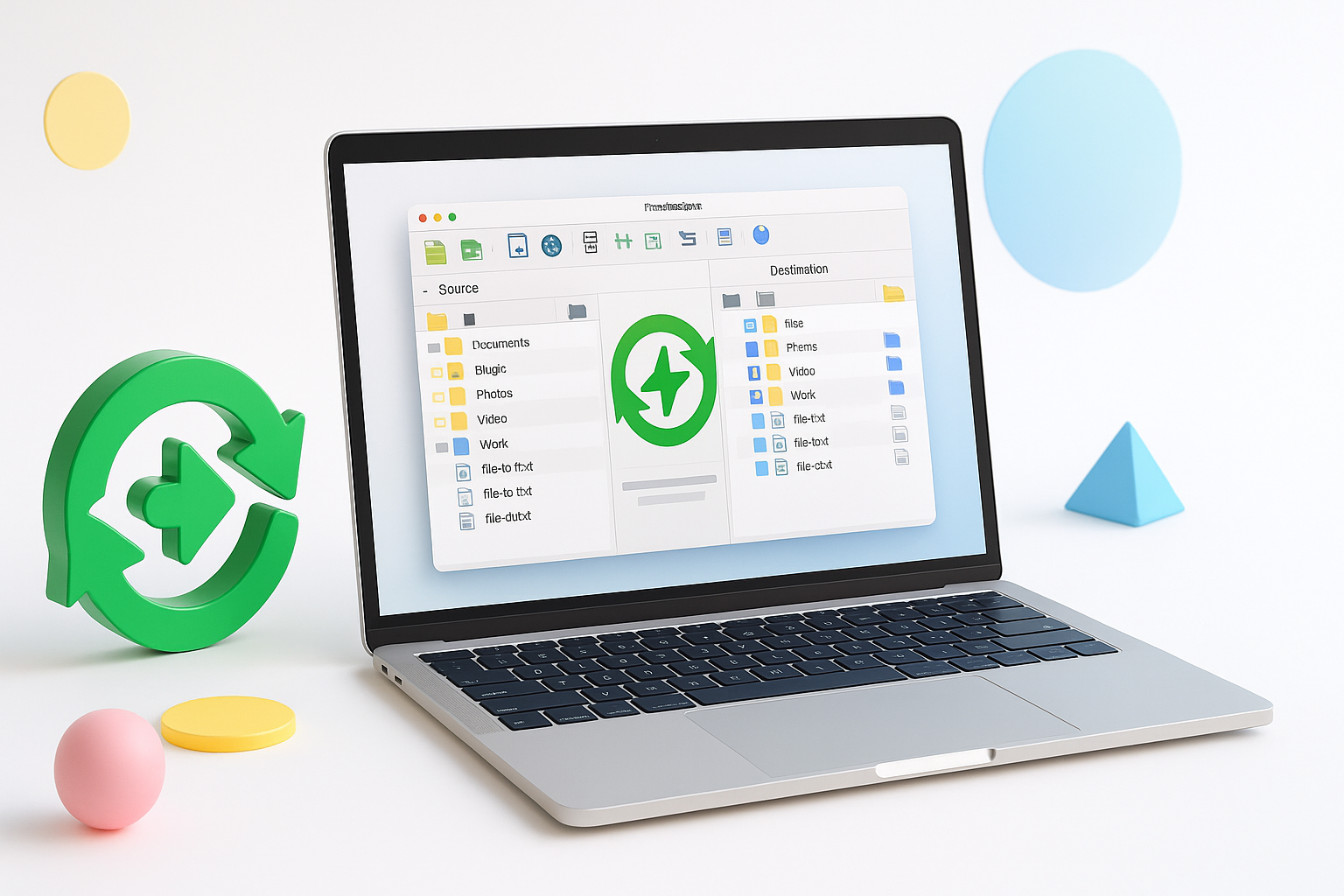
Once installed, launch the application. You’ll see a clean, divided interface with left and right panels representing your source and destination folders.
Understanding the FreeFileSync Interface
The main window displays two folder trees side by side. This dual-pane design makes it easy to compare directories and visualize what will happen during synchronization.
Key interface elements include:
- Folder selection boxes at the top of each panel
- File comparison grid showing files from both locations
- Action symbols indicating what will happen to each file
- Configuration panel on the left for sync settings
- Progress information at the bottom during operations
The toolbar provides quick access to essential functions like comparing folders, starting synchronization, and saving configurations.
Setting Up Your First Folder Comparison
Click the folder icon next to the left panel and select your source directory. This could be your Documents folder, a project directory, or any location containing files you want to sync.
Next, choose your destination folder in the right panel. This might be an external drive, network location, or cloud storage folder mounted on your system.
Press the “Compare” button or use F5 to analyze both locations. FreeFileSync examines file names, sizes, and modification dates to determine differences between the folders.
The comparison results appear in the central grid, with color coding to highlight different file states:
- Green rows indicate files that exist in both locations and are identical
- Blue rows show files that exist only on one side
- Red rows highlight files with different content or modification dates
How to Use FreeFileSync Synchronization Modes
FreeFileSync offers several synchronization variants to match different use cases. Choose the appropriate mode from the configuration panel before starting synchronization.
Mirror Synchronization
Mirror mode makes the destination folder identical to the source. Files existing only in the destination get deleted, while missing or newer files from the source are copied over.
This mode works perfectly for creating exact backups or ensuring a secondary location matches your primary workspace exactly.
Update Synchronization
Update mode only copies newer files from source to destination without deleting anything. Existing files in the destination remain untouched unless a newer version exists in the source.
Use this mode when you want to add new files to a backup location without removing files that might exist only in the destination.
Two-Way Synchronization
Two-way sync copies newer files in both directions. If you modify files on either side, the changes propagate to the other location during the next synchronization.
This mode suits scenarios where you work with files on multiple devices and want changes to sync bidirectionally.
Advanced Configuration Options
Click the gear icon to access detailed synchronization settings. These options provide fine-grained control over how FreeFileSync handles different scenarios.
File Deletion Methods
Choose how deleted files are handled:
- Permanent deletion removes files completely
- Recycle bin moves deleted files to your system’s trash
- Versioning folder stores deleted files in a specified backup location
The versioning folder option provides excellent protection against accidental data loss by maintaining copies of all deleted or overwritten files.
Filter Rules
Filters let you exclude specific files or folders from synchronization. Common filter patterns include:
- File extensions: *.tmp, *.log to exclude temporary files
- Folder names: *cache*, *temp* to skip cache directories
- System files: Use predefined filters for operating system files
Set up include filters to sync only specific file types, such as *.docx, *.pdf for document synchronization.
Creating and Using Batch Jobs
Save your synchronization configuration as a batch job file (.ffs_batch) for repeated use. This feature proves invaluable for regular backup routines or complex multi-folder synchronizations.
Configure your source and destination folders, choose synchronization settings, then select “Save as batch job” from the File menu. Give your batch file a descriptive name and save it in an accessible location.
Run batch jobs directly by double-clicking the .ffs_batch file, or schedule them using your operating system’s task scheduler for automatic synchronization.
Working with Network Drives and Cloud Storage
FreeFileSync handles network locations and mounted cloud storage folders seamlessly. Map network drives through your operating system first, then select them like any local folder.
For cloud storage services like Dropbox, Google Drive, or OneDrive, ensure the sync client is installed and folders are fully synchronized before running FreeFileSync operations.
Network synchronization may take longer due to bandwidth limitations. Consider using filters to exclude large media files or temporary data that doesn’t need synchronization.
Troubleshooting Common Issues
File permission errors occur when FreeFileSync cannot access certain files or folders. Run the application as administrator on Windows or use sudo on Linux to resolve permission issues.
If synchronization seems slow, check your filter settings. Including system files, temporary data, or large media files can significantly impact performance.
For “file in use” errors, close applications that might be accessing the files, or schedule synchronization during times when files aren’t actively used.
Performance Tips and Best Practices
Large synchronization jobs benefit from several optimization strategies:
- Use comparison by file size and date rather than content when possible
- Implement appropriate filters to exclude unnecessary files
- Schedule resource-intensive synchronizations during off-peak hours
- Consider splitting large jobs into smaller, focused synchronization tasks
Regular maintenance of your synchronization configurations ensures optimal performance. Review and update filter rules periodically, and clean up old batch job files you no longer use.
Maximizing Your File Synchronization Success
Learning how to use FreeFileSync effectively transforms chaotic file management into an organized, automated system. The key lies in understanding which synchronization mode fits your specific needs and configuring appropriate filters and settings.
Start with simple folder pairs and basic synchronization modes. As you become comfortable with the interface and options, gradually implement more complex configurations like batch jobs and advanced filtering rules.
Remember that consistent synchronization habits protect your data better than occasional large sync operations. Set up regular schedules for critical files and always test new configurations with non-critical data first.
