

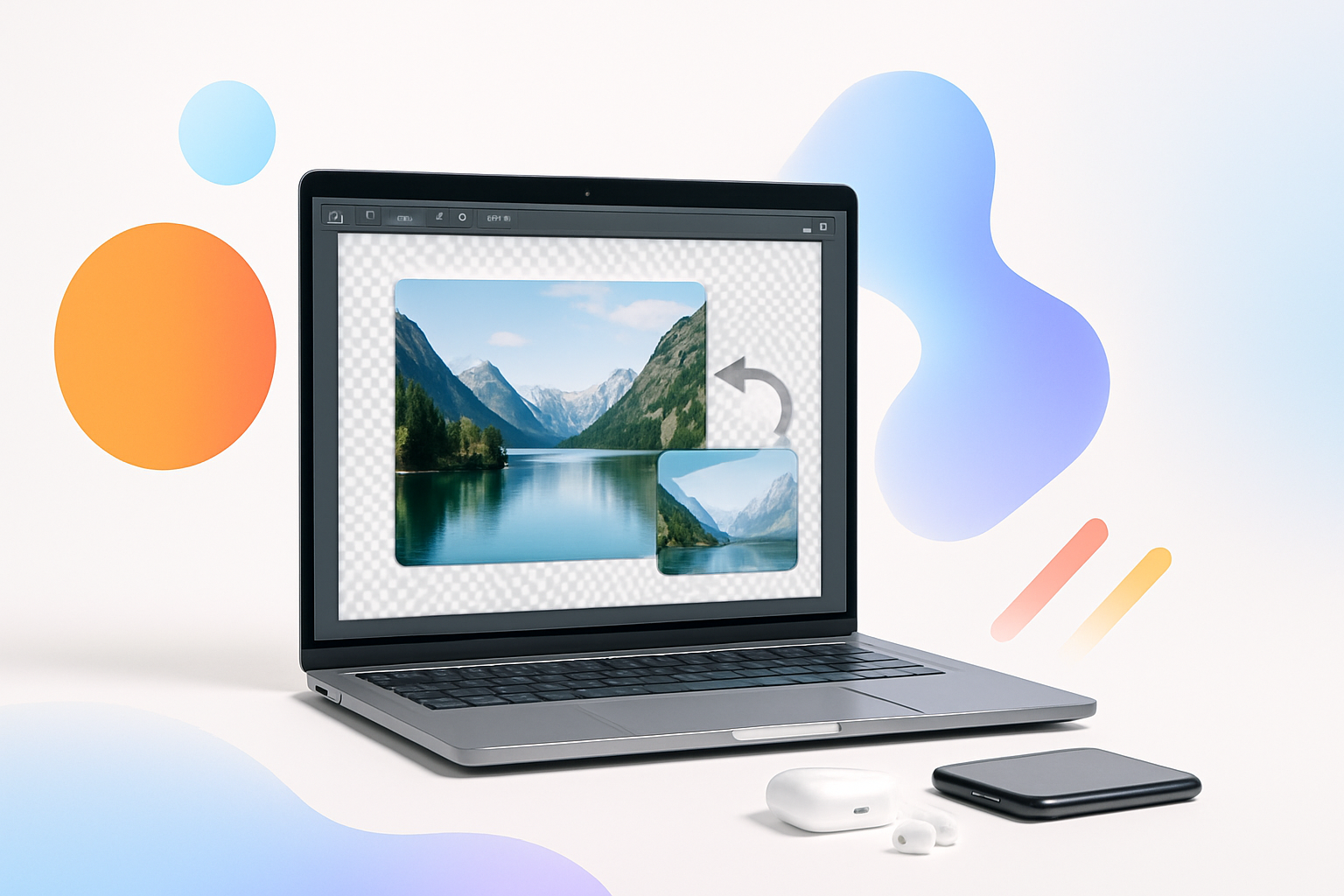
Why Remove Image Backgrounds? The Power of Clean Visuals
Picture this: you’ve taken the perfect photo of a product for your online store, but there’s a cluttered room in the background. Or maybe you want to create a professional headshot but your living room doesn’t exactly scream “corporate excellence.” Learning how to remove background from image free tools can transform amateur photos into polished, professional visuals.
Background removal isn’t just for graphic designers anymore. Small business owners, content creators, students, and everyday users need this skill for everything from social media posts to presentations. The good news? You don’t need expensive software or years of training to master it.
Modern free tools have made background removal surprisingly accessible, though each method comes with its own strengths and limitations. Some excel at simple, clean cuts around people, while others handle complex edges like hair or fur better.
Free Online Tools That Actually Work
The internet is flooded with background removal tools, but quality varies dramatically. Here are the standout performers that consistently deliver professional results without charging a penny.
Remove.bg: The Gold Standard
Remove.bg has earned its reputation as the go-to solution for automatic background removal. Their AI technology excels at detecting human subjects and creates remarkably clean cuts around hair, clothing, and accessories.
Best for: People, portraits, and simple objects
Free limit: Full resolution downloads for images under 0.25 megapixels
Processing time: 5 seconds or less
The tool requires zero technical knowledge. Simply upload your image, and the AI handles everything automatically. For most portrait work, the results are immediately usable without additional editing.
Canva Background Remover
Canva’s background removal feature integrates seamlessly into their design platform, making it perfect for users who plan to incorporate their images into broader design projects.
Best for: Images destined for social media, presentations, or marketing materials
Free limit: Available with free Canva account
Bonus: Immediate access to design templates and editing tools
PhotoRoom
PhotoRoom focuses specifically on product photography and e-commerce needs. Their AI understands the nuances of photographed objects and creates clean, commercial-quality cutouts.
Best for: Products, objects, and e-commerce photography
Free limit: Multiple images per day with watermark
Special feature: Instant background replacement options
Step-by-Step: Removing Backgrounds Like a Pro
Regardless of which tool you choose, following a systematic approach ensures better results and saves time on revisions.
- Choose the right source image: High contrast between subject and background produces cleaner results. Avoid busy backgrounds with colors similar to your main subject.
- Prepare your image: Ensure your photo is well-lit and in focus. Blurry edges confuse AI algorithms and result in choppy cutouts.
- Upload and process: Most tools work automatically, but some offer manual adjustment tools for fine-tuning problem areas.
- Review the results: Zoom in to check edge quality, especially around hair, fur, or transparent materials like glass.
- Download in the correct format: PNG files preserve transparency, while JPEG files will add a white background.
Advanced Techniques Using Free Software
Online tools excel at speed and simplicity, but sometimes you need more control. Free desktop software offers advanced features for complex projects.
GIMP: Professional Power at Zero Cost
GIMP (GNU Image Manipulation Program) rivals expensive software like Photoshop in functionality. Its selection tools provide surgical precision for challenging background removal tasks.
Key tools to master:
- Fuzzy Select Tool: Perfect for removing solid-colored backgrounds
- Path Tool: Creates smooth, curved selections around organic shapes
- Layer Masks: Non-destructive editing that preserves your original image
The learning curve is steeper than online tools, but GIMP handles complex scenarios like removing backgrounds from images with similar colors throughout.
Paint.NET: Windows Users’ Secret Weapon
Paint.NET strikes an excellent balance between simplicity and power. Its magic wand and selection tools make background removal straightforward for Windows users.
The software supports plugins that extend functionality, including specialized background removal tools that rival commercial options.
Mobile Solutions: Background Removal in Your Pocket
Smartphone apps have revolutionized on-the-go editing, bringing professional background removal capabilities to mobile devices.
Adobe Photoshop Express
Adobe’s mobile offering includes a capable background removal tool that works surprisingly well for quick edits. The app integrates with Adobe’s cloud services, making it easy to continue editing on desktop later.
Background Eraser Apps
Dedicated background removal apps like “Background Eraser” and “Ultimate Background Eraser” focus specifically on this task. They offer both automatic and manual tools, giving users flexibility based on image complexity.
These apps excel at batch processing multiple images with similar backgrounds, saving significant time for users with many photos to edit.
Common Mistakes That Ruin Your Results
Even with powerful tools, certain mistakes can turn professional-quality images into obvious amateur edits.
Ignoring Edge Quality
The difference between amateur and professional background removal lies in the edges. Harsh, pixelated borders immediately reveal digital manipulation. Always zoom in to inspect edge quality before finalizing your edit.
Forgetting About Lighting Consistency
When placing your subject on a new background, lighting direction and intensity must match. A subject lit from the left looks unnatural on a background lit from the right.
Choosing Inappropriate File Formats
JPEG files don’t support transparency, so your “removed” background becomes white instead of transparent. Always save background-removed images as PNG files to maintain transparency.
Professional Tips for Better Results
Small adjustments in technique can dramatically improve your background removal results, regardless of which tool you’re using.
Photography Setup Matters
The best background removal starts with the original photograph. Shooting subjects against solid, contrasting backgrounds makes removal easier and more accurate. Green screens aren’t necessary—any solid color that contrasts with your subject works well.
Understanding Hair and Fur Challenges
Hair, fur, and other fine details present the biggest challenge in background removal. Modern AI tools handle these better than ever, but complex hairstyles or wispy hair may require manual touch-up in more advanced software.
Working with Transparent and Reflective Objects
Glass, water, and other transparent materials require special attention. These objects interact with their backgrounds in complex ways that simple removal tools can’t handle automatically. Consider whether removing the background enhances or detracts from these subjects.
Choosing the Right Tool for Your Needs
Your choice of background removal method depends on several factors: image complexity, quality requirements, volume of work, and technical comfort level.
| Use Case | Best Tool | Why |
| Quick social media edits | Remove.bg or Canva | Speed and simplicity |
| E-commerce product photos | PhotoRoom | Commerce-focused features |
| Complex, detailed work | GIMP | Advanced selection tools |
| Mobile editing | Photoshop Express | Professional mobile tools |
Beyond Basic Removal: Creative Applications
Background removal opens doors to creative possibilities beyond simple cleanup work. Consider these advanced applications once you’ve mastered the basics.
Composite Photography: Combine subjects from multiple photos to create impossible scenes or perfect group shots where everyone actually looks good.
Product Mockups: Place products in lifestyle settings or on branded backgrounds for marketing materials without expensive photo shoots.
Creative Portraits: Experiment with artistic backgrounds, textures, or even transparent overlays to create unique portrait styles.
Mastering free background removal tools empowers you to create professional-quality visuals without breaking the budget. Whether you’re building an online business, creating content, or just having fun with photography, these techniques will elevate your visual game significantly. Start with the simpler online tools to build confidence, then graduate to more advanced software as your needs become more sophisticated.
