

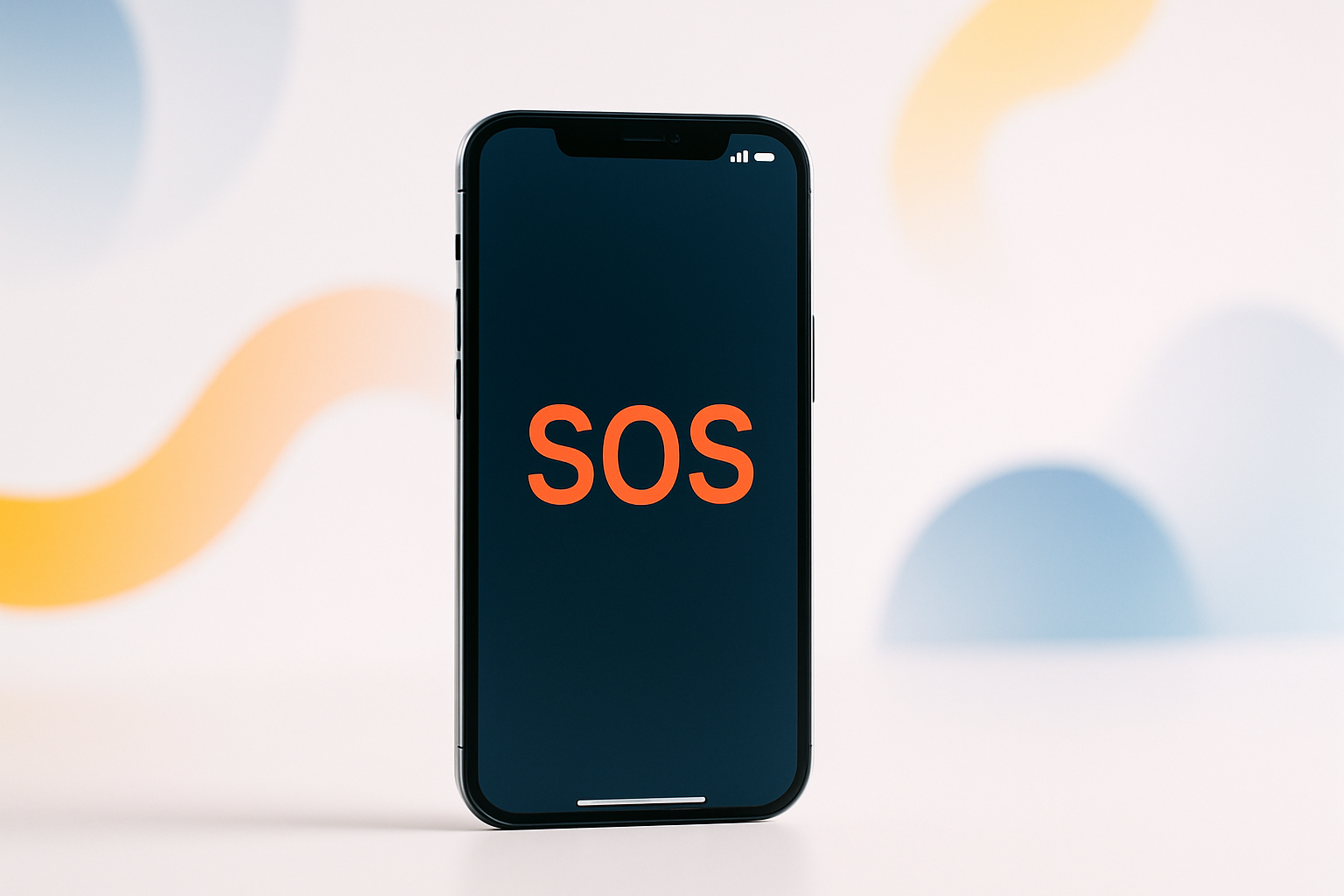
When Your Phone Displays SOS: What’s Really Happening
Seeing “SOS” appear where your carrier name usually sits can be alarming. Many people wonder why does my phone say SOS and whether it means their device is broken or compromised. The reality is much simpler—and often more reassuring—than you might think.
The SOS indicator appears when your phone loses connection to your regular cellular network but can still access emergency services through other available networks. This built-in safety feature ensures you can always call for help, even when your primary carrier isn’t accessible.
Understanding this feature helps you respond appropriately and know when you should—or shouldn’t—be concerned about your phone’s connectivity.
The Science Behind Emergency Network Access
Modern smartphones are designed with a critical safety protocol that prioritizes emergency communication above all else. When your device can’t connect to your carrier’s towers, it automatically searches for any available cellular network that can handle emergency calls.
This system works because cellular carriers are legally required to process emergency calls from any device, regardless of whether that device is their customer. Your iPhone or Android phone takes advantage of this requirement by switching to “emergency only” mode when necessary.
The SOS display serves as a clear visual indicator that while you can’t make regular calls or use data, the emergency calling function remains active and reliable.
Common Reasons Why Your Phone Shows SOS
Several factors can trigger the SOS mode on your device. Identifying the cause helps you determine the best solution.
Network Coverage Issues
Poor signal strength in your location is the most frequent culprit. This happens when:
- You’re in a remote area with limited tower coverage
- Geographic features like mountains or valleys block signals
- Building materials interfere with reception indoors
- Weather conditions disrupt cellular transmission
Rural areas and underground locations are particularly prone to triggering SOS mode due to sparse tower infrastructure.
Carrier Network Problems
Sometimes the issue isn’t your location but your carrier’s network itself. Temporary outages, maintenance work, or technical difficulties can leave your phone searching for alternative emergency networks.
These situations typically resolve themselves once your carrier restores normal service in your area.
SIM Card Complications
A damaged, improperly inserted, or deactivated SIM card prevents your phone from authenticating with your carrier’s network. When this happens, the device defaults to emergency-only mode.
SIM cards can also become corrupted due to age, physical damage, or software conflicts, leading to the same result.
Account and Payment Issues
Suspended service due to non-payment or account problems can trigger SOS mode. Your carrier may restrict regular service while maintaining emergency access as required by law.
This scenario is more common than many realize and often catches users off guard when automatic payments fail or accounts have billing disputes.
Step-by-Step Troubleshooting Guide
When your phone displays SOS, try these solutions in order, checking after each step to see if normal service returns.
Quick Fixes to Try First
- Toggle Airplane Mode: Turn airplane mode on, wait 30 seconds, then turn it off to force your phone to reconnect
- Restart Your Device: A simple reboot often resolves temporary network glitches
- Check for Carrier Updates: Install any pending carrier settings updates in your phone’s settings
- Move to Different Location: Walk outside or to a higher floor to test if location affects signal strength
Advanced Troubleshooting Steps
If basic fixes don’t work, try these more thorough solutions:
- Remove and Reinsert SIM Card: Power off your phone, carefully remove the SIM card, inspect it for damage, and reinsert it properly
- Reset Network Settings: This clears saved Wi-Fi passwords and cellular settings, forcing your phone to establish fresh connections
- Check Account Status: Log into your carrier’s website or app to verify your account is active and payments are current
- Contact Your Carrier: Report the issue to check for area outages or account-specific problems
iPhone vs Android: Platform-Specific Considerations
Both iPhone and Android devices handle emergency networks similarly, but each platform has unique characteristics worth understanding.
iPhone Emergency Features
iPhones display “SOS” in the status bar and may show “Emergency SOS” in certain situations. Apple’s implementation includes:
- Automatic emergency calling when triggered by specific button combinations
- Location sharing with emergency contacts
- Integration with Medical ID information
iPhone users should be aware that accidentally triggering Emergency SOS can result in unwanted emergency calls.
Android Emergency Protocols
Android devices typically show “Emergency calls only” or similar text. Google’s system offers:
- Emergency information accessible from the lock screen
- Integration with location services for emergency responders
- Compatibility with various carrier emergency protocols
The exact display and features vary depending on your Android version and device manufacturer.
When SOS Mode Becomes a Safety Feature
Rather than viewing SOS as purely problematic, consider scenarios where this feature provides genuine value and peace of mind.
During natural disasters, your carrier’s towers might fail while other networks remain operational. The automatic switching to emergency mode ensures you can still reach help when you need it most.
Travelers in remote areas benefit significantly from this feature. Even when your home carrier has no coverage, emergency services remain accessible through local networks.
Parents often find comfort knowing their children’s phones will maintain emergency capabilities even if they forget to pay a bill or experience account issues.
Prevention and Long-term Solutions
While you can’t prevent all instances of SOS mode, several strategies minimize its occurrence and duration.
Optimize Your Phone’s Settings
Enable automatic carrier updates and keep your device’s software current. These updates often include improvements to network connectivity and emergency protocols.
Consider enabling Wi-Fi calling if your carrier supports it. This feature allows your phone to use Wi-Fi networks for calls when cellular coverage is poor.
Monitor Your Account Proactively
Set up account alerts for payment due dates and service issues. Staying ahead of billing problems prevents service interruptions that trigger emergency-only mode.
Regular account monitoring also helps you identify patterns in service issues that might indicate you need a different carrier or plan.
Understanding the Bigger Picture
The SOS feature represents a crucial intersection of technology, regulation, and public safety. Telecommunications authorities worldwide mandate this capability because reliable emergency access saves lives.
Your phone’s ability to switch networks seamlessly demonstrates sophisticated engineering designed to prioritize your safety over commercial considerations. This system works even when carriers compete aggressively in other areas.
Rather than panicking when you see SOS on your phone, you can appreciate that your device is working exactly as designed—ensuring you’re never completely cut off from emergency help.
Most SOS situations resolve quickly through simple troubleshooting or by waiting for normal service to resume. Understanding why your phone displays this message empowers you to respond appropriately and maintain confidence in your device’s reliability when it matters most.
