

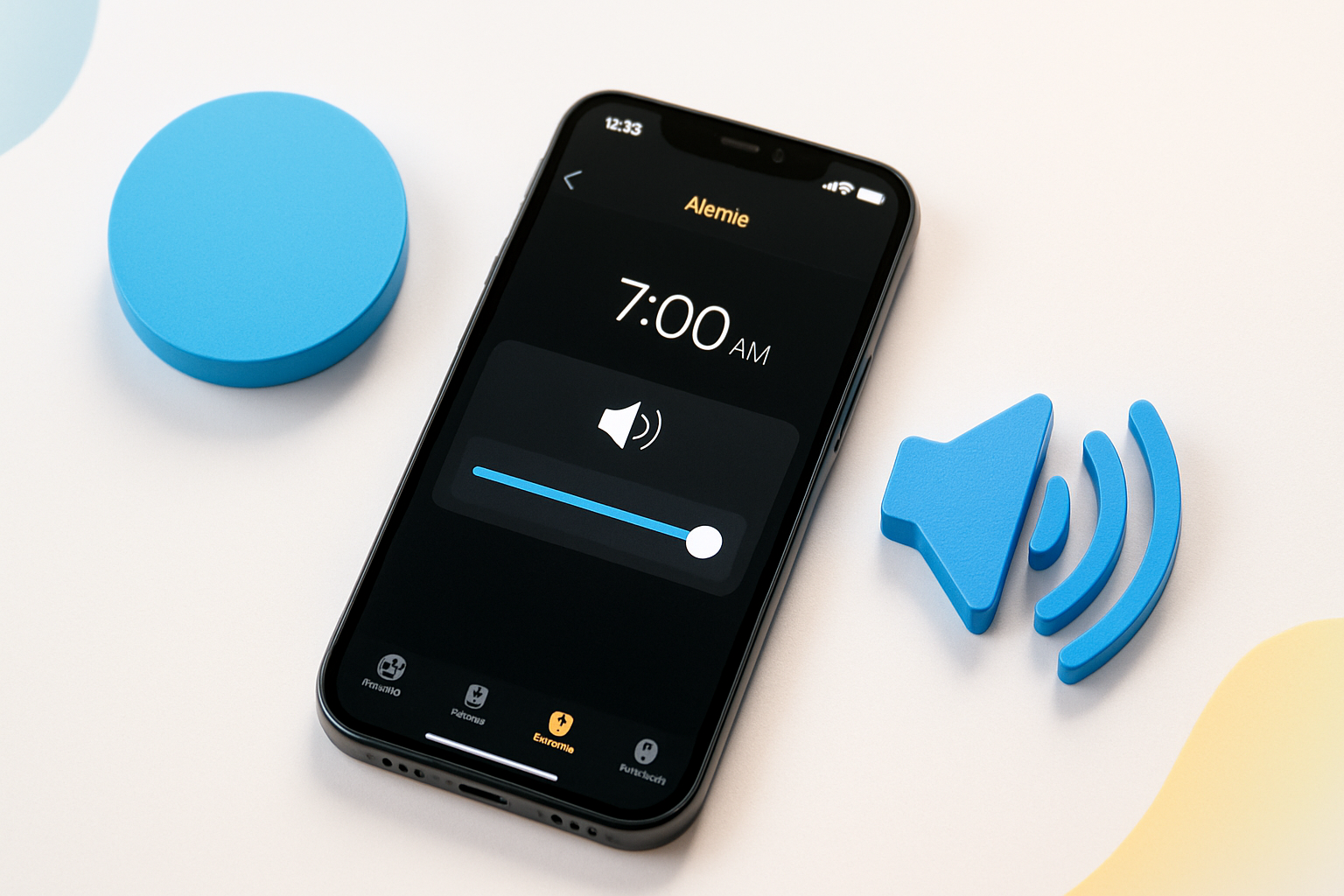
Why Your iPhone Alarm Keeps Failing You at the Worst Possible Times
Nothing ruins a morning quite like oversleeping because your iPhone alarm was barely audible. You’re not imagining things—iPhone alarm volume issues are more common than Apple would like to admit, and they’ve caught millions of users off guard at the most inconvenient moments.
The frustrating reality is that your iPhone’s alarm volume operates differently from your regular ringer and media volume, creating confusion that leads to missed meetings, late arrivals, and stressed-out mornings. Understanding how these volume controls interact can save you from future alarm failures.
Several factors influence whether your iPhone alarm will actually wake you up, from hidden settings buried deep in your phone’s menus to hardware issues that develop over time. Let’s explore what’s really happening behind the scenes and how to ensure your alarm never lets you down again.
The Hidden Truth About iPhone Alarm Volume Controls
Your iPhone actually manages multiple volume systems simultaneously, and they don’t always work the way you’d expect. The alarm volume is tied to your ringer volume, not your media volume—a design choice that confuses even longtime iPhone users.
When you adjust volume using the side buttons while music or videos are playing, you’re changing media volume. But your alarm will completely ignore this setting. Instead, it relies on the ringer volume, which you can only adjust when no media is playing or through the Settings app.
This separation means you could have your media volume cranked up to maximum while your ringer (and alarm) volume sits at barely audible levels. The result? Your iPhone plays music loudly but whispers your morning alarm.
The Settings That Actually Matter
Two critical settings control your alarm’s loudness, and both are easy to overlook:
- Ringer and Alerts volume – Found in Settings > Sounds & Haptics
- “Change with Buttons” toggle – Also in Sounds & Haptics
The “Change with Buttons” setting creates the most confusion. When enabled, your volume buttons adjust ringer volume only when no media is playing. When disabled, the buttons only control media volume, leaving your ringer volume stuck at whatever level you last set.
Why Your Alarm Volume Seems to Change by Itself
Many iPhone users swear their alarm volume changes randomly, but there’s usually a logical explanation lurking beneath the surface.
The most common culprit is the “Change with Buttons” setting. If it’s enabled and you adjust volume while listening to music, you’re not affecting your alarm volume at all. Later, when you test the alarm volume, it seems mysteriously lower than expected.
Focus modes and Do Not Disturb can also interfere with alarm volume perception. While these modes don’t technically reduce alarm volume, they can affect other audio cues that help you gauge volume levels throughout the day.
Software Updates and Volume Behavior
iOS updates occasionally reset audio preferences or introduce new volume behaviors. After major updates, it’s worth double-checking your alarm volume settings, as some users report their carefully configured volume levels reverting to defaults.
Third-party apps can sometimes interfere with system volume controls, especially apps that manage audio or control external devices. If you notice sudden changes in alarm behavior, consider whether you’ve recently installed new audio-related apps.
Step-by-Step Guide to Fixing iPhone Alarm Volume Issues
Follow these steps in order to diagnose and resolve most alarm volume problems:
- Check your ringer volume – Go to Settings > Sounds & Haptics and adjust the “Ringer and Alerts” slider to maximum
- Test immediately – Don’t wait until tomorrow morning. Set a test alarm for two minutes from now
- Verify the “Change with Buttons” setting – Toggle it on if you want volume buttons to control ringer volume when no media is playing
- Restart your iPhone – This resolves temporary software glitches affecting volume controls
- Check for iOS updates – Install any pending updates that might fix known audio bugs
If these steps don’t resolve the issue, you might be dealing with hardware problems or more complex software conflicts that require additional troubleshooting.
Advanced Solutions for Persistent Problems
When basic fixes don’t work, try these more advanced approaches:
Reset All Settings
Go to Settings > General > Transfer or Reset iPhone > Reset > Reset All Settings. This won’t delete your data but will reset all volume preferences, network settings, and other system configurations to defaults. You’ll need to reconfigure Wi-Fi passwords and other preferences afterward.
Check for Hearing Protection Limits
Your iPhone includes hearing protection features that can limit maximum volume. Navigate to Settings > Sounds & Haptics > Headphone Safety and ensure these limits aren’t affecting your alarm volume.
Inspect Hardware Components
Physical damage to speakers or volume buttons can cause inconsistent alarm behavior. If your iPhone has been dropped or exposed to moisture, hardware issues might be preventing proper volume control.
Choosing the Right Alarm Tone Makes a Difference
Some iPhone alarm tones are simply more effective at waking people up, regardless of volume level. The default tones vary significantly in their frequency ranges and patterns.
“Radar” and “Beacon” use sharp, penetrating sounds that cut through sleep more effectively than gentler tones like “Silk” or “Slow Rise.” If you’re a heavy sleeper, choosing the right tone matters as much as volume level.
Custom alarm tones from your music library can be problematic if they start quietly or have low-frequency bass that doesn’t translate well through iPhone speakers. Stick with built-in alarm tones for reliability.
Creating a Foolproof Morning Routine
Beyond fixing iPhone alarm volume issues, consider building redundancy into your wake-up routine:
- Set multiple alarms spaced 5-10 minutes apart
- Use both iPhone alarms and a backup alarm clock
- Place your iPhone across the room so you must get up to turn it off
- Enable bedtime mode to establish consistent sleep schedules
Smart home devices like HomePod or Alexa can provide additional backup alarms that don’t rely on your iPhone’s volume settings.
When to Contact Apple Support
If you’ve tried all troubleshooting steps and your iPhone alarm volume still behaves unpredictably, you might have a hardware defect covered by warranty.
Document the issue by recording videos of your volume settings and alarm behavior. Apple Support can run remote diagnostics to identify hardware problems that aren’t obvious through normal troubleshooting.
Persistent alarm volume problems on newer iPhones are often covered under warranty, especially if other users report similar issues with your specific iPhone model.
Taking Control of Your Wake-Up Call
iPhone alarm volume problems don’t have to derail your mornings anymore. By understanding how iOS manages different volume types and implementing the solutions outlined above, you can ensure your alarm reliably cuts through sleep when you need it most.
The key is recognizing that alarm volume operates independently from media volume and taking proactive steps to configure both properly. Regular testing and redundant backup systems provide extra insurance against oversleeping due to technical glitches.
Your iPhone should work for you, not against you. With these fixes in place, you can trust your alarm to deliver that crucial wake-up call every single morning.
