

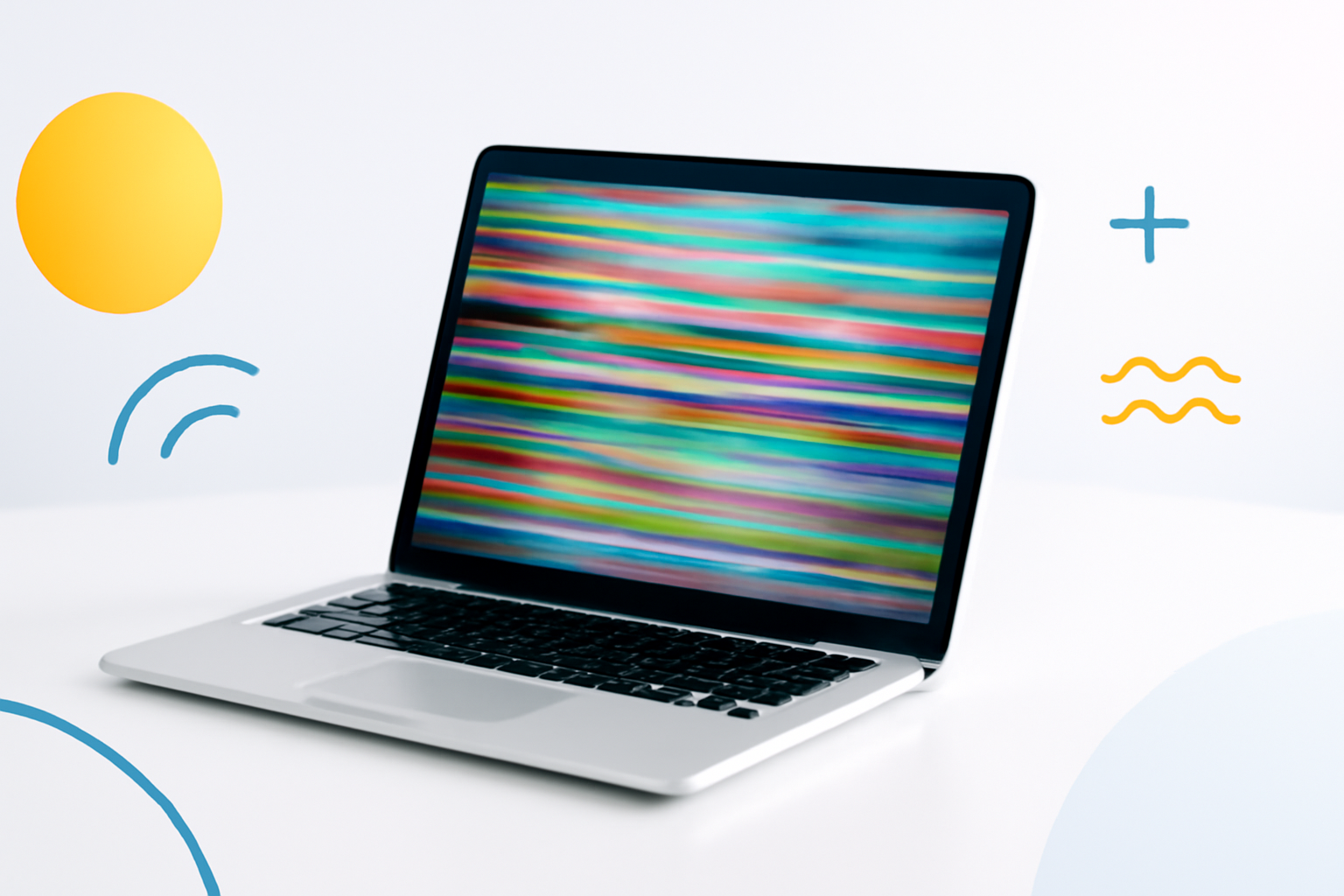
Why Your Laptop Screen Is Flickering (And What You Can Actually Do About It)
A flickering laptop screen is one of those problems that starts annoying and quickly becomes unbearable. Whether it’s a subtle strobe effect or full-on flashing every few seconds, it disrupts your focus and makes you wonder if the whole machine is about to die. Spoiler: it’s usually not that dramatic.
Most cases of laptop screen flickering come down to a handful of causes — software conflicts, outdated drivers, loose hardware connections, or a failing display panel. The good news is that the majority of these are fixable without sending your laptop off for repairs or spending money you don’t need to.
This walkthrough covers everything from the quick five-second checks to the more involved fixes, so you can stop guessing and actually solve the problem.
Start Here: The 60-Second Diagnosis
Before touching any settings, you need to figure out whether the flickering is a software issue or a hardware one. Here’s a simple trick that narrows it down fast.
Open Task Manager (Ctrl + Shift + Esc on Windows). Watch your screen while Task Manager is open.
- If Task Manager flickers too — the problem is likely a driver issue or hardware fault.
- If Task Manager stays steady while the rest of the screen flickers — a specific app or software conflict is the culprit.
This one test tells you which direction to head. Keep that result in mind as you work through the fixes below.
How to Fix a Laptop Screen Flickering: Software Fixes First
Software-related causes are far more common than people expect, and they’re almost always easier to fix. Always start here before opening up your laptop or calling a technician.
1. Update or Roll Back Your Display Driver
A corrupted or outdated graphics driver is probably the most common reason laptop screens start flickering out of nowhere — especially after a Windows update.
- Right-click the Start button and select Device Manager.
- Expand Display Adapters and right-click your graphics card.
- Select Update driver, then choose to search automatically for updated drivers.
If the problem started after a recent update, try rolling back instead:
- In Device Manager, right-click your display adapter.
- Click Properties → Driver tab → Roll Back Driver.
If Roll Back Driver is greyed out, you’ll need to manually download an older driver version from your laptop manufacturer’s website (Dell, HP, Lenovo, ASUS, etc.) and install it directly.
2. Check for Problematic Apps Running in the Background
Remember the Task Manager test? If the flickering was isolated to everything except Task Manager, a background application is likely fighting with your display.
Common culprits include:
- iCloud for Windows
- Norton antivirus
- IDT audio software
- Certain screensavers or desktop customization tools
Try disabling startup programs one by one. Go to Task Manager → Startup tab, disable anything non-essential, and restart your laptop. If the flickering stops, re-enable apps individually until you find the offender.
3. Adjust the Screen Refresh Rate
An incorrect refresh rate can cause visible flickering, especially on external monitors or older panels. Windows sometimes resets this after updates.
- Right-click the desktop and choose Display Settings.
- Scroll down and click Advanced display settings.
- Under Refresh rate, make sure it’s set to the highest available option (typically 60Hz for most laptops, 120Hz or 144Hz for gaming models).
If you’re running a laptop with an external monitor, make sure the cable and the monitor both support the refresh rate you’re trying to use.
4. Disable Hardware Acceleration
Hardware acceleration pushes more visual processing to your GPU, which sounds great in theory. But when the GPU driver has issues, this can trigger flickering in browsers, video apps, and streaming services.
In Google Chrome: Settings → System → toggle off “Use hardware acceleration when available.”
In Firefox: Settings → General → Performance → uncheck “Use recommended performance settings” → uncheck “Use hardware acceleration.”
Restart the app afterward. If the flickering disappears inside those apps, you’ve found your fix.
5. Run a Clean Boot
A clean boot starts Windows with only essential drivers and services running. It’s the most thorough way to isolate software conflicts without reinstalling your OS.
- Press Win + R, type msconfig, and hit Enter.
- Under the General tab, select Selective startup and uncheck “Load startup items.”
- Go to the Services tab, check “Hide all Microsoft services,” then click Disable all.
- Restart your laptop.
If the flickering stops in a clean boot environment, something in your normal startup sequence is causing it. Re-enable services in batches to track it down.
Hardware Fixes When Software Isn’t the Issue
If your screen flickers even during BIOS startup, safe mode, or when the laptop is nearly idle with minimal software running — the problem is almost certainly hardware-related.
6. Check the Display Cable Connection
Inside your laptop, a thin ribbon cable connects the screen to the motherboard. Over time — especially on laptops that get opened and closed thousands of times — this cable can loosen or develop small tears.
Signs of a loose or damaged display cable include flickering that gets worse when you adjust the screen angle or gently press on the hinge area.
If you’re comfortable with basic disassembly, you can open the back panel (many YouTube teardown guides exist for specific laptop models), locate the cable, and reseat it. If reseating doesn’t help, replacing the cable is usually inexpensive — often under $15 for the part.
Not comfortable opening your laptop? A local repair shop can do this for relatively little cost, and it’s worth getting a quote before assuming you need a new screen.
7. Test With an External Monitor
Plug your laptop into an external display using HDMI or DisplayPort. If the external monitor shows a stable picture while the laptop screen still flickers, the problem is almost definitely isolated to the display panel, cable, or hinge area — not the GPU.
If both screens flicker simultaneously, the graphics card itself could be failing or overheating.
8. Check for Overheating
GPUs and CPUs under thermal stress can behave erratically, and one symptom is display instability. Dust buildup in the vents is a very common cause.
Use a can of compressed air to blow out the vents. Download a temperature monitoring tool like HWMonitor or MSI Afterburner to check your GPU temp during regular use. Anything consistently above 90°C is a red flag.
9. Inspect the Screen for Physical Damage
Sometimes the issue is the panel itself — particularly if you’ve dropped the laptop or applied pressure to the lid. Look for these signs:
- Flickering only in one area of the screen
- Discoloration or dark spots near the edges
- Visible lines running across the display
- Flickering that changes based on screen angle
A failing backlight can also cause the screen to flicker or appear very dim. If everything looks washed out and barely visible, the backlight or its inverter (on older CCFL displays) may need replacing.
Quick Comparison: Software vs. Hardware Flickering
| Symptom | More Likely Cause | Where to Start |
| Flickering only in specific apps | Software / driver conflict | Disable hardware acceleration, update drivers |
| Task Manager also flickers | Driver or hardware issue | Driver reinstall, hardware inspection |
| Flickering changes with screen angle | Loose display cable | Reseat or replace the cable |
| Flickering starts during boot (pre-Windows) | Hardware (panel, cable, or GPU) | External monitor test, hardware repair |
| Both screen and external monitor flicker | GPU overheating or failure | Check temps, clean vents, test GPU |
When to Consider a Screen Replacement
If you’ve worked through every fix above and the flickering persists, and an external monitor works fine, it’s reasonable to conclude the display panel itself is failing.
Replacement screens for most laptops range from $40 to $150 depending on resolution, size, and panel type (IPS vs. TN vs. OLED). DIY replacement is very doable for many models — iFixit has detailed guides for hundreds of machines. Professional installation typically adds $50–$100 in labor.
Weigh the cost against the laptop’s overall age and condition. If it’s a three-year-old mid-range machine, a $100 screen replacement usually makes sense. If it’s a seven-year-old budget laptop, it might be the nudge you needed to upgrade.
Preventing Screen Flickering From Coming Back
Once you’ve fixed the problem, a few habits will help keep it from returning:
- Keep display drivers updated through your manufacturer’s support page, not just Windows Update
- Clean your laptop vents every six months with compressed air
- Avoid closing the lid too forcefully — it stresses the hinge and the cable over time
- Don’t run the laptop on a bed or pillow that blocks airflow
- Use a cooling pad if you regularly do GPU-intensive work
Getting Your Screen Back to Normal
Fixing a laptop screen flickering issue almost always comes down to methodical troubleshooting. Start with the Task Manager test to narrow down software versus hardware, work through driver and app fixes first, then move on to physical inspection if needed. Most people find the solution somewhere in the software layer — a stale driver, a conflicting app, or a refresh rate set to the wrong value.
The cases that require actual hardware work are less common but very fixable, often for less money than you’d expect. Either way, you don’t have to live with a flashing screen — and now you know exactly where to start.
