

Setting Up iMessage on Your iPhone
Getting iMessage working on your iPhone should be straightforward, but sometimes it requires a few specific steps to activate properly. The blue bubble messaging service comes built into every iPhone, yet many users find themselves stuck with green SMS messages when they expected the enhanced iMessage experience.
The good news is that enabling iMessage typically takes just a few taps in your Settings app. However, there are several factors that can prevent activation, from network issues to Apple ID problems. Let’s walk through exactly how to get your iMessage up and running.
How to Enable iMessage: The Basic Steps
Before diving into troubleshooting, start with these fundamental steps to activate iMessage on your device:
- Open the Settings app on your iPhone
- Scroll down and tap Messages
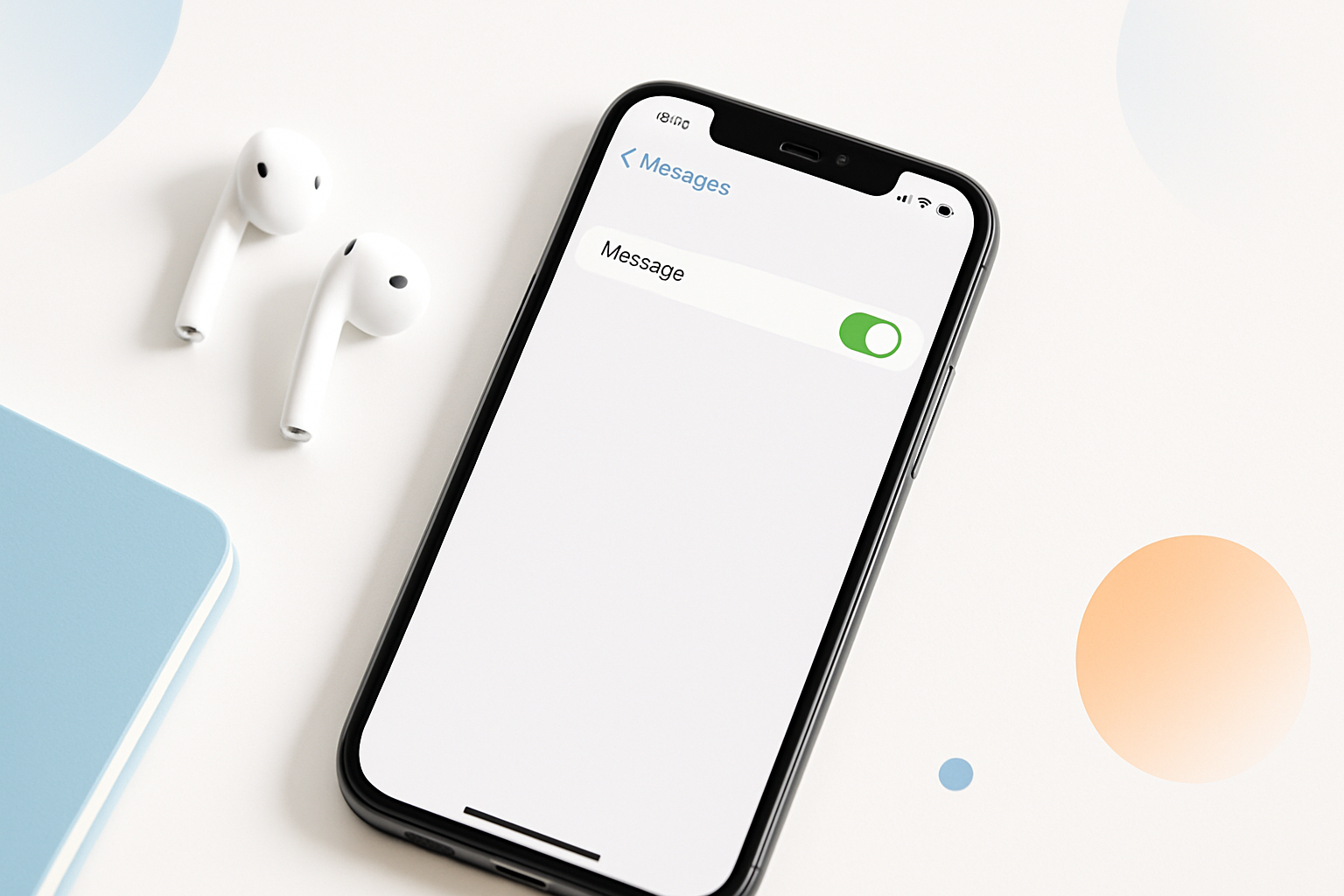
- Toggle the iMessage switch to the on position (it should turn green)
- Wait for activation, which can take a few minutes
You’ll see “Waiting for activation” appear below the toggle switch. This process connects your phone number and Apple ID to Apple’s messaging servers. Once complete, you should see your phone number and email addresses listed under “Send & Receive.”
Checking Your Prerequisites
Several requirements must be met before iMessage will work properly. Missing any of these can prevent successful activation:
Internet Connection
iMessage requires either Wi-Fi or cellular data to function. Unlike traditional SMS, these messages travel through Apple’s servers rather than your carrier’s text messaging system. Test your connection by opening Safari or another internet-dependent app.
Apple ID Setup
You need to be signed into your Apple ID for iMessage to work with email addresses. While your phone number can work without an Apple ID, having one signed in provides the full iMessage experience across all your Apple devices.
To verify your Apple ID status:
- Go to Settings → tap your name at the top
- If you see “Sign in to your iPhone” instead of your name, you need to sign in
- Enter your Apple ID credentials if prompted
Carrier Support
Most major carriers support iMessage activation, but some smaller or international carriers may have restrictions. Contact your carrier if you suspect network-level blocking.
Configuring Send and Receive Settings
After basic activation, you’ll want to configure which addresses can send and receive iMessages on your behalf. This step is crucial for seamless messaging across your Apple devices.
In the Messages settings, tap Send & Receive. Here you’ll see:
- Your phone number (usually selected by default)
- Email addresses associated with your Apple ID
- Option to add additional email addresses
Select all addresses you want to use for iMessage. The address listed under “Start new conversations from” determines what recipients see when you message them for the first time.
When iMessage Won’t Activate
Activation failures happen more often than they should. Here are the most effective solutions when the basic steps don’t work:
Force Restart Your iPhone
A simple restart can resolve temporary glitches preventing activation:
- iPhone 8 and later: Press and release volume up, press and release volume down, then hold the side button until the Apple logo appears
- iPhone 7 series: Hold volume down and side button simultaneously
- iPhone 6s and earlier: Hold home button and top/side button together
Reset Network Settings
Network configuration problems can block iMessage activation. Resetting these settings often resolves stubborn cases:
- Go to Settings → General → Transfer or Reset iPhone
- Tap Reset → Reset Network Settings
- Enter your passcode and confirm
- Your phone will restart and forget all Wi-Fi passwords
After the restart, reconnect to Wi-Fi and try enabling iMessage again.
Check Date and Time Settings
Incorrect date and time can prevent proper server communication. Ensure your iPhone is set to update automatically:
- Settings → General → Date & Time
- Enable Set Automatically
Setting Up iMessage on Mac
Once working on your iPhone, you can extend iMessage to your Mac for seamless conversation continuity:
- Open the Messages app on your Mac
- Go to Messages → Preferences in the menu bar
- Click the iMessage tab
- Sign in with the same Apple ID used on your iPhone
- Select which email addresses and phone numbers to enable
Your iPhone and Mac will sync conversation history, allowing you to start a conversation on one device and continue on another.
Enabling iMessage on iPad
iPads can use iMessage through Wi-Fi, even without cellular service:
- Open Settings → Messages
- Toggle iMessage on
- Sign in with your Apple ID when prompted
- Configure send and receive addresses
Note that iPad iMessage works only with email addresses, not phone numbers, unless you enable text message forwarding from your iPhone.
Understanding Common Error Messages
Several error messages can appear during activation. Here’s what they mean and how to fix them:
| Error Message | Common Cause | Solution |
| “Waiting for activation” | Normal during setup | Wait up to 24 hours |
| “An error occurred during activation” | Network or server issue | Try again later, check connection |
| “Could not sign in” | Apple ID problem | Verify credentials, reset password |
Privacy and Security Considerations
iMessage includes several privacy features you should understand and configure:
End-to-end encryption protects your messages from interception, but only works when all participants use iMessage. Mixed conversations with Android users fall back to unencrypted SMS.
Read receipts let others know when you’ve read their messages. You can disable this in Messages settings if you prefer privacy.
Message filtering can separate known and unknown senders, reducing spam and unwanted messages.
Maximizing Your iMessage Experience
Once you’ve successfully enabled iMessage, several features enhance your messaging experience beyond basic texting.
Digital Touch and handwritten messages add personal flair to conversations. Voice messages record and send automatically when you lift your finger. Message effects like invisible ink or celebration animations make conversations more engaging.
Group messaging works seamlessly with other iMessage users, allowing you to name group chats, add or remove participants, and share media without SMS limitations.
The integration with other Apple services means you can easily share photos from your library, your current location, or even your screen during conversations.
Getting iMessage working properly transforms your iPhone’s messaging capabilities from basic texting to a rich communication platform. While activation usually happens automatically, knowing how to troubleshoot common issues ensures you won’t miss out on this enhanced messaging experience. Take a few minutes to configure your settings properly, and you’ll enjoy seamless messaging across all your Apple devices.
