

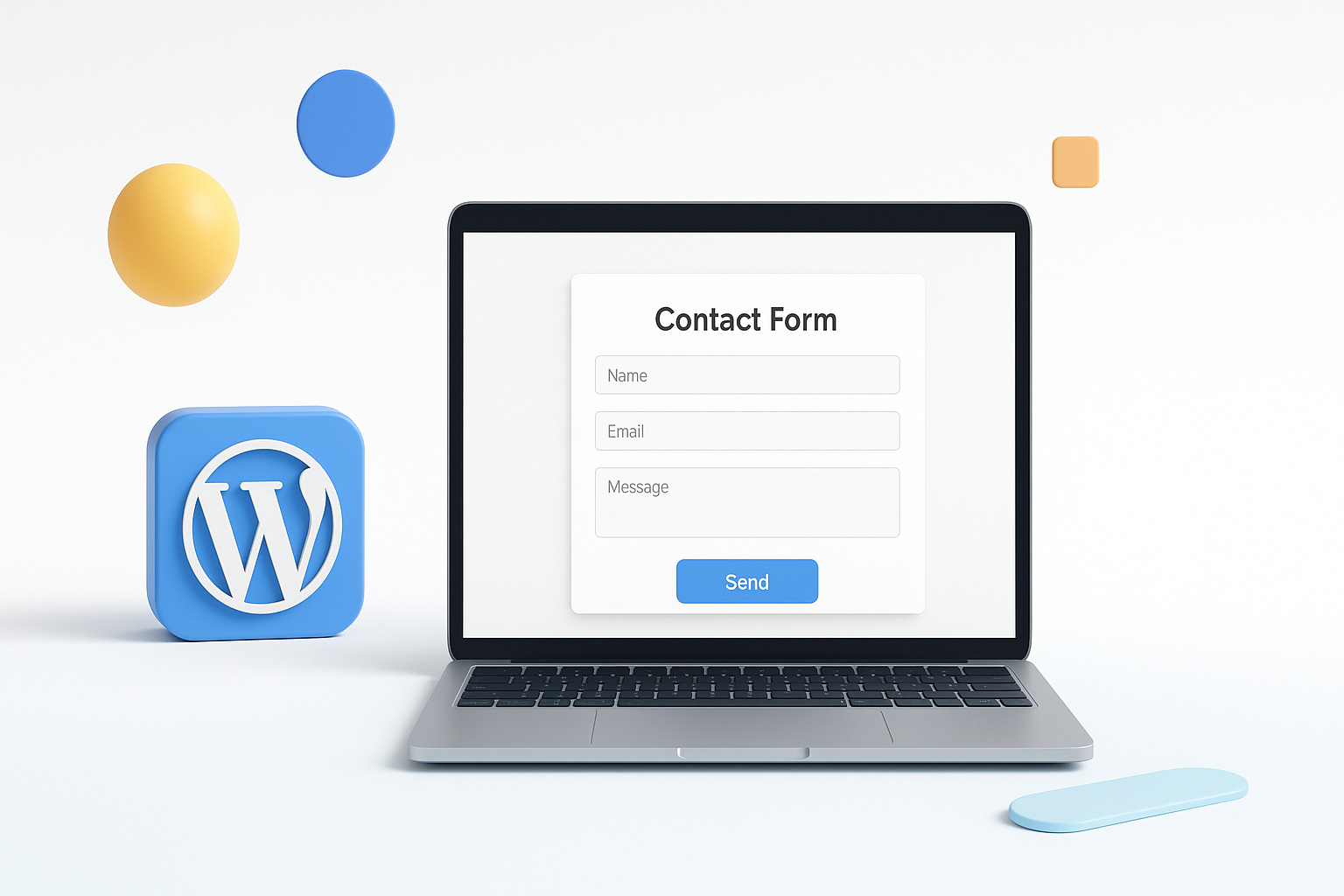
Why Your WordPress Site Needs a Contact Form Right Now
Every successful website needs a bridge between visitors and owners. That bridge? A well-designed contact form. If you’re wondering how to add a contact form to WordPress, you’re making a smart move that could transform how people connect with your business or blog.
Contact forms do more than collect messages. They filter spam, organize inquiries, and create a professional impression that builds trust with your audience. Unlike displaying your email address publicly (which attracts spam bots), contact forms keep your communication secure while making it easy for genuine visitors to reach you.
The good news? Adding a contact form to your WordPress site doesn’t require coding skills or technical expertise. Let’s explore the most effective methods that work for beginners and experienced users alike.
Method 1: Using Contact Form Plugins
WordPress plugins offer the easiest path to adding contact forms. These tools provide drag-and-drop builders, spam protection, and customization options that would take hours to code manually.
WPForms: The User-Friendly Choice
WPForms stands out for its intuitive interface and powerful features. Here’s how to set it up:
- Install WPForms from your WordPress dashboard by going to Plugins > Add New
- Search for “WPForms” and click Install Now
- Activate the plugin and complete the welcome wizard
- Navigate to WPForms > Add New to create your first form
- Choose from pre-built templates or start with a simple contact form
- Customize fields by dragging them from the left panel to your form
- Configure notification settings to receive emails when forms are submitted
- Save your form and copy the provided shortcode
The free version includes essential features like basic fields, email notifications, and spam protection. Premium versions unlock advanced functionality like payment integration and conditional logic.
Contact Form 7: The Flexible Option
Contact Form 7 powers over five million WordPress sites. While it requires more setup than WPForms, it offers incredible flexibility for custom requirements.
After installing Contact Form 7, you’ll find a new menu item in your dashboard. The plugin generates shortcodes for each form you create, which you can embed anywhere on your site. The interface might seem technical at first, but the documentation is comprehensive and community support is excellent.
Gravity Forms: The Professional Solution
For complex forms with advanced features, Gravity Forms delivers enterprise-level functionality. It excels at multi-page forms, conditional logic, and integrations with CRM systems and email marketing tools.
While Gravity Forms requires a paid license, the investment pays off for businesses that need sophisticated data collection and processing capabilities.
Method 2: How to Add a Contact Form to WordPress Using Block Editor
WordPress’s built-in block editor includes a native contact form block that works without additional plugins. This method suits users who want simplicity without extra software.
To use the native contact form block:
- Open the page or post where you want the form
- Click the “+” button to add a new block
- Search for “Contact Form” in the block library
- Select the Contact Form block
- Customize the form fields using the block settings panel
- Configure the email address where submissions should be sent
- Publish or update your page
The native block offers basic functionality including name, email, website, and message fields. While it lacks advanced features like spam filtering or custom styling options, it’s perfect for simple contact needs.
Customizing Your Contact Form Design
A contact form should match your website’s design and brand identity. Most form plugins provide styling options, but you might want additional customization.
Consider these design elements:
- Color scheme: Match your form colors to your website theme
- Typography: Use consistent fonts and sizes
- Field layout: Arrange fields logically and minimize required information
- Button design: Make your submit button prominent and clickable
- Mobile responsiveness: Ensure forms work perfectly on smartphones and tablets
Many themes include contact form styling, but custom CSS can fine-tune the appearance. If you’re not comfortable with CSS, most premium form plugins include pre-designed templates that look professional out of the box.
Essential Contact Form Fields to Include
The best contact forms balance information gathering with user convenience. Too many fields discourage submissions, while too few might not provide enough context for meaningful responses.
Standard fields for most contact forms include:
- Name: First name only, or separate first/last name fields
- Email address: Essential for responses
- Subject line: Helps categorize inquiries
- Message: The main content area
Additional fields might include phone numbers, company names, or specific inquiry types, depending on your needs. Remember that every additional field reduces completion rates, so only ask for information you’ll actually use.
Protecting Your Forms from Spam
Spam submissions can quickly overwhelm your inbox and waste valuable time. Implementing protection measures keeps your contact forms functional and efficient.
Popular spam protection methods include:
- reCAPTCHA: Google’s system that verifies human users
- Honeypot fields: Hidden fields that trap spam bots
- Akismet integration: WordPress’s built-in spam filtering service
- Custom validation rules: Requirements like minimum message lengths
Most modern form plugins include spam protection features. Enable multiple protection layers for maximum effectiveness without creating barriers for legitimate users.
Setting Up Form Notifications and Management
Receiving and organizing form submissions requires proper notification setup. Configure your forms to send immediate email alerts when new messages arrive.
Best practices for form management:
- Set up notifications to multiple email addresses for backup
- Create auto-response messages that acknowledge submissions
- Store submissions in your WordPress database as backup
- Set up forwarding rules in your email client for organization
- Regularly test your forms to ensure they’re working correctly
Some plugins offer advanced management features like submission logs, export capabilities, and integration with customer relationship management systems.
Testing Your Contact Form
A contact form that doesn’t work properly defeats its purpose entirely. Regular testing ensures your forms function correctly and provide good user experiences.
Test these aspects regularly:
- Submit test messages from different devices and browsers
- Verify that email notifications arrive promptly
- Check that auto-response messages work correctly
- Confirm that spam protection doesn’t block legitimate submissions
- Test mobile responsiveness on various screen sizes
- Validate that required fields work properly
Schedule monthly testing sessions to catch problems before they affect real visitors. Keep test accounts separate from your main email to avoid confusion.
Common Contact Form Mistakes to Avoid
Even well-intentioned contact forms can drive away potential customers or leads. Avoid these common pitfalls:
Asking for too much information: Long forms intimidate users and reduce completion rates. Stick to essential fields only.
Poor mobile optimization: More than half of web traffic comes from mobile devices. Forms that don’t work well on smartphones lose potential contacts.
Weak spam protection: Inadequate filtering leads to inbox clutter and wasted time sorting through fake submissions.
Confusing field labels: Unclear instructions frustrate users and increase abandonment rates.
Missing confirmation messages: Users need feedback that their messages were sent successfully.
Maximizing Contact Form Effectiveness
Strategic placement and optimization can significantly increase form submission rates. Consider where your forms appear and how you present them to visitors.
High-performing contact form locations include:
- Dedicated contact pages with clear navigation
- Footer areas on every page
- About pages where visitors learn about your business
- Service or product pages where interest peaks
- Blog post conclusions for content-driven inquiries
Adding contact forms to WordPress opens direct communication channels that can transform website visitors into customers, clients, or engaged community members. Whether you choose a plugin solution or the native WordPress block, the key lies in keeping forms simple, functional, and aligned with your audience’s needs.
Start with basic functionality and gradually add features as your requirements grow. Most importantly, maintain your forms regularly and respond promptly to submissions. A well-implemented contact form becomes one of your website’s most valuable assets for building relationships and growing your online presence.
