

HDMI vs DisplayPort: Which Cable Actually Belongs Behind Your Setup?
You’re setting up a new monitor, a gaming PC, or a home theater system — and suddenly you’re staring at the back of your device wondering which port to use. Both HDMI and DisplayPort cables look similar at first glance, both carry video and audio, and both get the job done. So why do they even both exist?
The honest answer is that they were built for different worlds. HDMI came from consumer electronics. DisplayPort came from the PC industry. Over time, both evolved, overlapped, and now coexist in ways that genuinely confuse people. This breakdown will help you understand the real differences — and more importantly, which one you should actually use for your situation.
The Core Difference Between HDMI and DisplayPort
At the most basic level, HDMI (High-Definition Multimedia Interface) was designed for home entertainment — TVs, Blu-ray players, soundbars, and gaming consoles. DisplayPort was developed by VESA (Video Electronics Standards Association) specifically for computer monitors and professional displays.
That origin matters because it shaped what each standard prioritizes. HDMI leans heavily toward audio capabilities and broad device compatibility. DisplayPort leans toward high refresh rates, multi-monitor support, and raw display performance.
Neither is universally better. But one might be significantly better for you, depending on your setup.
Version History: Why “HDMI” and “DisplayPort” Aren’t Single Things
A common mistake is treating these as static standards. Both have gone through major revisions, and the version you’re using matters enormously.
HDMI Versions Worth Knowing
- HDMI 1.4 — Supports up to 4K at 30Hz. Common on older TVs and budget monitors.
- HDMI 2.0 — Bumps 4K to 60Hz. Widely used in mid-range hardware from 2016 onward.
- HDMI 2.1 — The current flagship. Supports 4K at 144Hz, 8K at 60Hz, and up to 48Gbps bandwidth. Essential for modern gaming consoles and high-end TVs.
DisplayPort Versions Worth Knowing
- DisplayPort 1.2 — Supports 4K at 60Hz. Still very common on monitors and GPUs.
- DisplayPort 1.4 — Adds DSC (Display Stream Compression) and supports 4K at 120Hz or 8K at 60Hz with compression.
- DisplayPort 2.1 — The latest standard. Delivers up to 80Gbps bandwidth, comfortably handling 4K at 240Hz or even 16K with compression.
The takeaway: a DisplayPort 1.4 cable will outperform an HDMI 2.0 cable in most PC gaming scenarios, but HDMI 2.1 and DisplayPort 2.1 are now competitive with each other at the top end.
Bandwidth and Refresh Rate: Where It Gets Real
If you’re a gamer or content creator, bandwidth is everything. Higher bandwidth means you can push higher resolutions and faster refresh rates simultaneously.
| Standard | Max Bandwidth | Max Resolution @ 60Hz | Max Refresh (1080p) |
| HDMI 2.0 | 18 Gbps | 4K | 240Hz |
| HDMI 2.1 | 48 Gbps | 10K | 240Hz+ |
| DisplayPort 1.4 | 32.4 Gbps | 8K (compressed) | 240Hz+ |
| DisplayPort 2.1 | 80 Gbps | 16K (compressed) | 240Hz+ (4K) |
For competitive gaming at 1080p or 1440p with high refresh rates, DisplayPort 1.4 has historically been the go-to. For 4K HDR gaming on a console or TV, HDMI 2.1 is often your only real option — since most TVs don’t even have DisplayPort inputs.
Audio Capabilities: HDMI Has the Edge Here
If you’re routing audio through your display cable, HDMI wins almost every round. It supports a broader range of audio formats out of the box.
- HDMI supports Dolby Atmos, DTS:X, and up to 32 audio channels
- HDMI carries ARC (Audio Return Channel) and eARC for sending audio back to a soundbar or AV receiver
- DisplayPort supports multi-channel audio but lacks ARC entirely
For a home theater setup where audio quality matters and you want everything connected to one cable, HDMI is the clear winner. For a PC monitor where you’re using headphones or a USB DAC, the audio difference becomes largely irrelevant.
Multi-Monitor Support: DisplayPort’s Secret Weapon
Here’s where DisplayPort genuinely shines in ways HDMI simply can’t match: daisy-chaining.
Using a feature called Multi-Stream Transport (MST), a single DisplayPort connection can drive multiple monitors in a chain — one cable from your GPU to the first monitor, and then another cable from that monitor to the next. No need for a separate cable running back to your GPU for each display.
HDMI has no equivalent to this. If you want three monitors with HDMI, you need three separate HDMI outputs from your GPU (or a hub, which adds latency and limitations).
For dual or triple monitor workstations, DisplayPort is simply the more elegant and capable solution.
Adaptive Sync: FreeSync and G-Sync Considerations
Adaptive sync technology — which eliminates screen tearing by syncing your monitor’s refresh rate to your GPU’s frame output — works over both connections, but with some nuance.
- NVIDIA G-Sync originally required DisplayPort. Most G-Sync Compatible monitors now also support it over HDMI, but full G-Sync (with dedicated hardware) still typically uses DisplayPort.
- AMD FreeSync works over both HDMI and DisplayPort on most modern monitors.
- HDMI Forum VRR (Variable Refresh Rate) was introduced with HDMI 2.1, enabling VRR on TVs — which is why PS5 and Xbox Series X support it natively.
For PC gaming, DisplayPort is still the safer bet for adaptive sync. For console gaming on a TV, HDMI 2.1 with VRR is what you want.
Connector Types: The Physical Side
Both standards come in multiple physical connector sizes, which adds another layer of confusion.
HDMI Connectors
- Standard HDMI (Type A) — The full-size connector you see on TVs and monitors
- Mini HDMI (Type C) — Found on some cameras and tablets
- Micro HDMI (Type D) — Used on smartphones and ultra-slim devices
DisplayPort Connectors
- Standard DisplayPort — Common on desktop GPUs and monitors
- Mini DisplayPort — Found on older MacBooks and some compact GPUs
- USB-C with DisplayPort Alt Mode — Increasingly common on laptops and modern monitors
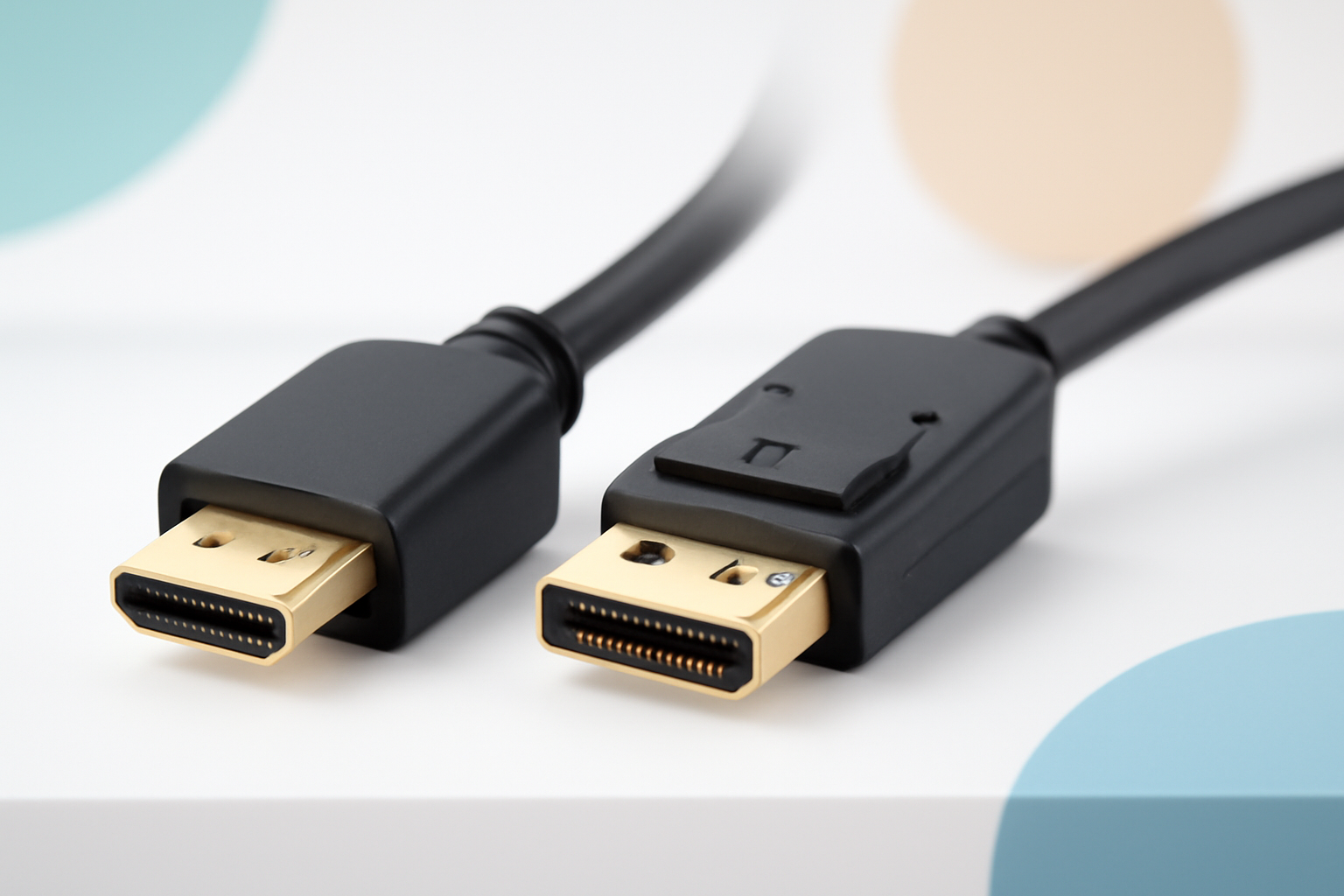
One physical advantage of DisplayPort: the connector has a locking latch that clicks in and holds the cable securely. HDMI connectors can work loose over time, especially if the cable gets bumped. It’s a small thing, but if you’re constantly moving equipment, it matters.
Which One Should You Actually Use?
The right choice depends entirely on your hardware and what you’re trying to do. Here’s a practical breakdown:
Use HDMI if you are:
- Connecting a PlayStation 5, Xbox Series X, or any gaming console to a TV
- Using a smart TV that only has HDMI inputs (which is almost all of them)
- Running an AV receiver or soundbar setup that relies on ARC/eARC
- Connecting a streaming device, Blu-ray player, or set-top box
Use DisplayPort if you are:
- Gaming on a PC with a high refresh rate monitor (144Hz, 165Hz, 240Hz)
- Running multiple monitors from a single GPU
- Using a professional monitor for color-accurate work
- Connecting a monitor that supports G-Sync or advanced adaptive sync features
If your monitor and GPU both have DisplayPort 1.4 or higher, that’s almost always the better choice for PC use. If you’re working with a TV, HDMI is usually your only option anyway — and with HDMI 2.1, it’s a genuinely excellent one.
What About USB-C and Thunderbolt?
Modern laptops increasingly skip both traditional connectors entirely and rely on USB-C — which can carry DisplayPort signals via Alt Mode. Thunderbolt 3 and 4 ports also support DisplayPort natively.
This doesn’t replace DisplayPort or HDMI, but it does mean that a single USB-C cable can handle power delivery, data, and video simultaneously. If you’re buying a new monitor for a laptop-based setup, look for USB-C connectivity with DisplayPort Alt Mode support. It simplifies everything.
The Bottom Line
Understanding the difference between HDMI and DisplayPort comes down to knowing where each standard came from and what it was optimized for. HDMI dominates the living room and consumer electronics ecosystem. DisplayPort dominates the PC desktop and professional monitor space.
The good news is that for most everyday use cases — a 1080p or 1440p monitor, a home TV, a gaming setup — either will work fine with current hardware. The differences only become critical at the high end: extreme refresh rates, multi-monitor daisy chaining, or advanced audio routing.
When in doubt, check what version your hardware actually supports. A cable is only as good as the ports on either end of it. An HDMI 2.1 cable plugged into an HDMI 2.0 port still operates at HDMI 2.0 speeds. Knowing your versions is more important than picking a “winning” standard.
