

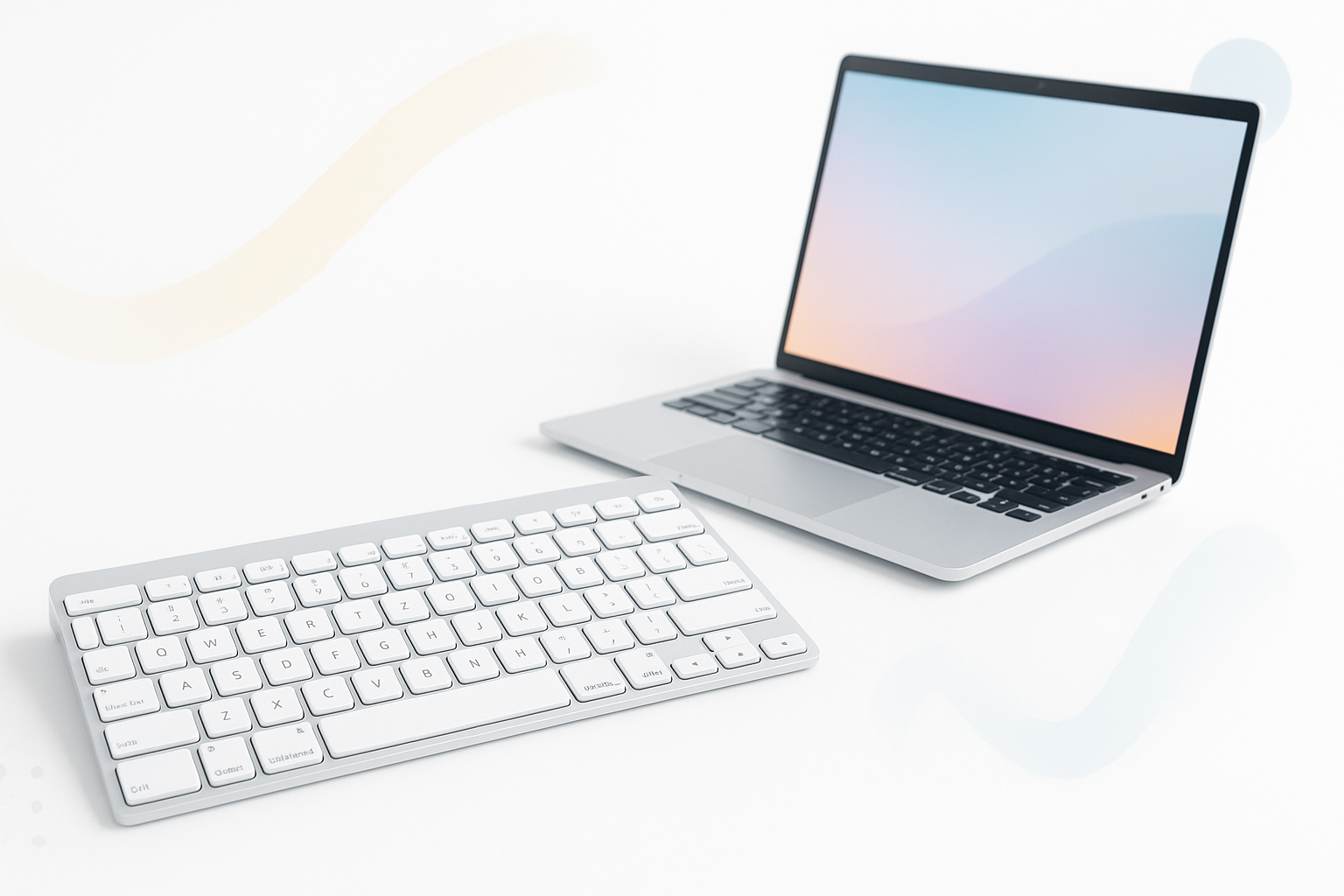
Why Your Mac Deserves a Better Keyboard Experience
Apple’s built-in keyboards work fine, but they’re not always the most comfortable option for extended typing sessions. Whether you’re dealing with the shallow key travel on newer MacBooks or simply want more flexibility in your workspace setup, finding the best wireless keyboard for Mac can transform your daily computing experience.
The right wireless keyboard gives you freedom to position yourself comfortably, reduces desk clutter, and often provides superior tactile feedback compared to built-in options. But with dozens of models claiming Mac compatibility, choosing the right one requires understanding what actually matters for macOS users.
What Makes a Keyboard Perfect for Mac Users
Not all wireless keyboards play nicely with macOS. The best options share several key characteristics that ensure seamless integration with your Apple ecosystem.
Native macOS Function Keys
Skip keyboards that require third-party software to access Mission Control, Launchpad, or brightness controls. Look for models with dedicated Mac function keys that work immediately after pairing.
Reliable Bluetooth Connectivity
Cheap Bluetooth implementations cause frustrating lag and dropped connections. Quality keyboards maintain stable connections even when switching between multiple paired devices.
Extended Battery Life
The best wireless keyboards for Mac offer months of use on a single charge or battery change. Rechargeable models with USB-C charging align perfectly with modern Mac setups.
Key Layout Compatibility
Windows-focused keyboards often place the Fn and Ctrl keys in awkward positions for Mac users. Proper Mac keyboards respect the Command-Option-Control layout that feels natural to macOS users.
Top Wireless Keyboards That Excel with Mac
After testing numerous options across different price ranges and use cases, these keyboards consistently deliver exceptional Mac experiences.
Apple Magic Keyboard
Apple’s own wireless keyboard remains the gold standard for Mac integration. The scissor-switch keys provide excellent tactile feedback without excessive noise, making it perfect for shared workspaces.
The built-in Lightning port charges quickly and provides months of battery life. Every function key works exactly as expected, and the low-profile design matches perfectly with modern iMacs and MacBooks.
Best for: Users who prioritize seamless integration and don’t mind paying premium pricing
Logitech MX Keys for Mac
This premium option offers the best typing experience for heavy Mac users. The spherically-dished keys match your fingertip curves, reducing fatigue during long writing sessions. Smart illumination automatically adjusts to ambient lighting conditions.
The standout feature is Easy-Switch technology, allowing instant switching between three paired devices with dedicated buttons. Perfect for users juggling a Mac, iPad, and iPhone throughout their workday.
Best for: Professional users who type extensively and use multiple Apple devices
Keychron K2
Mechanical keyboard enthusiasts finally have a proper Mac option. The Keychron K2 offers genuine mechanical switches in a compact 75% layout that doesn’t waste desk space.
What sets it apart is the Mac-specific keycap set and switch positions for Command, Option, and function keys. You get the satisfying click of mechanical switches without sacrificing Mac functionality.
Best for: Gamers, programmers, and anyone who loves mechanical switch feedback
Brydge 10.9 Max+
Designed specifically for iPad users, this keyboard transforms your tablet into a laptop-like experience. The backlit keys and multi-device connectivity make it versatile enough for Mac use as well.
The magnetic hinge design works flawlessly with compatible iPad models, while Bluetooth connectivity lets you pair it with your MacBook or iMac when needed.
Best for: iPad-focused users who occasionally need full Mac connectivity
Key Features That Actually Matter
Marketing materials love highlighting flashy features that sound impressive but rarely impact daily use. Focus on these practical elements instead.
Key Travel Distance
Shallow keys cause finger fatigue and increase typos. Look for keyboards with 2-4mm of key travel for comfortable extended typing.
Connection Stability
Test any keyboard’s Bluetooth reliability before committing. Dropped connections during important work sessions create unnecessary frustration.
Charging Method
USB-C charging aligns with modern Mac accessories and eliminates the need for proprietary cables. Some models still use micro-USB, which adds cable clutter to your setup.
Multi-Device Support
If you use multiple Apple devices, keyboards that remember pairings for iPhone, iPad, and Mac save significant time during device switches.
Common Mac Keyboard Problems to Avoid
Many wireless keyboards look Mac-compatible but create daily annoyances that weren’t apparent during initial testing.
Windows Key Layout Issues
Keyboards designed for Windows PCs often put function keys in confusing positions. You’ll constantly hit the wrong buttons when trying to adjust volume or brightness.
Lag and Input Delays
Budget wireless keyboards frequently suffer from noticeable input lag that makes typing feel sluggish. This becomes especially obvious during fast typing or gaming.
Inconsistent Function Key Behavior
Some keyboards require holding Fn to access media controls, reversing the expected Mac behavior. Others need third-party software that breaks with macOS updates.
Poor Battery Optimization
Keyboards without proper power management drain batteries quickly or enter sleep modes that cause the first few keystrokes to be missed.
Setup Tips for Optimal Performance
Getting the most from your wireless Mac keyboard requires proper configuration and positioning.
Bluetooth Pairing Best Practices
- Clear previous pairings before connecting to your Mac
- Ensure the keyboard is fully charged during initial setup
- Keep other Bluetooth devices away during pairing process
- Test all function keys immediately after successful connection
Ergonomic Positioning
Position your wireless keyboard so your wrists remain straight while typing. Your elbows should form roughly 90-degree angles, with your forearms parallel to the floor.
macOS Keyboard Settings
Navigate to System Preferences > Keyboard to customize key repeat rates and function key behavior. Most wireless keyboards work better with “Use F1, F2, etc. keys as standard function keys” disabled.
Price vs Performance Reality Check
Expensive doesn’t always mean better, especially for basic typing needs. A $300 gaming keyboard might offer impressive features but provide no advantage for document editing compared to a well-designed $80 option.
Consider your actual usage patterns. Writers benefit from comfortable key travel and quiet switches. Programmers might prefer tactile feedback and macro programming. Casual users often find mid-range options perfectly adequate for their needs.
The sweet spot for most Mac users falls between $60-120, where you get reliable Bluetooth, decent build quality, and proper Mac integration without paying for unnecessary premium features.
Making Your Final Choice
The best wireless keyboard for Mac depends entirely on how you actually use your computer. Apple’s Magic Keyboard remains the safest choice for guaranteed compatibility, while mechanical options like the Keychron K2 serve users who demand tactile feedback.
Consider your workspace setup, typing volume, and budget constraints. A keyboard you’ll use for several hours daily deserves more investment than one used occasionally for basic tasks.
Whatever you choose, prioritize Mac-specific features over flashy extras. The right wireless keyboard should disappear into your workflow, letting you focus on your actual work rather than fighting with connectivity issues or awkward key layouts.
