

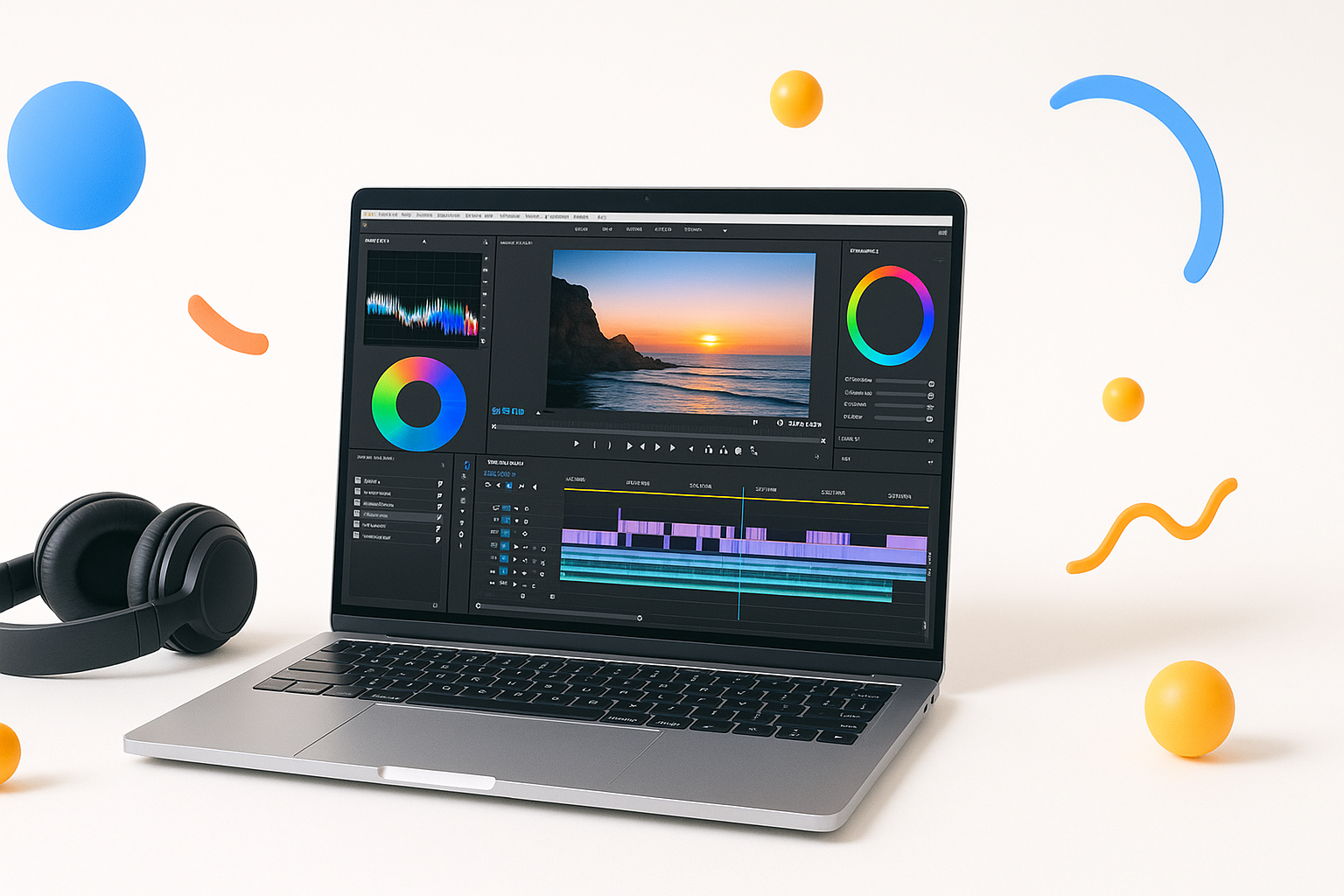
Why Free Video Editing Software Actually Works for New Creators
Starting your video editing journey doesn’t require emptying your wallet on expensive software. The best video editing software for beginners free options available today rival many premium programs from just a few years ago. You’ll find powerful tools that can handle everything from YouTube vlogs to Instagram reels without costing a penny.
Free doesn’t mean basic anymore. Modern free editors pack professional features like multi-track editing, color correction, and special effects that would have cost hundreds of dollars in the past. The catch? You’ll need to know which ones are worth downloading.
DaVinci Resolve: Hollywood Power at Zero Cost
DaVinci Resolve stands as the most powerful free video editor available. Blackmagic Design gives away software that professional colorists use on major films. The free version includes advanced color grading, audio post-production, and visual effects.
What makes it special:
- Professional color correction tools
- Built-in audio editing suite
- Motion graphics capabilities
- 4K editing support
- No watermarks or time limits
The learning curve feels steep initially, but DaVinci Resolve grows with your skills. Start with basic cuts and transitions, then explore advanced features as you improve. The investment in learning pays off because many professionals use this exact software.
Best for: Creators planning to develop serious video skills and those interested in color grading.
OpenShot: Simplicity That Actually Works
OpenShot prioritizes ease of use without sacrificing essential features. This open-source editor provides drag-and-drop functionality that feels intuitive from day one. The interface won’t overwhelm beginners, yet it handles complex projects smoothly.
Key features include unlimited tracks, 3D animations, and slow-motion effects. The timeline editing feels responsive, and the preview window updates quickly even on older computers. OpenShot supports most video formats without requiring additional codecs.
Standout features:
- Cross-platform compatibility (Windows, Mac, Linux)
- Real-time preview
- Advanced audio editing
- Title templates and effects
- Export to multiple formats
Best for: Complete beginners who want to start editing immediately without tutorials.
Shotcut: The Swiss Army Knife of Free Editors
Shotcut offers extensive format support and professional features wrapped in a customizable interface. This editor handles everything from webcam footage to 4K recordings without breaking a sweat. The modular interface lets you arrange panels to match your workflow.
The software includes advanced features like chroma key (green screen), audio filters, and speed ramping. Shotcut’s strength lies in its flexibility – you can configure the workspace exactly how you want it. The extensive filter library covers most effects beginners need.
Recent updates improved performance significantly, making timeline scrubbing smoother and rendering faster. The active community contributes regular tutorials and resources.
Best for: Users who want customization options and plan to work with various video formats.
Lightworks: Professional Features with Free Access
Lightworks brings decades of professional editing experience to the free software space. Oscar-winning films have been edited with this software. The free version provides robust editing tools with some export limitations.
The interface mirrors professional editing suites, which helps if you plan to upgrade to paid software later. Lightworks excels at precise trimming and advanced editing techniques. The real-time effects preview helps you see changes instantly.
Limitations to consider:
- Free exports limited to 720p
- Fewer export format options
- Steeper learning curve
Best for: Beginners serious about learning professional editing techniques.
VSDC Free Video Editor: Feature-Rich with Some Trade-offs
VSDC packs an impressive feature set into its free version, including motion tracking, video stabilization, and advanced effects. The non-linear editor supports multiple formats and provides detailed control over every aspect of your project.
The software includes useful tools like a screen recorder and video converter alongside the main editor. VSDC handles complex compositions well, making it suitable for creators experimenting with advanced techniques.
The interface can feel cluttered initially, but customization options help streamline the workspace. Performance varies depending on your computer’s specifications.
Best for: Creators who need advanced features like motion tracking without paying for premium software.
Choosing Your First Free Video Editor
Your choice depends on your specific needs and comfort level with technology. Consider these factors when selecting the best video editing software for beginners free option:
Start with your content type:
- YouTube videos: OpenShot or Shotcut
- Social media clips: VSDC or OpenShot
- Learning professional skills: DaVinci Resolve or Lightworks
- Quick family videos: OpenShot
Consider your computer specs: DaVinci Resolve requires more processing power, while OpenShot runs well on older machines. Check system requirements before downloading.
Think about export needs: If you need 4K output, avoid Lightworks free. For web content, all options work well.
Getting Started Without Frustration
Every editor has a learning period. Expect to feel overwhelmed initially – this happens to everyone. Start with simple projects like combining clips and adding background music before attempting complex effects.
YouTube tutorials exist for all these programs. Search for beginner guides specific to your chosen editor. Many creators share their complete workflows, showing exactly how they create finished videos.
Practice with footage you don’t care about. Import random clips and experiment with cuts, transitions, and effects. This exploration builds familiarity without pressure to create perfect content immediately.
Making Your Free Editor Work Like a Pro Tool
Organization matters more than fancy effects. Create a consistent folder structure for your projects. Name your clips descriptively, and use bins or folders within your editor to sort footage.
Learn keyboard shortcuts early. Every professional editor relies on shortcuts for speed. Start with basic ones like play/pause and cutting tools, then gradually add more.
Export settings confuse many beginners. For most web content, H.264 format at 1080p resolution works perfectly. Match your frame rate to your source footage (usually 24fps, 30fps, or 60fps).
Free software can produce professional results when used skillfully. The limitation isn’t the tools – it’s learning to use them effectively. Focus on storytelling and smooth cuts before worrying about flashy transitions or complex effects.
These free editors provide everything needed to create engaging content. Pick one that matches your current skill level and content goals, then commit to learning it thoroughly. Your first choice doesn’t have to be permanent – you can always switch as your needs evolve.
