

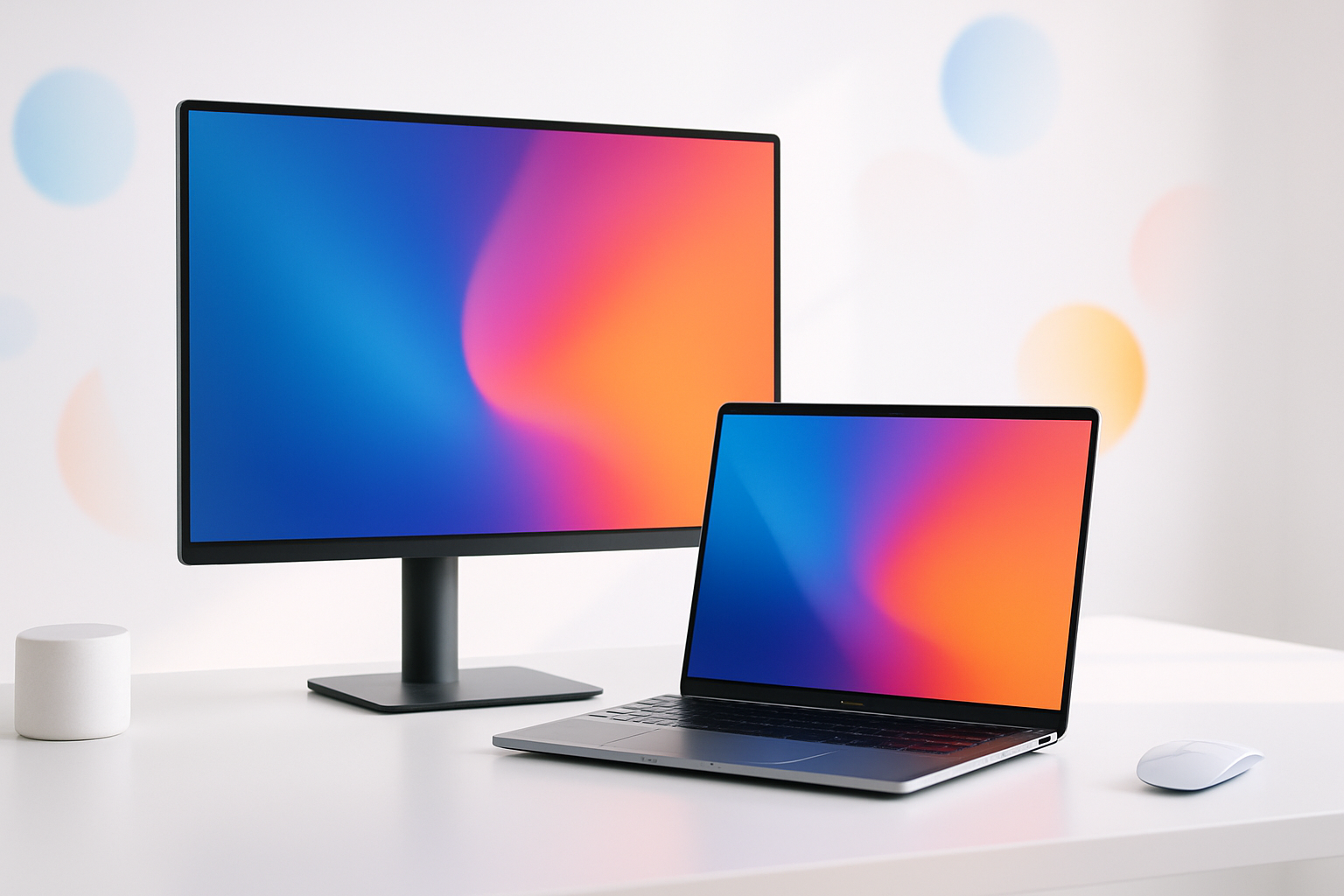
Finding the perfect external monitor for your MacBook can transform your productivity, whether you’re editing videos, designing graphics, or simply need more screen real estate for work. The right display can turn your portable setup into a desktop powerhouse while maintaining the seamless experience Mac users expect.
Your MacBook already delivers excellent performance, but pairing it with a quality external monitor unlocks new possibilities. From ultra-wide displays that eliminate the need for multiple screens to 4K monitors that showcase every detail, the best external monitor for macbook depends on your specific needs and budget.
What Makes a Monitor Perfect for MacBook Users
MacBooks have unique requirements that generic PC monitors might not fully address. Color accuracy matters significantly for Mac users, especially those in creative fields who rely on precise color representation.
Connectivity plays a crucial role too. Modern MacBooks primarily use USB-C and Thunderbolt ports, so the ideal monitor should connect seamlessly without requiring multiple adapters or dongles.
Resolution compatibility ensures your MacBook can drive the display effectively. While newer MacBook Pro models handle 4K displays effortlessly, older MacBook Air models might perform better with 1440p monitors.
Build quality and design aesthetics should complement your MacBook’s premium feel. A poorly constructed monitor can detract from the overall workspace experience.
Top External Monitor Categories for Different MacBook Users
Professional 4K Displays
The LG UltraFine 4K stands out as Apple’s recommended partner display. Developed in collaboration with Apple, it offers USB-C connectivity, 4K resolution, and excellent color accuracy that matches MacBook displays.
This 24-inch monitor provides 500 nits of brightness and covers 99% of the sRGB color space. It connects via a single USB-C cable that handles video, data, and power delivery up to 85 watts – enough to charge most MacBooks while in use.
The Dell UltraSharp U2720Q offers similar performance at a more accessible price point. Its 27-inch 4K IPS panel delivers professional-grade color accuracy with 95% DCI-P3 coverage.
Ultra-Wide Productivity Monitors
Ultra-wide monitors eliminate the bezels and gaps between multiple displays while providing massive screen real estate. The LG 34WN80C-B exemplifies this category with its 34-inch curved display.
This monitor’s 3440×1440 resolution offers the perfect balance between detail and performance. Most MacBooks can drive this resolution smoothly while providing significantly more workspace than standard displays.
USB-C connectivity with 60W power delivery makes setup simple – one cable handles everything. The curved design reduces eye strain during long work sessions and creates an immersive viewing experience.
Budget-Friendly Options
Not everyone needs professional-grade displays. The ASUS VA24EHE provides solid 1080p performance at an affordable price point. While it requires an adapter for MacBook connection, its IPS panel delivers good color reproduction and viewing angles.
For users wanting higher resolution without premium pricing, the BenQ EW2780Q offers 1440p resolution with built-in speakers and multiple connectivity options including USB-C.
The Best External Monitor for MacBook: Our Top Recommendations
| Monitor | Size | Resolution | Best For | Price Range |
| LG UltraFine 4K | 24″ | 4K | Creative professionals | $500-600 |
| Dell U2720Q | 27″ | 4K | General productivity | $400-500 |
| LG 34WN80C-B | 34″ | 3440×1440 | Multitasking | $400-500 |
| Studio Display | 27″ | 5K | Mac ecosystem users | $1500-1600 |
Apple Studio Display: The Premium Choice
Apple’s Studio Display represents the pinnacle of MacBook external monitors. Its 5K resolution (5120×2880) provides incredible detail density that surpasses most 4K displays.
The 27-inch Retina display matches your MacBook’s color accuracy and brightness characteristics perfectly. True Tone technology automatically adjusts color temperature based on ambient lighting, creating a consistent viewing experience.
Built-in features include a 12MP Ultra Wide camera with Center Stage, studio-quality microphones, and six-speaker sound system. While expensive, it delivers an integrated experience that other monitors can’t match.
Connection Types and Compatibility Considerations
Modern MacBooks use USB-C and Thunderbolt 3/4 ports as their primary display outputs. Understanding these connections helps ensure smooth setup and optimal performance.
USB-C displays offer the simplest connection method. A single cable carries video signal, data, and power. Many USB-C monitors can charge your MacBook while providing display connectivity.
Thunderbolt displays support higher bandwidth for multiple 4K displays or single 5K/6K displays. They often include additional ports for connecting other devices.
HDMI and DisplayPort connections require adapters but work reliably with all MacBook models. These connections don’t provide power delivery, so you’ll need separate charging.
Adapter Considerations
If your chosen monitor doesn’t include USB-C connectivity, quality adapters ensure reliable performance. Apple’s official adapters provide guaranteed compatibility, while third-party options like those from Anker or CalDigit offer good alternatives at lower prices.
Avoid cheap adapters that might cause display flickering, resolution limitations, or connection dropouts. Investing in quality adapters protects both your MacBook and monitor from potential damage.
Resolution and Performance Optimization
Matching monitor resolution to your MacBook’s capabilities ensures smooth performance and optimal visual quality. Different MacBook models handle various resolutions differently.
MacBook Air (M1/M2) models work best with single 4K displays or ultra-wide monitors up to 3440×1440 resolution. While they can drive higher resolutions, performance may suffer in demanding applications.
MacBook Pro 13-inch models handle 4K displays comfortably and can support multiple monitors depending on the specific model year and processor.
MacBook Pro 14-inch and 16-inch models support multiple 4K displays or single 5K/6K displays without performance compromises. These laptops excel with demanding monitor setups.
Scaling and Text Clarity
macOS handles display scaling automatically, but understanding how it works helps optimize your setup. Higher resolution displays allow more flexible scaling options while maintaining text clarity.
4K displays at 27 inches provide the sweet spot for most users – crisp text at default scaling with options for more screen space when needed. Ultra-wide monitors offer different scaling considerations due to their unique aspect ratios.
Setup Tips for Optimal Performance
Proper monitor setup maximizes both performance and comfort. Start by updating your MacBook to the latest macOS version, which includes the newest display drivers and optimization features.
Position your monitor at eye level to reduce neck strain. The top of the screen should align roughly with your eye level when sitting naturally. Adjust brightness to match your room’s ambient lighting – your monitor shouldn’t be the brightest or darkest object in your field of vision.
Configure your displays in System Preferences under Displays. Arrange multiple monitors to match their physical positions on your desk for intuitive cursor movement between screens.
Color calibration ensures accurate color representation, especially important for photo editing or design work. Built-in calibration tools provide basic adjustments, while professional colorimeters offer precise calibration for critical color work.
Making Your Final Decision
The best external monitor for your MacBook balances your specific needs with your budget constraints. Creative professionals benefit from color-accurate 4K displays, while general users might prefer ultra-wide monitors for improved productivity.
Consider your workspace setup, typical applications, and future needs when making your decision. A quality monitor represents a long-term investment that should serve you well for several years.
Whether you choose Apple’s premium Studio Display, LG’s MacBook-optimized UltraFine series, or a third-party alternative, the right external monitor transforms your MacBook into a more capable and enjoyable machine. Focus on the features that matter most for your workflow, and you’ll find the perfect display to complement your MacBook setup.
