

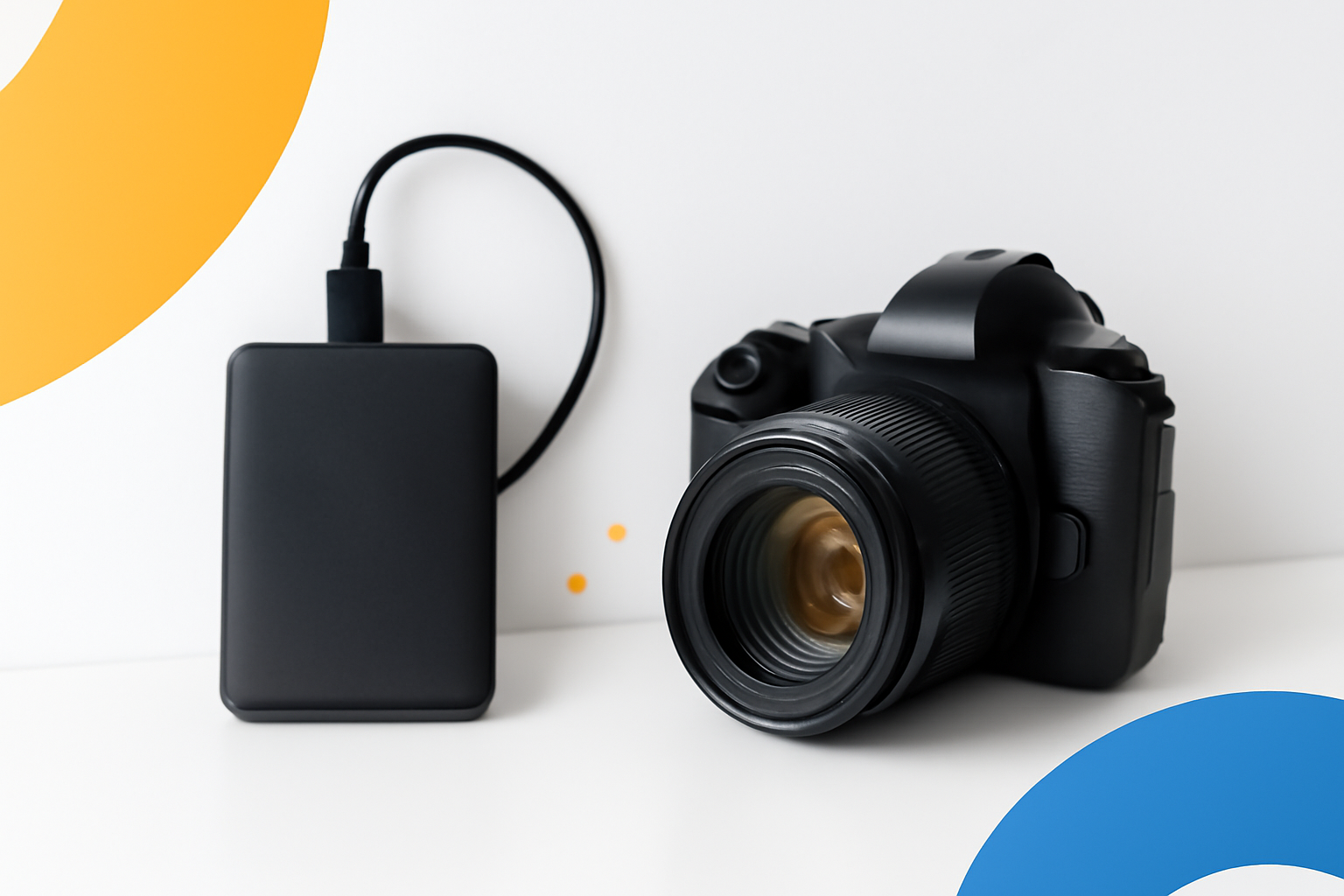
Why Your Memory Cards Aren’t Enough Anymore
You shoot a weekend wedding. Three thousand RAW files, maybe four. You get home, dump everything onto your laptop, and suddenly your internal drive is gasping for space. Sound familiar? Storage anxiety is real for photographers, and it gets worse as camera sensors push higher and higher megapixel counts.
A reliable external hard drive isn’t a luxury — it’s as essential as your camera bag. But not every drive is built for the way photographers actually work. Speed, durability, capacity, and backup capability all matter in ways that a generic “best external hard drive” list won’t tell you.
Here’s a practical breakdown of what to look for and which drives are actually worth your money.
What Makes a Hard Drive Good for Photography Work
Before we get into specific products, it helps to understand the specs that actually affect your workflow. A lot of drives look similar on a spec sheet but behave very differently in practice.
Speed: HDD vs. SSD
Traditional spinning hard drives (HDDs) offer massive storage at low cost, but they’re slow. We’re talking 100–150 MB/s read speeds on a good day. Solid-state drives (SSDs) can hit 1,000 MB/s or faster depending on the connection type.
For bulk archival storage — think years of completed projects — an HDD does the job fine. But if you’re editing directly from your external drive, or culling large RAW files from a session, an SSD will save you significant time and frustration every single day.
Connection Type Matters More Than Most People Realize
USB-A, USB-C, Thunderbolt 3, Thunderbolt 4 — the port on your drive caps how fast data can actually flow. A blazing-fast NVMe SSD connected via USB 3.0 will still be bottlenecked by the interface. Match your drive’s connection to what your computer supports for the best results.
- USB 3.2 Gen 2: Up to 10 Gbps — solid for most photographers
- Thunderbolt 3/4: Up to 40 Gbps — ideal for 4K video or ultra-high-res workflows
- USB-A 3.0: Up to 5 Gbps — adequate for basic photo transfer and archiving
Durability and Build Quality
If you’re shooting on location — hiking trails, beach weddings, dusty festivals — your drive takes a beating alongside your gear. Rugged drives with shock resistance, water resistance, and solid enclosures aren’t just nice to have. One bad drop can wipe out an entire project.
The Best External Hard Drives for Photographers Right Now
These picks cover different use cases, budgets, and working styles. No single drive is perfect for everyone.
Samsung T9 Portable SSD — Best Overall for Active Use
The Samsung T9 is genuinely fast, hitting around 2,000 MB/s read speeds over USB 3.2 Gen 2×2. It’s compact, runs cool, and the build quality feels premium without being fragile. For photographers who edit on the go or jump between workstations, this is a strong default choice.
The pricing sits higher than budget SSDs, but Samsung’s reliability record is hard to argue with. Available in 1TB, 2TB, and 4TB configurations.
SanDisk Extreme Pro Portable SSD — Best for Location Shooters
SanDisk’s Extreme Pro is IP65 rated for water and dust resistance, with a forged aluminum casing that feels nearly indestructible. Speed sits around 2,000 MB/s, and it connects via USB-C with a USB-A adapter included.
Wildlife photographers, travel photographers, and anyone who regularly works outside should put this one near the top of their list. It’s not the cheapest SSD out there, but losing your images because your drive got splashed is far more expensive.
Western Digital My Passport — Best Budget Option for Studio Work
If you don’t need SSD speeds and mostly work in a fixed studio setup, the WD My Passport is hard to beat for the price. You can pick up a 4TB or 5TB model for less than many 1TB SSDs cost.
It’s an HDD, so speeds hover around 120–130 MB/s. That’s fine for bulk storage, backups, and offloading after a shoot. Don’t use it as your primary editing drive unless you enjoy watching progress bars.
LaCie Rugged SSD Pro — Best for Video-Heavy Photographers
Hybrid photographers and filmmakers who shoot both stills and video will appreciate the LaCie Rugged SSD Pro. With Thunderbolt 3 connectivity, it delivers close to 2,800 MB/s — more than enough for editing 8K RAW footage or working with large Lightroom catalogs without breaking a sweat.
The iconic orange rubber bumper isn’t just aesthetic; it provides genuine drop and crush protection. It’s an investment, but for professionals with demanding workflows, the performance is noticeable.
Seagate Backup Plus Hub — Best for Desktop Archiving
For studio photographers who need a central home for their entire photo archive, the Seagate Backup Plus Hub is worth a look. It comes in up to 14TB, sits on your desk, and includes two USB ports for charging devices. Convenient if your workstation is already cluttered.
It’s a desktop HDD, so keep it stationary and treat it gently. Think of it as your digital filing cabinet rather than a working drive.
Side-by-Side Comparison
| Drive | Type | Max Speed | Max Capacity | Best For |
| Samsung T9 | SSD | ~2,000 MB/s | 4TB | Active editing, portability |
| SanDisk Extreme Pro | SSD | ~2,000 MB/s | 4TB | Outdoor/location shoots |
| WD My Passport | HDD | ~130 MB/s | 5TB | Budget backup/archiving |
| LaCie Rugged SSD Pro | SSD | ~2,800 MB/s | 2TB | Video/high-volume pros |
| Seagate Backup Plus Hub | HDD | ~160 MB/s | 14TB | Desktop archiving |
How Many Drives Do You Actually Need?
This is a question photographers tend to underestimate until a drive fails. And they do fail — all of them, eventually.
The photography community widely follows a backup rule called 3-2-1:
- Keep 3 copies of your files
- Store them on 2 different media types (e.g., external SSD + HDD)
- Keep 1 copy offsite (cloud storage or a drive at a different location)
In practice, that often means one fast working drive for active projects, one larger HDD for local backups, and a cloud service like Backblaze, Google Photos, or Amazon Photos for the offsite copy.
Two drives is the bare minimum. Three gives you real peace of mind.
Formatting Your Drive for Photography
This is a step many people skip, and it causes problems later. When you get a new drive, format it correctly for your operating system and workflow.
- Mac users: Format as exFAT (if you share with Windows) or APFS/Mac OS Extended for Mac-only use
- Windows users: NTFS works best for Windows-only setups; exFAT for cross-platform
- Cross-platform: exFAT is the most universal, though it lacks some reliability features of NTFS or APFS
Lightroom users should also consider where to store their catalog. Keeping it on a fast internal drive while images live on the external drive is usually the most stable setup.
Red Flags to Watch Out For When Buying
The external storage market has some genuinely shady products floating around, especially on large marketplaces. Here’s what to avoid:
- Unknown brands offering massive capacity at suspiciously low prices — these often use low-grade NAND or are outright fraudulent (showing fake capacity)
- No warranty information — reputable brands offer at least 2–5 year warranties
- Missing SMART data support — SMART lets you monitor drive health; some cheap drives disable it
- Slow USB-A only connections on “high-speed” marketing claims — check the actual interface spec
Stick to established names: Samsung, SanDisk, WD, Seagate, LaCie, Crucial, and Sabrent all have solid track records with verifiable reliability data.
Finding the Right External Hard Drive for Your Photography Style
There’s no single best external hard drive for photographers — the right choice depends on how you shoot, where you shoot, and how much you value speed versus capacity versus budget.
Portrait and wedding photographers doing heavy studio editing will benefit most from a fast SSD like the Samsung T9 or LaCie Rugged. Travel and adventure photographers need something that can survive the field — the SanDisk Extreme Pro earns its price there. Studio-based photographers with years of archives to manage should consider a high-capacity desktop HDD paired with a fast working SSD.
Whatever you choose, pair it with a solid backup system. The drive itself isn’t the safety net — the backup strategy is. A great drive with no redundancy is just a single point of failure waiting for the worst possible moment to remind you of that fact.
Buy smart, back up often, and your images will outlast any single piece of hardware you ever own.
