

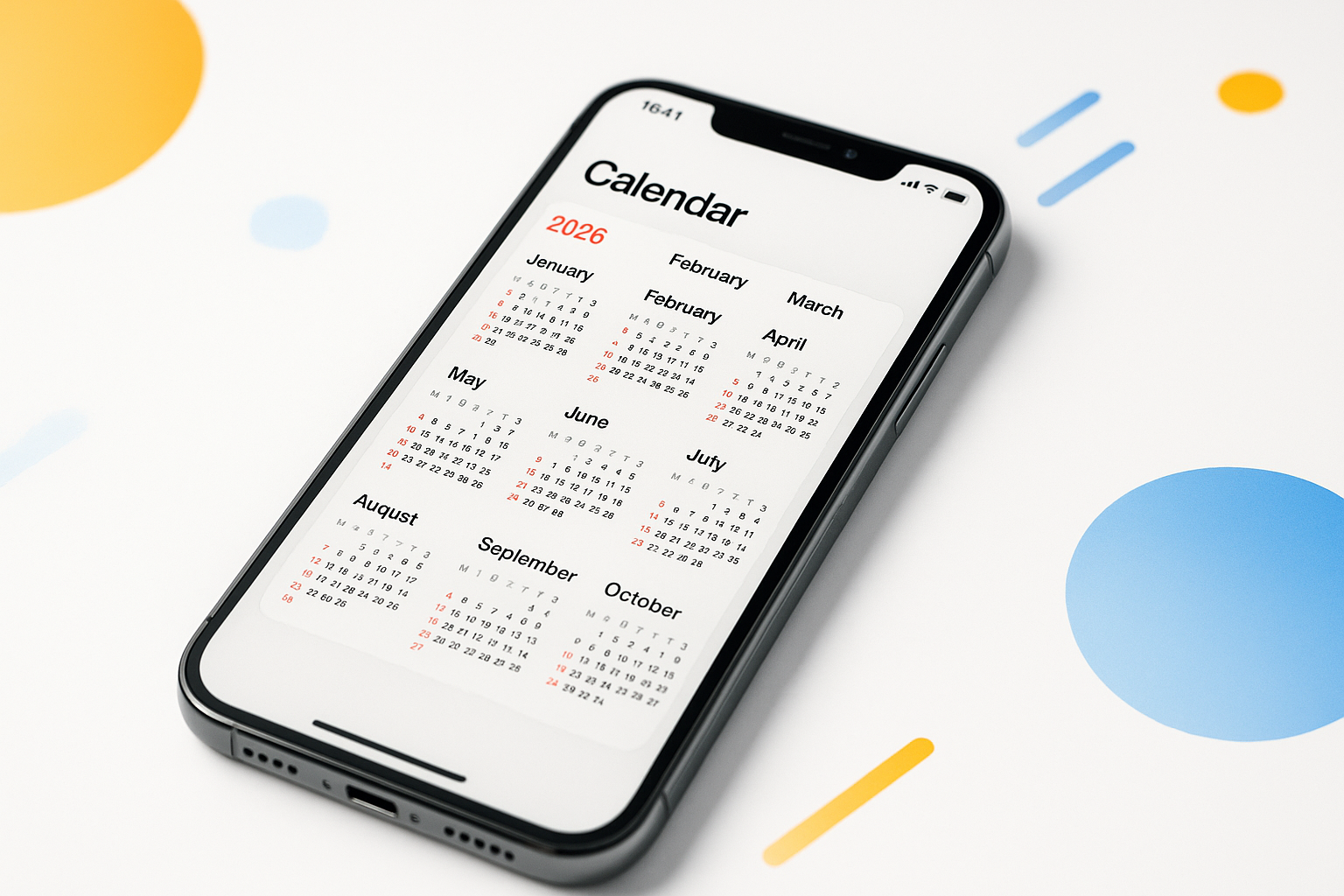
Your iPhone’s built-in Calendar app might feel outdated, especially when you’re juggling work meetings, personal appointments, and everything in between. The good news? Third-party calendar apps have evolved dramatically, offering features that make scheduling feel effortless rather than overwhelming.
Finding the best calendar app for iPhone 2026 depends on your specific needs. Some people want seamless integration with their existing workflow, while others prioritize beautiful design or powerful scheduling features. After testing dozens of options, here are the standout calendar apps that actually make a difference in how you manage your time.
Fantastical: The Power User’s Dream
Fantastical stands out for its natural language processing that feels almost magical. Type “lunch with Sarah tomorrow at noon” and watch it automatically create the event with the right time and title. This feature alone saves countless taps and reduces scheduling friction.
The app’s week view displays multiple calendars without visual chaos, using color coding that actually makes sense. Weather integration shows you conditions for outdoor events, while travel time calculations help you leave at the right moment.
Standout features:
- Natural language event creation
- Excellent Apple Watch integration
- Multiple calendar account support
- Smart travel time suggestions
The subscription model might feel steep at $39.99 annually, but power users often find the time savings justify the cost. Fantastical works particularly well for professionals managing multiple calendar systems or anyone who creates many recurring events.
Calendars 5: Simplicity Meets Functionality
Readdle’s Calendars 5 strikes an impressive balance between clean design and useful features. The interface feels intuitive from day one, with gesture controls that speed up common actions like switching between views or creating events.
Task integration sets this app apart from basic calendar options. You can view to-dos alongside appointments, creating a unified daily overview. The app also handles time zone changes gracefully, essential for frequent travelers.
Google Calendar users will appreciate the seamless sync, while the offline functionality ensures your schedule remains accessible without internet connection. The free version includes core features, with premium upgrades available for advanced customization.
Microsoft Outlook: More Than Email
Outlook’s calendar component often gets overlooked, but it deserves serious consideration, especially for business users. The integration between email and calendar creates powerful workflows – turning emails into events with a single tap or seeing relevant messages alongside meeting details.
The scheduling assistant helps find meeting times that work for all participants, while room booking integration simplifies office logistics. Mobile-specific features include one-tap conference call joining and smart notification timing.
Best for:
- Office 365 or Exchange users
- Teams that schedule frequent meetings
- Anyone wanting unified email and calendar management
Which Calendar App Fits Your Workflow?
Choosing the right calendar app depends on how you actually use your schedule. Heavy meeting schedulers benefit from apps with strong collaboration features, while creative professionals might prefer visually appealing interfaces that reduce digital overwhelm.
Consider your ecosystem preferences too. Apple users might gravitate toward apps that integrate seamlessly with Shortcuts and Siri, while Google Workspace users need reliable sync with their existing calendar data.
For Business Professionals
Business users typically need robust meeting scheduling, conference call integration, and seamless collaboration with colleagues. Outlook excels here, particularly in Microsoft-heavy environments, while Fantastical offers superior natural language processing for rapid event creation.
For Personal Organization
Personal calendar management often prioritizes simplicity and visual appeal. Calendars 5 provides clean interfaces without sacrificing functionality, while maintaining the flexibility to handle both personal and work accounts.
Key Features That Actually Matter
Marketing materials often highlight dozens of features, but daily usage reveals what truly improves your scheduling experience. Focus on these practical considerations when evaluating options.
Sync reliability tops the list – your calendar app should work consistently across all devices without mysterious disappearing events or duplicate entries. Test this thoroughly during trial periods.
Notification intelligence makes the difference between helpful reminders and annoying interruptions. Look for apps that learn your preferences and adapt timing based on location or traffic conditions.
Widget quality affects how often you actually use the app. Well-designed widgets provide quick schedule overviews without opening the full application, perfect for busy days when every second counts.
Setting Up Your Chosen App for Success
Even the best calendar app won’t help without proper configuration. Start by importing your existing calendar data, then spend time customizing views and notification settings to match your routine.
Create calendar categories that reflect your actual life structure. Instead of generic labels, use specific categories like “Client Meetings,” “Personal Health,” or “Family Time” that help you quickly assess schedule balance.
Configure location-based reminders for events that require travel preparation. This feature becomes invaluable for maintaining punctuality without constant time checking.
Common Calendar App Mistakes to Avoid
Many people download a new calendar app, import their data, and immediately feel disappointed. The issue usually isn’t the app itself, but unrealistic expectations or insufficient setup time.
Avoid calendar overload by limiting yourself to one primary app. Running multiple calendar applications simultaneously creates confusion and increases the chance of missed appointments.
Don’t neglect backup options, even with cloud sync. Export calendar data periodically to ensure you can recover your schedule if sync issues occur or you need to switch platforms.
Privacy and Data Security Considerations
Calendar apps access highly personal information about your daily routine, location patterns, and relationships. Research each app’s privacy policy and data handling practices before committing your schedule.
Some apps process data locally on your device, while others sync everything through company servers. Consider whether you’re comfortable with cloud storage for sensitive scheduling information.
Enable two-factor authentication wherever possible, particularly for calendar apps connected to work accounts or containing confidential meeting information.
Making the Switch Seamlessly
Transitioning to a new calendar app doesn’t have to disrupt your schedule. Most quality apps include migration tools that import existing events and settings from your current application.
Plan the switch during a lighter schedule period, allowing time to adjust to new interfaces and workflows. Keep your old app installed temporarily as backup while you confirm everything transferred correctly.
The best calendar app for iPhone 2026 ultimately depends on your unique scheduling needs and workflow preferences. Whether you choose Fantastical’s powerful natural language processing, Calendars 5’s balanced approach, or Outlook’s business integration, the key is finding an app that reduces scheduling friction rather than adding complexity to your daily routine.
Take advantage of free trials to test multiple options with your actual schedule data. This hands-on approach reveals which features truly improve your productivity versus those that simply look impressive in screenshots.
