

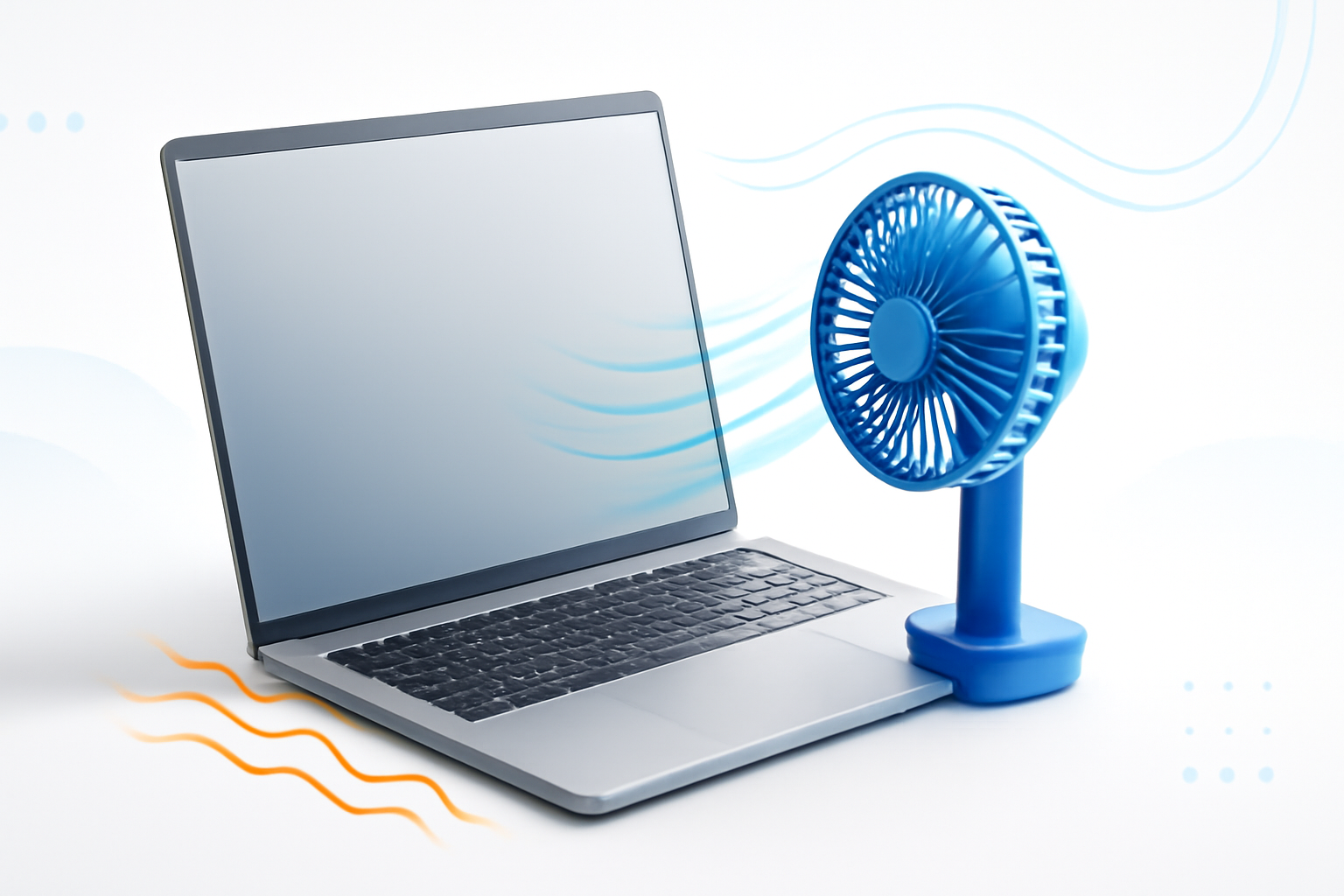
Your Laptop Is Running Hot — Here’s What’s Actually Going On
You’re working, gaming, or just watching a video, and suddenly your laptop feels like it could fry an egg. The fan sounds like a jet engine. Maybe it’s slowing down, shutting off randomly, or showing a thermal warning. Sound familiar?
An overheating laptop isn’t just uncomfortable — it’s a real threat to your hardware. Sustained high temperatures can shorten the lifespan of your CPU, GPU, and battery. The good news is that most overheating issues are fixable without spending much money or calling a technician.
This guide walks through the real causes and practical fixes, from the easiest five-minute solutions to the more hands-on approaches that genuinely make a difference.
Why Laptops Overheat in the First Place
Before fixing anything, it helps to understand what’s causing the heat. Laptops are compact by design, which means airflow is always a compromise. When something disrupts that already tight thermal system, temperatures spike fast.
The most common culprits include:
- Dust buildup inside the vents and on the cooling fan — this is the number one cause in older laptops
- Dried-out thermal paste between the CPU/GPU and the heat sink
- Blocked air vents from using the laptop on soft surfaces like beds or couches
- Background software running the processor at high usage unnecessarily
- A failing or underperforming cooling fan
- An aging battery generating excess heat
- Ambient room temperature being too high
Sometimes it’s just one issue. Often, it’s a combination. Knowing which one applies to your situation saves you time and money.
How to Fix an Overheating Laptop: Start With the Basics
Don’t jump straight to opening your laptop with a screwdriver. A lot of heat problems can be solved in minutes with zero tools.
1. Check Where You’re Using It
Laptops need airflow underneath and around the vents. If you’re using it on a blanket, pillow, or your lap, those vents get blocked almost completely. The fix is simple: use it on a hard, flat surface.
A cheap laptop stand or even a hardcover book underneath can drop temperatures by 5–10°C just by improving airflow. It sounds too simple to matter, but it genuinely does.
2. Clean the Vents — Even From the Outside
You don’t always need to open the laptop to remove dust. A can of compressed air aimed at the exhaust vents (usually on the side or back) can dislodge a surprising amount of buildup. Do this in short bursts and hold the can upright to avoid spraying liquid.
Do this every few months as basic maintenance. If your laptop is a few years old and has never been cleaned, this step alone can make a noticeable difference.
3. Use a Cooling Pad
Cooling pads with built-in fans aren’t magic, but they help — especially for gaming laptops or machines that run demanding software. They won’t fix a blocked vent or dead fan, but they reduce ambient heat around the chassis and can lower temperatures by a few degrees consistently.
Look for one that aligns the fans with your laptop’s intake vents for the best effect. Not all cooling pads are designed the same way.
Check What’s Pushing Your CPU Hard
Sometimes the hardware is fine but the software is the problem. A runaway process can spike your processor to 100% usage and generate enormous heat — even on a laptop with great cooling.
On Windows:
- Press Ctrl + Shift + Esc to open Task Manager
- Click the CPU column to sort by usage
- Look for any process using more than 20–30% consistently
- If it’s a browser, close unused tabs or extensions
- If it’s an unknown process, search for it online before ending it
On Mac:
- Open Activity Monitor from Spotlight or Applications
- Click the CPU tab
- Check for anything consuming unusually high CPU resources
- Force quit processes that seem stuck or unnecessary
Malware is also a known cause of sudden high CPU usage and overheating. Running a full scan with Windows Defender or Malwarebytes is worth doing if your laptop suddenly started running hot without any obvious reason.
Adjust Power Settings to Reduce Heat Output
If your laptop is set to a high-performance power mode, it’s pushing the processor harder than it needs to for everyday tasks. Switching to a balanced or efficiency mode can significantly reduce heat without making your laptop feel sluggish for normal use.
On Windows: Go to Settings → System → Power & Sleep → Additional power settings, then select “Balanced” instead of “High Performance.”
On Mac: Go to System Settings → Battery, and enable Low Power Mode when you don’t need full performance.
Many gaming laptops also have their own software (like Lenovo Vantage, ASUS Armory Crate, or MSI Dragon Center) where you can switch between performance profiles. Setting it to “silent” or “balanced” mode during non-gaming tasks helps a lot.
The Deep Fix: Cleaning Inside and Replacing Thermal Paste
If basic steps don’t solve the problem and your laptop is two or more years old, the real issue is likely inside the machine: clogged internal fans, dusty heatsinks, or dried-out thermal paste.
This fix requires opening the laptop, which voids some warranties — check yours before proceeding.
What You’ll Need
- A small Phillips-head screwdriver (usually PH0 or PH00)
- A plastic pry tool or old credit card
- Compressed air
- Isopropyl alcohol (90%+ concentration)
- Thermal paste (Arctic MX-4 and Noctua NT-H1 are reliable options)
- Cotton swabs or a lint-free cloth
Steps to Clean and Repaste
- Shut down the laptop completely and unplug it
- Remove the battery if it’s detachable
- Unscrew and carefully remove the bottom panel
- Use compressed air to blow dust off the fan and heatsink fins
- Disconnect the fan connector and remove the heatsink screws (usually in a numbered sequence)
- Clean the old thermal paste off the CPU and GPU chips using isopropyl alcohol and a cotton swab
- Apply a small pea-sized amount of fresh thermal paste to the center of each chip
- Reattach the heatsink firmly and evenly, then reassemble
The results can be dramatic. It’s not uncommon to see idle temperatures drop by 15–20°C after a proper cleaning and repaste on a three-to-four-year-old laptop.
If you’re not confident opening your laptop yourself, a local computer repair shop will do this for a reasonable fee — often $30–$60. It’s absolutely worth it if the laptop is running dangerously hot.
Monitoring Temperature So You Know What You’re Dealing With
You can’t fix what you can’t measure. Before and after any fix, it’s worth knowing your actual temperatures.
| Tool | Platform | What It Shows |
| HWMonitor | Windows | CPU, GPU, battery temps in real-time |
| Core Temp | Windows | Per-core CPU temperatures |
| MSI Afterburner | Windows | GPU temp and usage monitoring |
| iStatMenus | Mac | Comprehensive system temperatures |
| GPU-Z | Windows | Detailed GPU temperature data |
General temperature benchmarks to keep in mind:
- Under 60°C at idle — perfectly normal
- 70–80°C under load — acceptable for most laptops
- 85–90°C consistently — too hot, action needed
- Above 95°C — thermal throttling or shutdown risk
When the Fan Is the Problem
If you clean everything, repaste the CPU, and the laptop is still running hot — or worse, you can hear the fan grinding or barely spinning — the fan itself may be failing.
Replacement fans are usually inexpensive (often $10–$25) and are model-specific. Search your laptop model number followed by “replacement fan” on sites like iFixit, Amazon, or AliExpress. Installation is usually straightforward if you’re comfortable with basic disassembly.
A dead or failing fan is one of the fastest paths to permanent hardware damage, so don’t put this one off.
Keeping Your Laptop Running Cool for the Long Haul
Fixing an overheating laptop is satisfying, but the real win is making sure it doesn’t happen again. A little routine maintenance goes a long way.
- Clean the vents with compressed air every 3–6 months
- Open and clean internally once a year if you use the laptop heavily
- Avoid using it on soft surfaces habitually
- Keep the operating system and drivers updated — thermal management improvements often come through updates
- Don’t leave it charging overnight in a hot environment regularly
- Reapply thermal paste every 2–3 years on older machines
Most laptops that overheat chronically aren’t dying — they’re just neglected. With the right fixes, even a four or five-year-old machine can run as cool and quietly as it did when it was new. The steps above cover the full spectrum from quick wins to deeper repairs, so there’s a starting point for every situation and comfort level.
