

So You Want to Upgrade Your Laptop RAM — Here’s the Honest Truth
Your laptop feels sluggish. Chrome is eating memory alive, switching between apps takes forever, and you’re convinced more RAM would fix everything. The question is: can you actually crack open that laptop and upgrade it yourself?
The short answer is — sometimes. Whether it’s possible depends heavily on your specific laptop model, and this is the part most generic guides gloss over. Some machines make it dead simple. Others are soldered shut from the factory with zero upgrade path.
This post walks you through exactly what to check, what tools you need, and how to do the upgrade safely if your laptop allows it.
First Things First: Is Your RAM Even Upgradeable?
Before you buy anything or touch a screwdriver, you need to confirm your laptop has removable RAM. This is the step that trips people up most often.
There are two types of laptop RAM configurations:
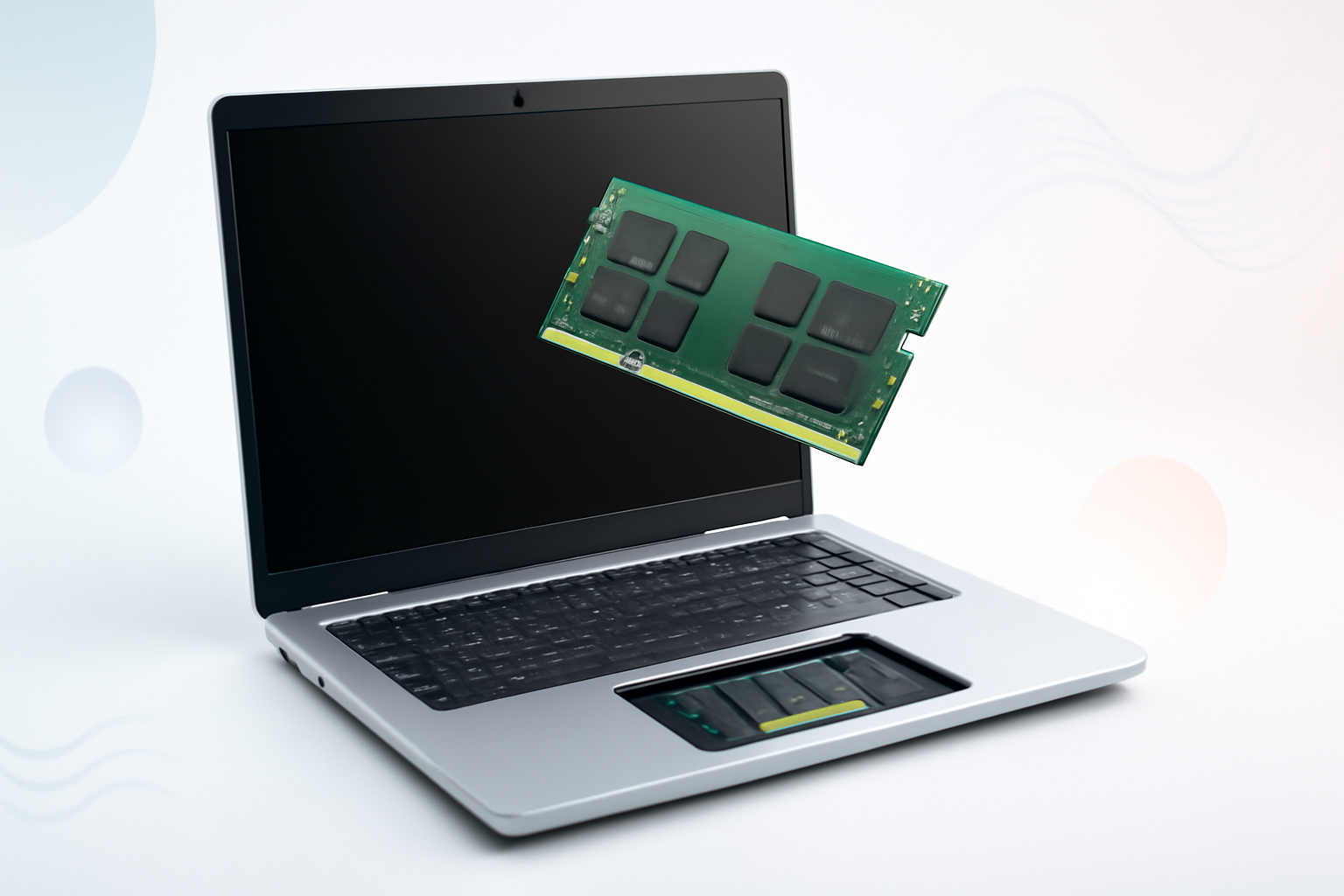
- Socketed RAM (SO-DIMM) — Physical memory sticks inserted into slots. These can be removed and replaced.
- Soldered RAM (LPDDR) — Memory chips permanently attached to the motherboard. Not upgradeable. Ever.
Thin, ultralight laptops — think MacBook Air, many modern Dell XPS models, and most budget Chromebooks — increasingly use soldered RAM to save space and improve battery efficiency. It’s a trade-off manufacturers made, and it’s becoming more common every year.
How to Check Without Opening Anything
You don’t need to disassemble your laptop to find out. Here are the fastest ways to check:
- Check the manufacturer’s specs page — Search your laptop model number (usually found on a sticker on the bottom) on the brand’s website. Look for memory specifications and whether it says “upgradeable” or “onboard.”
- Use Crucial’s System Scanner — Crucial.com has a free tool that scans your system and tells you exactly what RAM you have and whether it’s upgradeable.
- Check iFixit — iFixit has teardown guides for hundreds of laptop models and rates repairability. A quick search can tell you what you’re dealing with.
- Look up your model on Reddit — The r/laptops and r/techsupport communities are goldmines for real-world upgrade experiences.
What RAM Does Your Laptop Use?
If you’ve confirmed your RAM is socketed, the next step is identifying what type you need. Laptop RAM comes in SO-DIMM form factor (a smaller version of desktop DIMMs), but the actual memory standard matters a lot.
| RAM Type | Common In | Max Typical Speed |
| DDR3 | Laptops from 2010–2017 | 1866 MHz |
| DDR4 | Laptops from 2017–2023 | 3200 MHz |
| DDR5 | Newer laptops (2022+) | 5600 MHz+ |
You cannot mix DDR generations. A DDR4 slot will not accept a DDR5 stick — they’re physically keyed differently. Installing the wrong type simply won’t work, so there’s no risk of damaging anything by accident, but you do need to get the right match.
Speed matters too, though less critically. If your laptop supports DDR4-2666 and you install DDR4-3200, the RAM will usually just run at the slower supported speed. It’s not a problem.
How Much RAM Should You Actually Install?
The sweet spot depends on what you use your laptop for.
- 8GB — Minimum for smooth everyday use. Fine for light browsing, documents, email.
- 16GB — The recommended upgrade target for most people. Handles multitasking, video calls, photo editing without breaking a sweat.
- 32GB — Worth it for video editors, programmers running virtual machines, or heavy multitaskers.
- 64GB+ — Very niche use cases. Most consumer laptops won’t even support this.
Check your laptop’s maximum supported RAM before buying. Installing 32GB on a machine that tops out at 16GB won’t give you 32GB — it may not even boot properly.
Can I Upgrade RAM on a Laptop Myself — What You’ll Need
Assuming your laptop has removable memory slots, the process is genuinely one of the easier DIY hardware upgrades out there. Here’s what you’ll want on hand before starting:
- A Phillips head screwdriver (usually #0 or #1 size)
- A plastic pry tool or old credit card (for removing the bottom panel without scratching)
- An anti-static wrist strap, or at least a way to ground yourself
- Your replacement RAM sticks
- Good lighting and a clean, flat workspace
Anti-static precautions sound fussy but they matter. A static discharge can damage memory chips or the motherboard. Touch an unpainted metal surface before handling components, or use a proper anti-static strap.
Step-by-Step: How to Replace Laptop RAM
- Shut down completely. Not sleep mode — fully power off. Unplug the charger too.
- Flip the laptop over and remove the bottom panel. Most modern laptops use a combination of visible screws and clips. Remove all screws first, then gently pry the panel from the edges. Don’t force it.
- Locate the RAM slots. They’re usually easy to spot — small rectangular sticks sitting at a slight angle in their slots, often covered by a thin metal shield or left exposed.
- Remove the old RAM. Spread the two metal clips on either side of the slot outward simultaneously. The stick will pop up at an angle. Slide it straight out.
- Insert the new RAM. Line up the notch on the stick with the notch in the slot — they only fit one way. Slide it in at the same angle (usually around 30–45 degrees), then press down firmly until the clips click into place.
- Reassemble and test. Replace the bottom panel, plug in and power on. Check that your system recognizes the new RAM amount in System Settings or Task Manager.
If the laptop doesn’t boot or shows a memory error, reseat the RAM. This means removing and reinserting it. A poor connection is the most common cause of issues after a RAM upgrade.
When Things Get More Complicated
One Slot vs. Two Slots
Some laptops have two RAM slots; others only have one. If you have two slots, upgrading both sticks allows the memory to run in dual-channel mode, which noticeably improves performance — especially for integrated graphics that share system memory. It’s worth doing if your budget allows.
If you have one slot and currently have an 8GB stick, you simply replace it with a 16GB stick and you’re done.
One Slot Soldered, One Slot Open
Some laptops are a hybrid — they have a portion of RAM soldered onto the motherboard and one additional open slot for expansion. In this case, you can add RAM but only up to the maximum the system supports, and you can’t remove the soldered portion. Check how much is soldered before buying your upgrade stick to avoid confusion.
The BIOS Might Need Updating
On some older laptops, a BIOS update is needed to support higher capacity RAM sticks. If your laptop fails to recognize new RAM or shows incorrect amounts, check the manufacturer’s website for a BIOS update before assuming the RAM is faulty.
Laptops That Cannot Be Upgraded (And What To Do Instead)
If your RAM is soldered, upgrading isn’t an option — full stop. But that doesn’t mean you’re stuck with poor performance. A few things can genuinely help:
- Upgrade to an SSD if you haven’t already. A slow hard drive masquerades as a RAM problem constantly. This single upgrade transforms old laptops.
- Adjust virtual memory settings — Windows uses a portion of your storage as virtual RAM (the page file). Increasing this won’t match real RAM but helps under heavy load.
- Limit startup programs and background apps — More RAM doesn’t help if software is consuming it unnecessarily.
- Consider a new laptop — If your current machine is hitting its ceiling and soldered RAM is the reason, sometimes the honest answer is that a replacement makes more financial sense than workarounds.
Is It Worth Doing the Upgrade Yourself?
Professionally installed RAM at a repair shop typically costs the price of the RAM itself plus a service fee ranging from $40 to $80. The actual installation, if your laptop allows it, takes about 15 minutes once you’ve done it once.
For most people with a bit of patience, doing it yourself is absolutely worth it. The process isn’t complicated, the risk is low when you take basic precautions, and the performance improvement — going from 8GB to 16GB in particular — is one of the most noticeable upgrades you can make to an aging laptop.
You don’t need to be a technician. You just need the right RAM, a screwdriver, and about half an hour.
Quick Recap Before You Buy Anything
- Confirm your RAM is socketed, not soldered
- Find your laptop’s maximum supported RAM capacity
- Match the correct DDR generation (DDR3, DDR4, DDR5)
- Consider upgrading both slots for dual-channel benefits
- Ground yourself before handling memory sticks
- Test immediately after reassembly
The question of whether you can upgrade RAM on a laptop yourself almost always comes down to the specific model. Check first, buy second, and you’ll save yourself a frustrating return process — and potentially breathe years of extra life into a machine that just needed a bit more headroom.
