

Why Image Quality Matters More Than You Think
Picture this: you’ve just captured the perfect shot for your website, but the file is massive. You quickly shrink it down and upload it, only to discover it looks pixelated and blurry. Sound familiar?
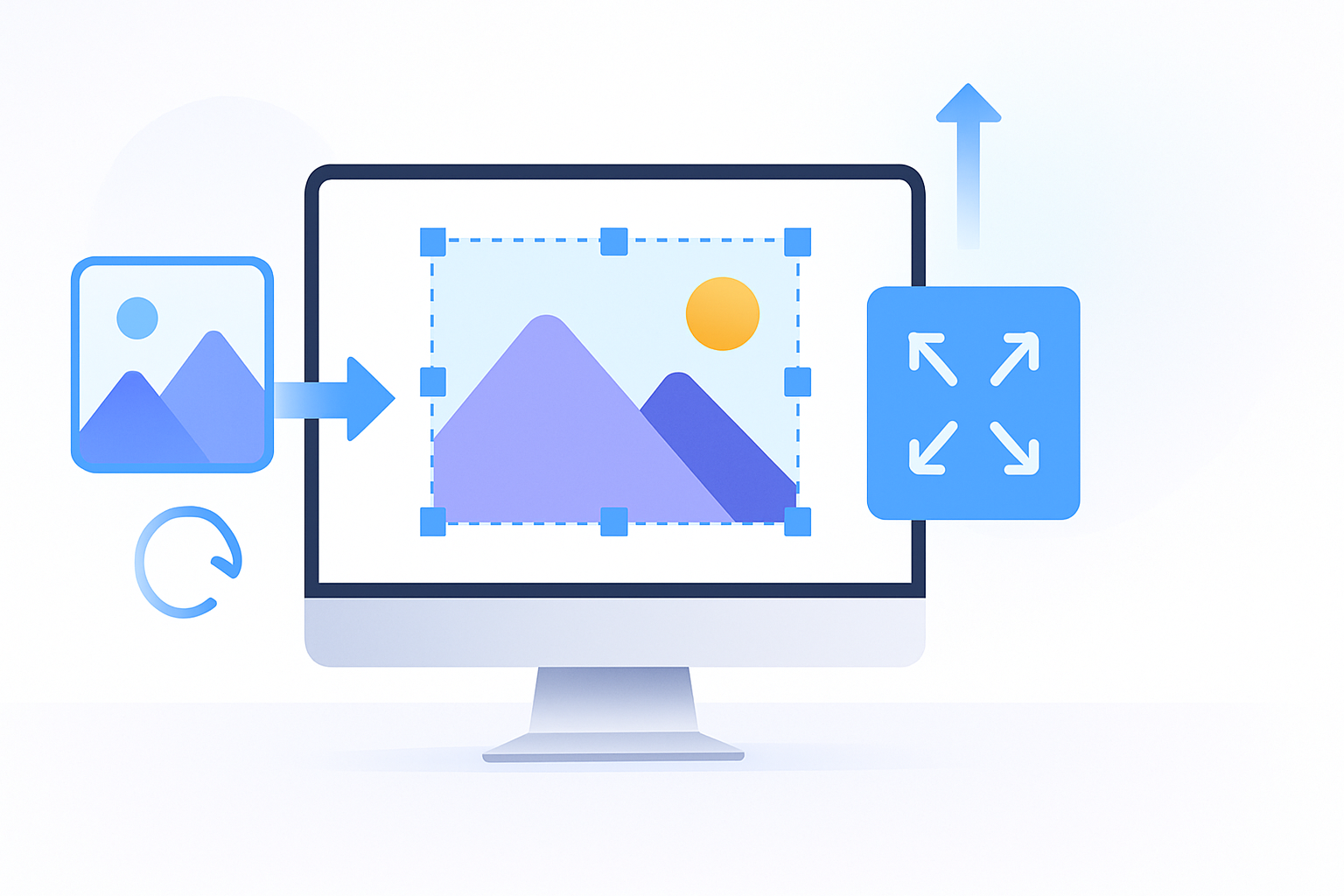
Learning how to resize image without losing quality is crucial whether you’re building a website, creating social media content, or simply organizing your photo library. The good news? You don’t need expensive software or technical expertise to maintain crisp, professional-looking images at any size.
Let’s explore the most effective methods and tools that will keep your images sharp while reducing their file size.
Understanding Why Images Lose Quality When Resized
Before jumping into solutions, it’s important to understand what causes quality loss during resizing. When you reduce an image’s dimensions, your computer must decide which pixels to keep and which to discard. Poor algorithms often result in jagged edges, blurred details, and color distortion.
The type of image format also plays a significant role. JPEG files use compression that can degrade with each edit, while PNG files maintain better quality but create larger file sizes. Vector formats like SVG scale infinitely without quality loss, but they’re only suitable for simple graphics and logos.
Smart resizing techniques use advanced algorithms that analyze your image content and preserve important details while smoothly interpolating new pixel values.
Professional Software Solutions for High-Quality Resizing
Adobe Photoshop: The Industry Standard
Photoshop offers some of the most sophisticated resizing algorithms available. Here’s how to use them effectively:
- Open your image and go to Image > Image Size
- Ensure “Resample” is checked
- Choose “Preserve Details 2.0” or “Bicubic Sharper” for reduction
- Enter your desired dimensions
- Click OK and examine the results
The “Preserve Details 2.0” option uses machine learning to maintain sharpness and detail, making it particularly effective for photographs with fine textures.
GIMP: Free Alternative with Professional Results
GIMP provides excellent resizing capabilities without the price tag:
- Open your image and navigate to Image > Scale Image
- Set your new dimensions
- Choose “Cubic” interpolation for the best quality
- Apply unsharp mask filter afterward for extra crispness
While GIMP’s interface might seem intimidating initially, its resizing quality rivals expensive alternatives.
Quick Online Tools for Everyday Use
Not everyone needs professional software for occasional image resizing. Several web-based tools deliver impressive results:
Waifu2x specializes in upscaling anime and artwork but works well for photographs too. It uses deep learning to add detail rather than simply stretching pixels.
ImageUpscaler handles both enlarging and reducing images effectively. Simply upload your file, choose your desired size, and download the optimized result.
Squoosh by Google offers real-time previews so you can see exactly how different settings affect your image quality. The side-by-side comparison feature helps you find the perfect balance between file size and visual quality.
Built-in Operating System Options
Windows Solutions
Windows users have several built-in options, though they vary in quality. The Photos app provides basic resizing, but Paint.NET (free download) offers much better results with its high-quality resampling algorithms.
For bulk operations, Windows PowerToys includes an image resizer that processes multiple files simultaneously while maintaining decent quality.
Mac Tools
Mac’s Preview application actually includes surprisingly good resizing capabilities:
- Open your image in Preview
- Go to Tools > Adjust Size
- Ensure “Resample image” is checked
- Enter new dimensions and save
For more control, try Automator to create custom workflows that resize multiple images with consistent settings.
Mobile Apps That Preserve Image Quality
Smartphone photography often requires on-the-go resizing. These apps maintain quality while offering convenience:
VSCO provides excellent resizing tools alongside its editing features. The export options let you specify exact dimensions while maintaining visual fidelity.
Snapseed by Google offers professional-grade tools in a mobile package. Its “Perspective” and “Details” tools can actually improve image sharpness during the resizing process.
Adobe Lightroom Mobile brings desktop-class algorithms to your phone, making it perfect for photographers who need consistent quality across devices.
Best Practices for Different Image Types
Photographs and Complex Images
Natural photos with lots of detail benefit from bicubic or lanczos interpolation methods. These algorithms excel at preserving smooth gradients and fine textures.
Always resize in a single step rather than multiple small reductions. Each resizing operation introduces some quality loss, so going directly from your original size to your target size minimizes degradation.
Graphics and Screenshots
Images with sharp edges and solid colors require different treatment. Nearest neighbor interpolation preserves crisp lines but only works when scaling by exact multiples.
For other ratios, look for algorithms specifically designed for graphics, often labeled as “preserve hard edges” or similar options.
Logos and Simple Graphics
Whenever possible, use vector formats (SVG, AI, EPS) for logos. These scale infinitely without any quality loss and often result in smaller file sizes than raster images.
If you must work with raster logos, consider recreating them as vectors using tools like Inkscape or Adobe Illustrator.
Optimizing File Size Without Sacrificing Visual Quality
Sometimes you need smaller file sizes more than smaller dimensions. Modern compression techniques can dramatically reduce file sizes while maintaining visual quality:
WebP format provides better compression than JPEG with superior quality. Most modern browsers support it, making it ideal for web use.
HEIC format offers even better compression but has limited browser support. Use it for storage but convert for sharing.
Progressive JPEG loading improves perceived performance by showing a low-quality version first, then enhancing it as more data loads.
Common Mistakes That Ruin Image Quality
Avoid these frequent pitfalls that lead to poor results:
- Enlarging images beyond their original resolution – you can’t add detail that wasn’t there originally
- Multiple rounds of resizing – always work from your original file
- Ignoring aspect ratio – stretching images creates distortion
- Using the wrong algorithm for your image type
- Saving in lossy formats repeatedly
Advanced Techniques for Power Users
For those wanting maximum control, command-line tools like ImageMagick offer incredibly powerful options. You can script complex operations, apply custom filters, and batch process thousands of images with consistent quality.
Machine learning upscaling services like Real-ESRGAN can actually add realistic detail when enlarging images, though they work best on specific image types.
For web developers, responsive images using srcset attributes allow browsers to automatically choose the best image size for each device, ensuring optimal quality and loading speed.
Mastering how to resize image without losing quality opens up possibilities for better websites, faster loading times, and more professional-looking content. Whether you choose professional software, online tools, or mobile apps, the key is understanding your specific needs and selecting the right algorithm for each situation. Start with the tools you already have, experiment with different settings, and gradually work your way up to more advanced techniques as your skills develop.
