

Why Your Logo Matters More Than You Think
Your logo is often the first thing people notice about your brand. It appears on your website, business cards, social media profiles, and marketing materials. A well-designed logo builds trust, communicates professionalism, and helps customers remember your business.
Creating a professional logo used to require expensive design software or hiring a graphic designer. Now, learning how to create a logo in Canva puts powerful design tools at your fingertips without breaking the bank.
Canva’s intuitive interface and extensive template library make logo design accessible to everyone, regardless of experience level. You can create stunning logos in minutes rather than hours, and customize every element to match your vision perfectly.
Getting Started with Canva Logo Design
Before jumping into design mode, spend time thinking about your brand identity. What emotions do you want your logo to evoke? Who is your target audience? What makes your business unique?
Consider your industry conventions while planning to stand out. A law firm might need something more conservative, while a creative agency can embrace bold, unconventional designs.
Sign up for a free Canva account if you haven’t already. While the free version offers plenty of options, Canva Pro unlocks additional templates, fonts, and premium elements that might be worth the investment.
Choosing Your Logo Type
Different logo styles work better for different businesses:
- Wordmarks: Text-based logos using stylized company names (think Google or Coca-Cola)
- Lettermarks: Logos based on initials or abbreviations (like IBM or CNN)
- Pictorial marks: Icon-based logos that represent your business visually
- Abstract marks: Geometric forms that convey brand essence without literal representation
- Combination marks: Text and imagery working together
Step-by-Step Process to Create a Logo in Canva
Once you’ve clarified your brand direction, follow these steps to bring your logo to life:
Step 1: Access Canva’s Logo Maker
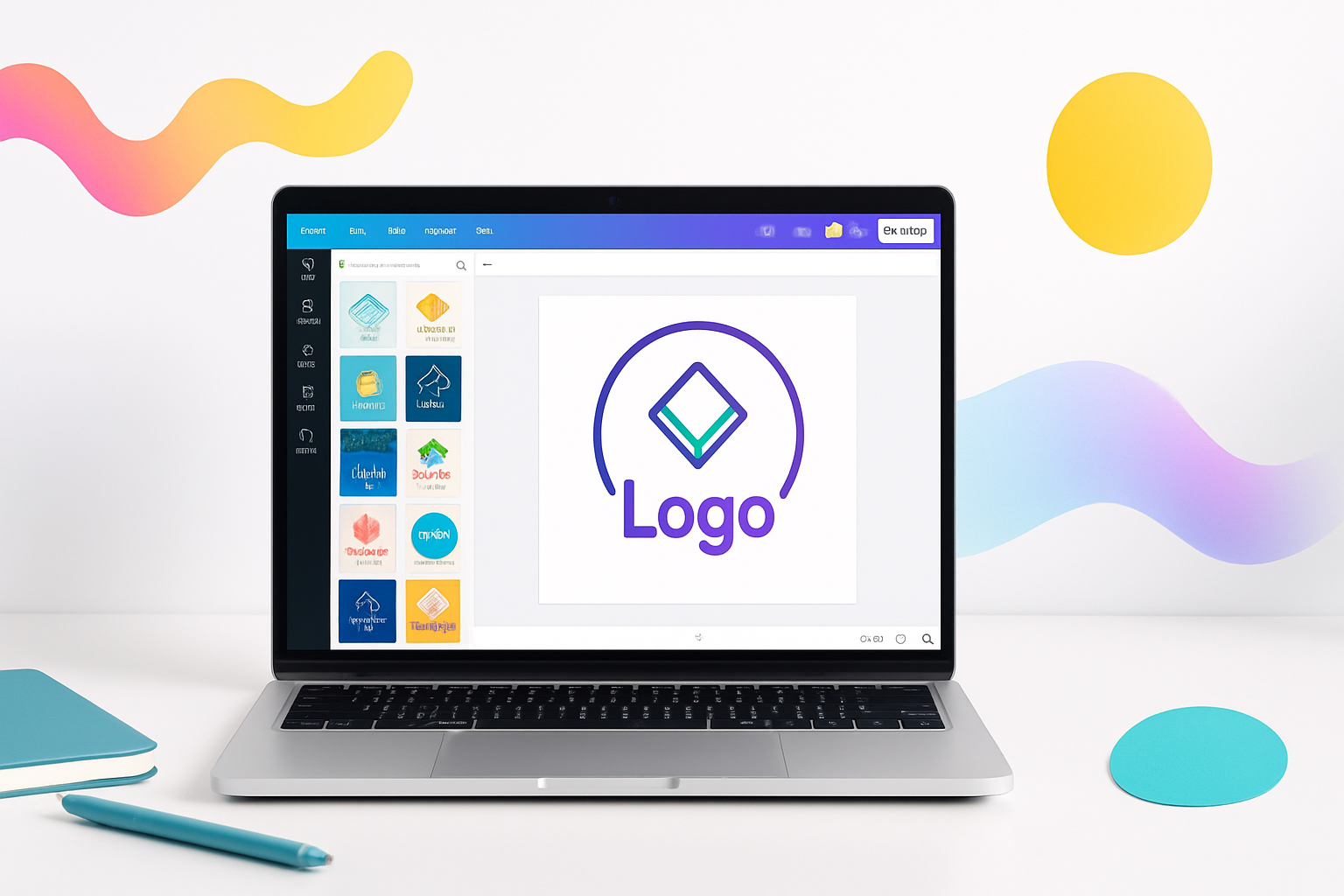
Log into your Canva account and search for “logo” in the search bar. You’ll see hundreds of professionally designed templates categorized by industry and style. Take time browsing different categories to spark inspiration.
Click on any template that catches your eye. Remember, this is just your starting point – you can modify everything to suit your needs.
Step 2: Customize Your Template
Start with the text elements. Click on any text to edit it directly. Replace placeholder text with your business name, tagline, or other relevant information.
Experiment with different fonts from Canva’s extensive library. Serif fonts often convey tradition and reliability, while sans-serif fonts feel modern and clean. Script fonts add elegance but can be harder to read at small sizes.
Pay attention to font pairing if using multiple typefaces. Generally, limit yourself to two fonts maximum to maintain visual harmony.
Step 3: Work with Colors Strategically
Colors trigger emotional responses and communicate brand personality. Blue suggests trust and professionalism, red conveys energy and passion, green represents growth and nature, while black implies luxury and sophistication.
Use Canva’s color palette tools to explore different combinations. The color wheel helps you find complementary colors, while the brand kit feature lets you save your chosen colors for consistency across all designs.
Consider how your logo will look in different contexts. Will it work in black and white for newspaper ads? Does it remain readable when printed small on business cards?
Step 4: Add and Modify Graphics
If your template includes icons or graphics, customize them to better represent your business. Canva offers thousands of free and premium graphics, illustrations, and icons.
Use the search function to find specific elements related to your industry. Adjust colors, sizes, and positioning until everything feels balanced and cohesive.
Avoid cluttering your design with too many elements. The most memorable logos are often the simplest ones.
Step 5: Fine-tune Layout and Spacing
Good logos have proper spacing and alignment. Use Canva’s alignment tools to center elements and create visual balance. The spacing between letters (kerning) and lines (leading) can dramatically impact readability.
Ensure your logo works at different sizes by zooming in and out. A logo that looks great large might become illegible when shrunk down for favicon use.
Advanced Canva Logo Techniques
Once you’re comfortable with basic editing, these advanced techniques will elevate your design:
Creating Custom Shapes
Combine basic shapes to create unique design elements. Use the transparency feature to layer shapes creatively. The “arrange” function helps you control which elements appear in front or behind others.
Using Effects and Filters
Subtle effects can add depth without overwhelming your design. Drop shadows, glows, and gradients should enhance rather than distract from your core message.
Test effects at different sizes to ensure they remain effective when scaled.
Working with Negative Space
Negative space – the empty area around and within your design – is just as important as the filled areas. Clever use of negative space can create hidden meanings and make logos more memorable.
Common Logo Design Mistakes to Avoid
Even with Canva’s user-friendly tools, certain pitfalls can weaken your logo’s impact:
- Too much complexity: Simple designs are more versatile and memorable
- Following trends blindly: Trendy elements can make your logo look dated quickly
- Poor font choices: Avoid overused fonts or those that don’t match your brand personality
- Ignoring scalability: Your logo should work from business cards to billboards
- Using low-resolution images: Always download the highest quality version available
Optimizing Your Logo for Different Uses
A great logo works across multiple platforms and contexts. Create variations for different applications:
Horizontal version: Perfect for website headers and business cards
Vertical version: Ideal for social media profiles and mobile applications
Icon version: Simplified version for favicons and app icons
Monochrome version: For single-color printing and backgrounds
Save your logo in multiple file formats. PNG files work well for digital use with transparent backgrounds, while vector formats like SVG maintain quality at any size.
Testing Your Logo Design
Before finalizing your design, test it thoroughly:
- Print it at various sizes to check readability
- View it on different backgrounds and surfaces
- Get feedback from potential customers or colleagues
- Check how it appears on your website and social media
- Ensure it reproduces well in black and white
Making Your Canva Logo Work Harder
Once you’ve created your perfect logo, maximize its impact by using it consistently across all touchpoints. Create brand guidelines documenting proper usage, colors, and spacing requirements.
Canva’s brand kit feature helps maintain consistency by saving your colors, fonts, and logos for easy access in future projects. This ensures all your marketing materials have a cohesive look.
Consider creating a complete brand identity system, including business cards, letterheads, and social media templates that incorporate your new logo.
Learning how to create a logo in Canva opens up endless possibilities for your brand identity. With practice and attention to detail, you can create professional-looking logos that effectively represent your business and connect with your audience. The key is starting with a clear vision, using Canva’s tools strategically, and refining your design until it perfectly captures your brand essence.
