

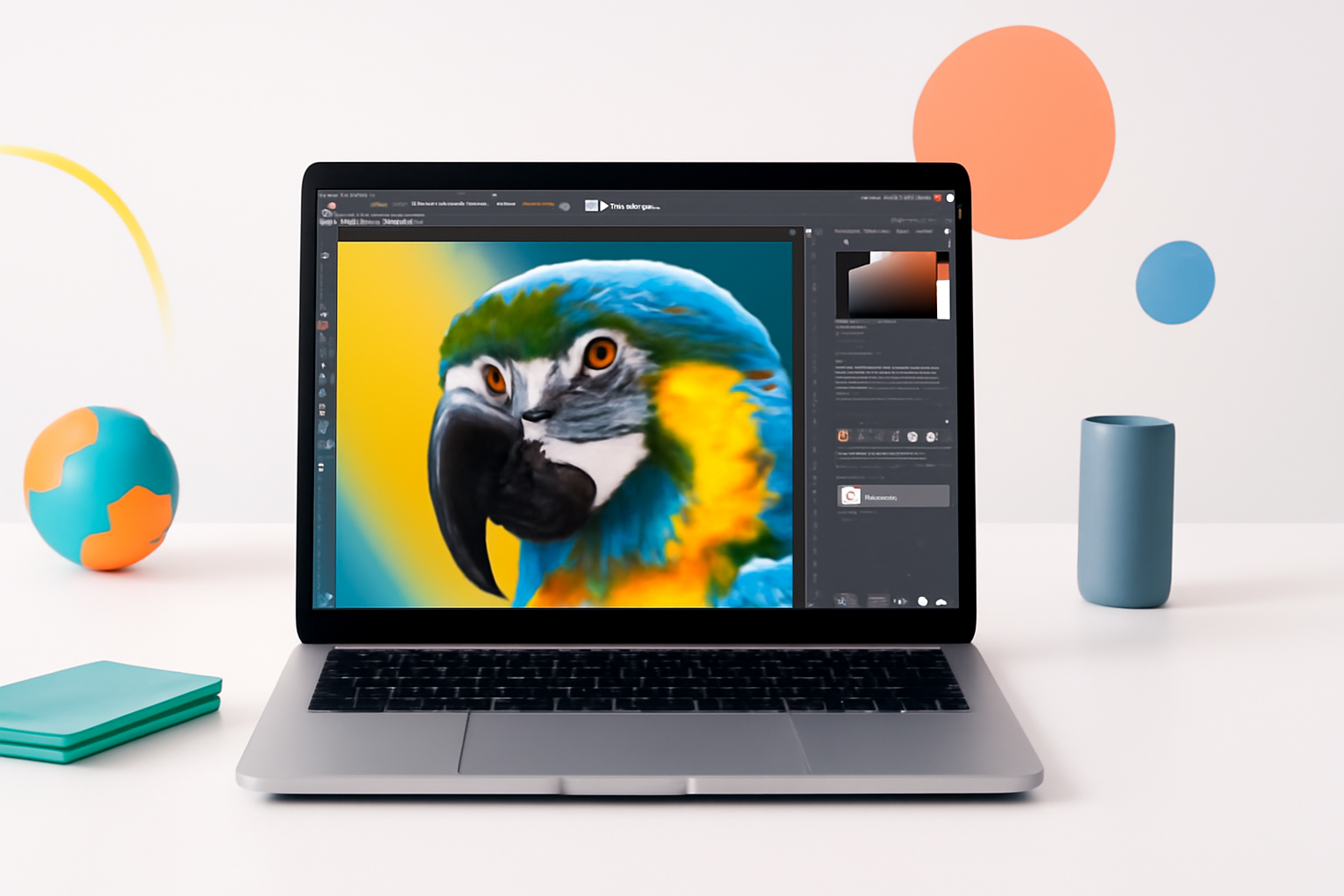
Picking the Right Laptop for Photoshop Without Overspending
Photoshop is a hungry application. It eats RAM for breakfast, leans hard on your processor, and will absolutely punish a weak graphics card when you start stacking layers and running filters. If you’ve ever watched the spinning wheel of doom mid-edit, you already know the pain of running Photoshop on underpowered hardware.
The good news? You don’t need a $3,000 workstation to run Photoshop well. But you do need to know which specs actually matter — and which ones are just marketing noise designed to make you spend more than you need to.
This breakdown covers every key component you should check before buying a laptop for Photoshop, from the processor and RAM to display quality and storage speed. Whether you’re editing photos casually or handling large commercial files professionally, there’s a practical answer here for your situation.
The Laptop Specs You Actually Need for Photoshop
RAM: The Single Biggest Factor
If there’s one spec that directly controls how smoothly Photoshop runs, it’s RAM. Adobe recommends at least 8GB, but in practice, that’s the bare minimum to open the program without crying. For real editing work — especially with multiple files, adjustment layers, and high-resolution images — you want more.
- 8GB RAM: Functional but tight. You’ll likely feel lag when multitasking or editing larger files.
- 16GB RAM: The sweet spot for most photographers and digital artists. Photoshop runs comfortably here.
- 32GB RAM: Ideal if you’re working with 100MP+ images, compositing large scenes, or running Photoshop alongside Lightroom and a browser simultaneously.
One important thing to check: whether the RAM is soldered or upgradeable. Many laptops today lock RAM to the motherboard. If you’re buying an 8GB model thinking you’ll upgrade later, verify that’s actually possible before you commit.
Processor (CPU): Speed Over Core Count
Photoshop is not heavily multithreaded. Many of its core operations — brush strokes, filter previews, history states — run primarily on a single CPU core. This means clock speed and single-core performance matter more than having 16 cores.
What to look for:
- Apple M-series chips (M2, M3, M4) — exceptional performance for Photoshop, especially with the optimized native version
- Intel Core i7 or i9 (13th or 14th gen) — strong single-core performance, good thermal headroom
- AMD Ryzen 7 or Ryzen 9 — competitive with Intel and often more power-efficient
Avoid anything labeled as a “U-series” ultra-low-power chip if you’re doing serious editing. These chips are designed for battery life, not sustained performance under heavy workloads.
GPU: Helpful, But Not the Priority
Photoshop does use GPU acceleration for certain tasks — canvas rendering, zoom, pan, and some filters like Blur Gallery and Liquify. But it’s not a GPU-heavy application the way video editing software or 3D programs are.
A dedicated GPU helps, but it’s not a dealbreaker if a laptop has strong integrated graphics. Apple’s M-series chips, for example, use integrated GPU cores that handle Photoshop extremely well.
If you’re choosing between a Windows laptop with a weak CPU but a dedicated GPU versus a stronger CPU with integrated graphics — go with the better CPU every time for Photoshop.
That said, if you also edit video, use Premiere Pro, or work in 3D applications, a dedicated GPU (NVIDIA RTX 3050 or better) becomes much more important.
Storage: SSD Is Non-Negotiable
Photoshop uses your storage drive as a scratch disk — essentially overflow memory when your RAM fills up. If you’re running on a traditional hard drive, this process becomes a crawl. An SSD changes everything.
Aim for:
- NVMe SSD: Fast read/write speeds mean Photoshop loads faster, scratch disk operations are smoother, and saving large files doesn’t take forever
- At least 512GB: Photoshop itself takes space, and your project files will grow quickly
- 1TB preferred: Gives you room to breathe without constantly managing storage
If possible, check the SSD read/write speeds in the laptop specs. Anything above 2,000MB/s read speed is solid. Many premium laptops now hit 5,000–7,000MB/s, which makes a noticeable difference with large PSDs.
Display: You Edit What You See
This is where a lot of buyers make a frustrating mistake — they spend money on performance specs and settle for a mediocre screen. If your display shows colors inaccurately, your edits will look completely different when viewed on another screen or printed.
Here’s what matters for a Photoshop display:
- Color accuracy: Look for displays covering at least 95–100% sRGB. For professional print work, DCI-P3 coverage becomes important.
- Resolution: Full HD (1920×1080) is workable, but a higher resolution like 2560×1600 or 4K gives you more screen real estate and sharper detail when zooming in.
- Panel type: IPS panels offer better color reproduction and wider viewing angles than TN panels. OLED displays look stunning but can have brightness uniformity issues for color-critical work.
- Brightness: At least 300 nits for indoor work. 400+ nits if you sometimes edit in brighter environments.
If you’re serious about color accuracy, factor in a hardware calibrator like the X-Rite ColorMunki or Datacolor Spyder down the line. No laptop display is perfect out of the box.
How Your Workflow Changes What You Need
Not everyone needs the same setup. A portrait photographer editing 24-megapixel JPEGs has very different demands compared to a commercial retoucher working on 80-megapixel RAW files with 50+ layers.
| Use Case | RAM | CPU | Storage |
| Casual photo editing | 16GB | Mid-range (i5/Ryzen 5/M2) | 512GB NVMe SSD |
| Enthusiast photographer | 16–32GB | i7/Ryzen 7/M3 | 1TB NVMe SSD |
| Professional retouching | 32GB+ | i9/Ryzen 9/M3 Pro or Max | 1–2TB NVMe SSD |
| Photoshop + Video editing | 32GB+ | High-end with dedicated GPU | 2TB NVMe SSD |
Think honestly about your actual workflow before making a purchase. It’s easy to over-spec for work you’re not doing yet — and just as easy to under-spec and regret it six months in.
Mac vs. Windows: The Honest Answer
Apple Silicon Macs have genuinely changed the game for creative applications. Photoshop runs natively on M-series chips and takes advantage of the unified memory architecture in ways that Intel-based systems can’t match. An M3 MacBook Pro with 18GB of unified memory often outperforms Windows laptops with 32GB of DDR5 RAM for Photoshop tasks.
That’s not a brand endorsement — it’s just where the performance benchmarks currently land.
However, Windows laptops offer more variety, are often more affordable at similar spec levels, and give you more options when it comes to display quality and upgrade paths. If budget is tight and you’re choosing between a $1,000 Windows laptop and a $1,000 MacBook, the Windows machine will often offer more raw specs on paper.
The real differentiator comes at the mid-to-high range. An M3 Pro MacBook Pro is difficult to beat for Photoshop performance, battery life, and display quality in a single package — if you’re willing to pay for it.
Things People Forget to Check
Beyond the core specs, a few practical details often get overlooked during the buying process:
- Thermal performance: A laptop that overheats will throttle its CPU, tanking performance during long editing sessions. Look for reviews that test sustained workloads, not just burst benchmarks.
- Port selection: Photoshop workflows often involve external hard drives, SD cards, and external monitors. Make sure your laptop has the ports you’ll actually use, or budget for adapters.
- Battery life: Photoshop is power-hungry. If you need to work away from an outlet, battery life becomes a real spec to weigh — not just a nice-to-have.
- Keyboard and trackpad quality: You’ll spend hours navigating menus and shortcut keys. A poor keyboard or laggy trackpad adds up fast in frustration.
Minimum vs. Recommended: A Practical Summary
Adobe’s official system requirements for Photoshop are useful as a baseline, but they don’t tell the whole story. Here’s a more honest breakdown:
- Minimum to run Photoshop: 8GB RAM, quad-core CPU, 4GB free storage, SSD
- Comfortable for regular editing: 16GB RAM, modern 8-core CPU, 512GB NVMe SSD, 95%+ sRGB display
- Future-proofed for professional work: 32GB RAM, high-performance CPU (Apple M3/M4 or Intel i9/Ryzen 9), 1TB+ NVMe SSD, color-accurate display with DCI-P3 coverage
The gap between “minimum” and “comfortable” is where most buyers get tripped up. A laptop that technically runs Photoshop and one that runs it well are two very different experiences.
Making the Final Call
Knowing what laptop specs you need for Photoshop comes down to being honest about how you work and what file sizes you’re regularly dealing with. Start with 16GB RAM and a fast NVMe SSD — those two upgrades will do more for your Photoshop experience than almost anything else.
Don’t get dazzled by GPU specs that won’t move the needle for photo editing, and don’t ignore the display just because it’s not a CPU number. The screen is where all your work actually lives.
If you’re buying a new machine specifically for creative work, read real-world reviews from photographers and designers — not just benchmark charts. Performance in synthetic tests and performance in actual Photoshop workflows don’t always tell the same story.
