

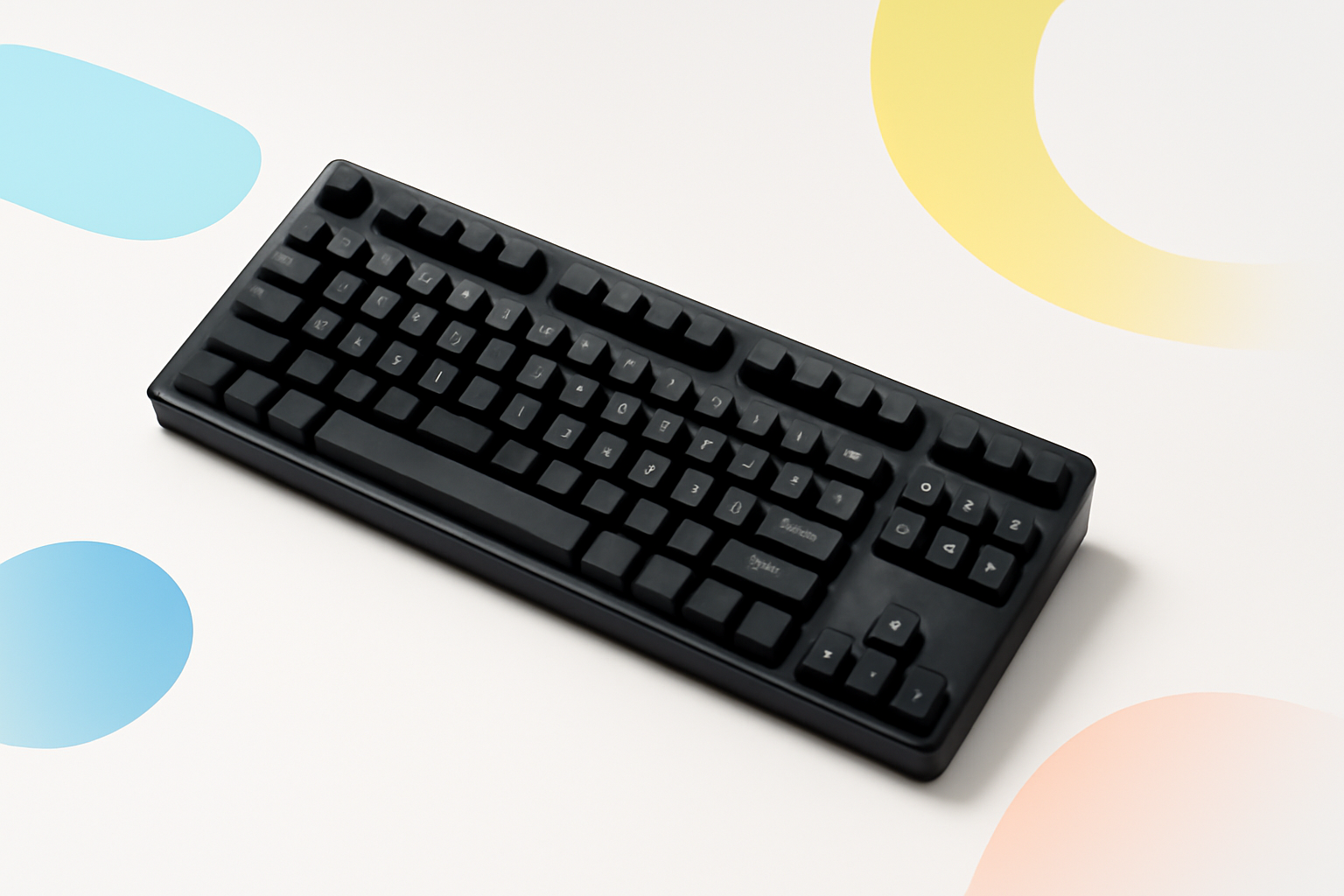
Your Hands Deserve Better Than a Cheap Keyboard
If you spend most of your workday typing, your keyboard isn’t just a peripheral — it’s basically a piece of occupational equipment. The wrong one can leave your wrists aching, your fingers fatigued, and your focus scattered by clunky keystrokes. The right one, though? You stop noticing it entirely. That’s the goal.
Finding the best keyboard for typing all day isn’t about chasing specs or buying the most expensive option. It’s about matching the right features to how you actually work. Switch type, key travel, layout, wrist angle — these details matter far more than most people realize until they start experiencing discomfort.
This breakdown covers what genuinely makes a keyboard comfortable for long hours, which models are worth your money, and what you should absolutely avoid if you’re serious about protecting your hands over the long term.
What Actually Makes a Keyboard Good for All-Day Typing?
Before jumping into product recommendations, it’s worth understanding what separates a good typing keyboard from everything else. Marketing language like “premium feel” and “tactile response” is vague to the point of uselessness. Here’s what actually matters:
Key Switch Type
The switch underneath each keycap determines how typing feels and sounds. For extended typing sessions, most people gravitate toward one of three categories:
- Linear switches (like Cherry MX Red or Speed Silver) — smooth, quiet, no tactile bump. Great if you type lightly and prefer a fast, fluid feel.
- Tactile switches (like Cherry MX Brown or Topre) — give a noticeable bump when the key registers without an audible click. A popular middle ground for office typists.
- Clicky switches (like Cherry MX Blue or Kailh Box White) — audible click with tactile feedback. Satisfying for touch typists, but your coworkers may hate you.
For all-day comfort, tactile and linear switches tend to win out. The bump in tactile switches can actually reduce strain because you know exactly when the key has registered — meaning you stop bottoming out with every press.
Key Travel and Actuation Force
Key travel refers to how far a key moves when you press it. Mechanical keyboards typically offer 2mm of pre-travel with 4mm total travel, which is enough to feel intentional without requiring excessive force. Membrane keyboards often feel mushy because all that travel happens with no clear feedback.
Actuation force — measured in grams — is how hard you need to press. Light switches (around 45g) reduce finger fatigue during marathon sessions. Heavier switches (60g+) can feel more satisfying but tire fingers faster.
Layout and Form Factor
Full-size keyboards include a numpad, which is handy for data entry but pushes your mouse further right — creating shoulder strain over time. Tenkeyless (TKL) keyboards drop the numpad and bring everything closer together. Compact 65% and 75% layouts go further still, which some typists love and others find too restrictive.
If you don’t use the numpad regularly, go TKL or smaller. Your shoulder and neck will thank you.
Ergonomic Design
Some keyboards go beyond traditional flat layouts entirely. Split keyboards allow each hand to sit at a natural angle. Curved or “wave” designs reduce ulnar deviation (the awkward inward bend of the wrist). These aren’t gimmicks — they reflect real human anatomy.
Top Keyboards Worth Considering for Long Typing Sessions
Here’s a comparison of keyboards that consistently perform well for people who type all day across different budgets and needs:
| Keyboard | Type | Best For | Price Range |
| Logitech MX Keys | Scissor / Low-profile | Office workers, quiet environments | $$ |
| Keychron K2 Pro | Mechanical (hot-swap) | Customizers, hybrid workers | $$ |
| Kinesis Advantage360 | Ergonomic split mechanical | Heavy typists, RSI prevention | $$$$ |
| Das Keyboard 4 Professional | Mechanical (Cherry MX) | Touch typists, writers | $$$ |
| Microsoft Sculpt Ergonomic | Membrane ergonomic | Budget ergonomic option | $$ |
| Ducky One 3 | Mechanical (multiple switches) | Enthusiasts who want quality build | $$$ |
Logitech MX Keys — The Reliable Workhorse
For people who want a no-fuss, comfortable typing experience without going full mechanical, the MX Keys is hard to beat. The spherically sculpted keycaps match the natural curve of your fingertips, and the low-profile design means less wrist extension. It’s wireless, connects to multiple devices, and has a solid, premium feel despite using scissor switches.
It’s not going to excite keyboard enthusiasts, but for someone who just wants their hands to stop hurting by 5pm — it genuinely delivers.
Keychron K2 Pro — Flexibility Without Compromise
The Keychron lineup has become a go-to for people who want mechanical performance without a steep learning curve. The K2 Pro is a 75% layout with hot-swappable switches, meaning you can change the switches without soldering. Come in with Gateron Browns, try Red switches a month later — no commitment required.
It supports both Mac and Windows, connects via Bluetooth or USB-C, and the build quality punches well above its price point. A great starting point for anyone upgrading from a basic office keyboard.
Kinesis Advantage360 — For Serious Long-Term Health
If you’re logging 8-10 hours of typing daily, the Kinesis Advantage360 is worth the investment and the adjustment period. The split design, concave key wells, and thumb cluster layout are all based on reducing the repetitive stress patterns that lead to conditions like carpal tunnel syndrome and RSI.
It takes a week or two to adapt. After that, most users say going back to a standard keyboard feels almost wrong. Not for everyone, but if you’ve already experienced wrist pain, this is where to look.
What to Skip — Common Keyboard Mistakes
Just as important as what to buy is what to avoid. A few common pitfalls:
- Using your laptop keyboard for 8+ hours — Laptop keyboards are designed for portability, not sustained typing. The shallow key travel and flat angle lead to finger and wrist strain quickly.
- Gaming keyboards marketed as typing keyboards — Many gaming boards prioritize fast actuation and RGB lighting over ergonomics. Super-light linear switches can actually cause more typos and bottoming-out fatigue.
- Membrane keyboards with no feedback — The “mushy” feeling of low-quality membrane keyboards forces you to bottom out every key just to feel like it registered. Over thousands of keystrokes, that adds up.
- Ignoring wrist angle — Even a great keyboard used with a raised wrist angle can cause problems. Negative tilt (front of the keyboard higher than the back) is often better for wrist alignment than the standard raised legs.
Don’t Forget the Setup Around the Keyboard
Even the best keyboard for typing all day won’t save you if the rest of your desk setup is working against you. A few things that compound the keyboard’s impact:
- Desk and chair height — Your elbows should sit at roughly 90 degrees when typing. If your desk is too high, you’re raising your shoulders all day.
- Wrist rest positioning — A wrist rest should support the heel of your palm during pauses, not during active typing. Typing over a raised wrist rest bends your wrist upward constantly.
- Monitor distance and height — Craning your neck forward to see the screen changes how your shoulders and arms sit, which flows right down to your hands.
- Break frequency — The Pomodoro technique (25 minutes on, 5 minutes off) isn’t just for focus — the micro-breaks give your hands genuine recovery time.
No keyboard, however well designed, compensates for a desk that’s too high, a chair that’s too low, and eight hours without a real break.
Mechanical vs. Membrane: The Real Verdict
This debate gets more heated than it deserves. The honest answer is: mechanical keyboards are generally better for long typing sessions, but the gap isn’t enormous if budget is a concern.
Mechanical switches give you tactile or auditory confirmation of a keypress, which typically means less force applied per keystroke over the day. That’s less cumulative strain. They also last longer — rated for 50-100 million keystrokes compared to 5-10 million for most membrane boards.
That said, a quality scissor-switch keyboard like the Logitech MX Keys or Apple Magic Keyboard is a legitimate option for people who prefer the flatter, quieter profile. The key (no pun intended) is consistent, registering feedback — whatever mechanism provides that.
Finding the Best Keyboard for Typing All Day Comes Down to You
Specs and reviews can point you in the right direction, but your hands are unique. Finger length, typing style, how hard you press, whether you’re prone to wrist issues — all of it shapes what “comfortable” means for you specifically.
If you’ve never used a mechanical keyboard, start with tactile switches and a tenkeyless layout. If you’re already experiencing discomfort, take the ergonomic route seriously — a split or curved keyboard may be a better long-term investment than any high-end gaming board.
Buy once, type well. The keyboard you use every day is worth getting right.
