

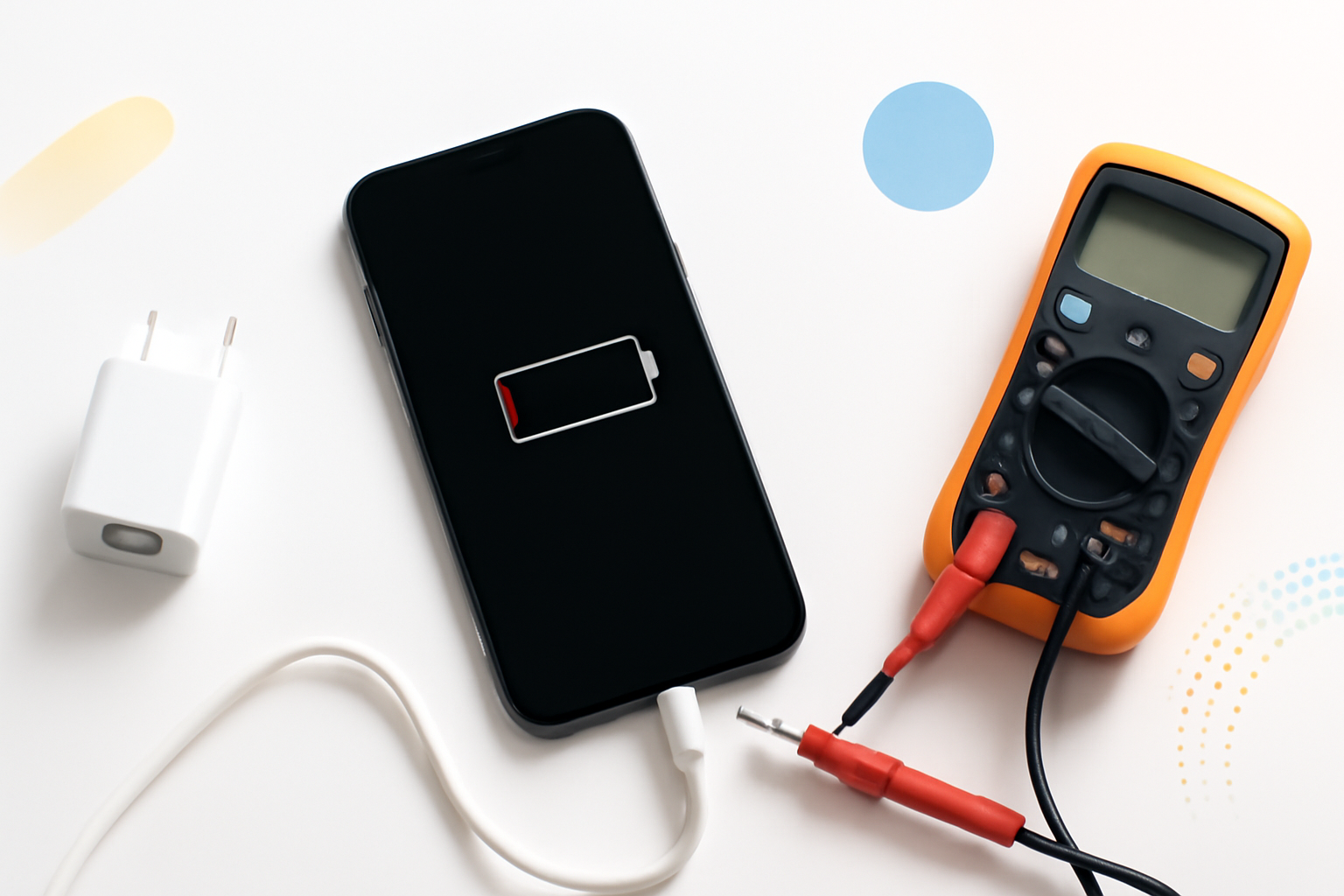
Your Phone Won’t Charge — Here’s How to Actually Fix It
There’s a specific kind of frustration that hits when you plug in your phone, walk away, and come back to find it still at 3%. No charging animation. No warm screen. Just a dead phone mocking you silently. Before you panic or rush to a repair shop, the good news is that most charging problems are fixable at home — often in under five minutes.
The trick is knowing where to look. Charging failures rarely come from one place. They can be the cable, the adapter, the port, the battery, or even a software glitch. Working through these systematically saves you time, money, and the headache of replacing something that didn’t need replacing.
Start With the Obvious (But Often Overlooked) Causes
Before pulling anything apart or downloading apps, check the simple stuff. You’d be surprised how many “broken” phones just needed a different cable.
Check the Charging Cable
Cables take a beating. They get coiled, bent near the connector, chewed by pets, and stuffed in bags repeatedly. Even if a cable looks fine externally, the internal wires can be frayed or broken. Try a completely different cable — ideally one you know works on another device.
If you’re using a third-party cable, that could be your culprit. Cheap USB-C or Lightning cables often lack proper shielding and fail to deliver consistent power. Always test with a certified or manufacturer-branded cable first.
Try a Different Power Adapter and Outlet
Wall adapters fail too. A charger that worked fine for two years can quietly stop delivering the right voltage. Plug your cable into a different adapter — or try charging through a laptop USB port just to rule out the adapter entirely.
Also swap the wall outlet. A tripped circuit or a faulty socket can make it look like your phone is the problem when it isn’t.
Clean the Charging Port — This Fixes More Phones Than You’d Think
Lint is the silent killer of charging ports. Your phone sits in your pocket all day, and over time, compressed lint, dust, and debris pack into the port until the cable can no longer make solid contact. The connector might feel like it’s plugging in normally, but it’s actually sitting on a cushion of fluff.
Here’s how to clean it safely:
- Power off your phone completely before doing anything.
- Use a wooden or plastic toothpick — never metal, which can damage the contacts or short something out.
- Gently angle the toothpick into the port and scrape along the back wall, loosening compacted debris.
- Use a can of compressed air to blow out what you’ve loosened. Hold the can upright to avoid moisture spray.
- Check the port with a flashlight. The contacts inside should be visible and clean.
After cleaning, plug the cable back in. Many people feel a noticeable difference — the cable seats deeper and charges immediately. This one step alone fixes a significant number of charging issues.
Restart and Soft Reset Your Phone
Software can absolutely cause charging problems. A frozen system process or a glitchy battery management service can prevent your phone from recognizing that it’s connected to power.
Do a full restart first. Hold the power button, tap restart, and wait for the phone to boot back up before plugging in the charger. If the phone is completely unresponsive, do a force restart:
- iPhone 8 or later: Press and release Volume Up, press and release Volume Down, then hold the Side button until the Apple logo appears.
- iPhone 7: Hold Volume Down and Sleep/Wake together for 10 seconds.
- Samsung Galaxy: Hold Volume Down and Power for about 10 seconds.
- Most Android phones: Hold the Power button for 10–15 seconds.
Once the phone restarts, try charging again. If it works now, a software glitch was likely the issue all along.
Wireless Charging vs. Wired — Testing Both Reveals a Lot
If your phone supports wireless charging, try placing it on a Qi pad. If it charges wirelessly but not through the cable, the port is almost certainly damaged or dirty. If it doesn’t charge either way, the problem is more likely the battery or internal hardware.
| Charges wirelessly, not via cable | Damaged or dirty charging port |
| Charges via cable, not wirelessly | Wireless coil issue or case blocking signal |
| Neither method works | Battery or internal hardware problem |
| Charges intermittently | Loose port, bad cable, or software fault |
This test narrows down the problem quickly without needing any tools.
Check Your Battery Health
An old or degraded battery can behave in strange ways. It might show 20% charge one moment and shut off the next, or refuse to charge past a certain percentage. Both Android and iPhone give you some visibility into battery health.
On iPhone
Go to Settings → Battery → Battery Health & Charging. If your maximum capacity is below 80%, Apple considers the battery degraded. A battery in poor condition can cause charging behavior that looks like a hardware fault but is really just the battery reaching the end of its life.
On Android
Android doesn’t have a universal battery health screen, but many Samsung phones show it under Settings → Battery and Device Care → Diagnostics. Third-party apps like AccuBattery give you a more detailed view of charge cycles and health estimates across most Android devices.
If your battery health is severely degraded, the fix is a battery replacement — not a new phone. Most reputable repair shops can swap a battery for a fraction of what a new device costs.
Update Your Software
This sounds like generic tech advice, but it’s relevant here. Some iOS and Android updates include fixes for power management bugs. A known charging glitch caused by a firmware update is sometimes resolved in the very next patch.
If your phone charges just enough to power on, get it to at least 10–15% and check for pending updates under your settings. If an update is available, install it and test charging again afterward.
When the Problem Is a Damaged Charging Port
If you’ve cleaned the port, tried multiple cables, and the issue persists, the port itself may be physically damaged. This is common in phones that are dropped frequently, or in USB-C ports that have been plugged and unplugged thousands of times.
Signs of a damaged port include:
- The cable wobbles or feels loose when plugged in
- The phone only charges in certain positions or angles
- Visible bent or broken pins inside the port
- The port looks discolored or corroded
A damaged port usually requires a professional repair. Port replacements are typically affordable — around $30–$80 depending on the phone model and where you go. Most third-party repair shops can turn this around same-day.
Liquid Damage and Corrosion
Even “water-resistant” phones can suffer moisture damage over time, especially around the charging port. If your phone got wet recently — or even just lives in a humid environment like a bathroom — moisture inside the port can cause charging failure or intermittent connections.
If you suspect liquid damage, leave the phone powered off and place it in a dry environment for several hours. Don’t use rice — it’s largely a myth and can introduce starch into the port. Silica gel packets work better, or simply leaving the phone in a warm, dry room with the port facing down.
If corrosion has set in on the internal contacts, a repair technician can sometimes clean and restore them. But if moisture reached the motherboard, the situation becomes more complicated and costly.
How to Fix a Phone That Won’t Charge — Quick Troubleshooting Summary
If you want a fast reference to run through before booking a repair:
- Test with a different cable and wall adapter
- Try a different power outlet
- Clean the charging port with a toothpick and compressed air
- Force restart the phone
- Test wireless charging to isolate the issue
- Check battery health in settings
- Install any pending software updates
- Inspect the port for physical damage or corrosion
- Visit a repair shop if the issue persists
When to Stop DIY and See a Professional
Most charging issues fall into the categories above and are fixable without professional help. But if you’ve worked through everything here and your phone still won’t charge, it’s time to hand it off. Some faults — like a damaged charging IC chip on the motherboard or a failed battery management system — are beyond what can be diagnosed or repaired at home.
Before spending money on a repair, check if your phone is still under manufacturer warranty or covered by your carrier or a third-party protection plan. A warranty repair or replacement is always the better first call.
The vast majority of phones that “won’t charge” aren’t actually broken. They’ve got a dirty port, a failing cable, or a simple software hiccup. Work through the steps above methodically, and there’s a solid chance you’ll have a fully charging phone before the day is done.
