

SSD vs HDD: What’s Actually Different and Why It Matters for Your PC
If you’ve ever shopped for a laptop or built a desktop, you’ve almost certainly run into this choice: SSD or HDD? Both store your files, your operating system, and your applications — but they do it in completely different ways, and that difference has a huge impact on your day-to-day experience.
This isn’t just a spec-sheet conversation. Choosing the wrong storage type can mean waiting 90 seconds for Windows to boot, or watching your laptop battery drain in three hours instead of seven. So let’s break this down in plain terms — what each one is, how they work, and which one actually makes sense for your situation.
The Core Difference Between SSD and HDD
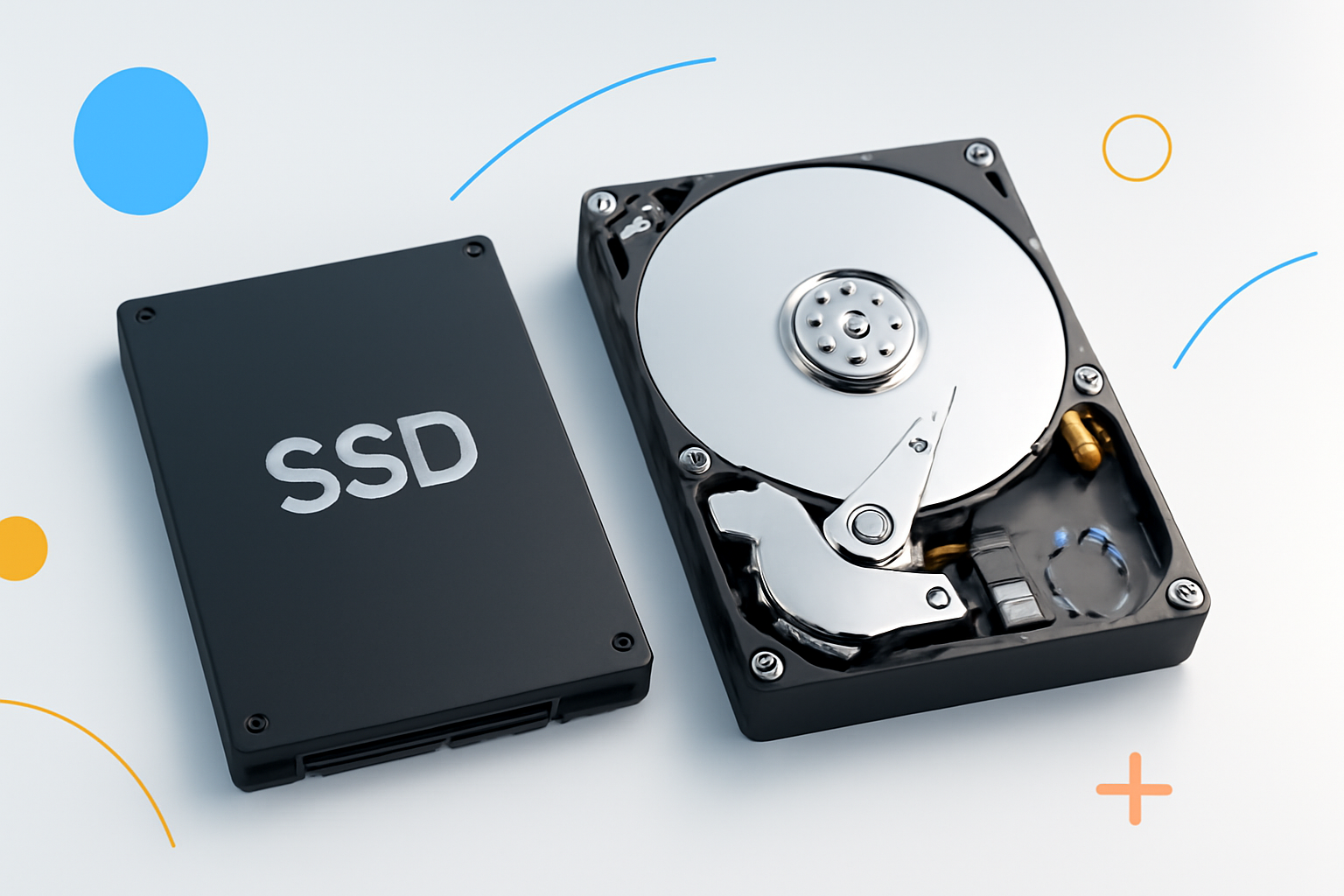
A Hard Disk Drive (HDD) is a mechanical storage device. Inside the casing, there are spinning magnetic platters and a tiny read/write arm that physically moves across those platters to find and retrieve data. Think of it like a vinyl record player — it works, but there are moving parts, and that limits how fast everything happens.
A Solid State Drive (SSD) has no moving parts at all. It stores data on interconnected flash memory chips — the same fundamental technology used in USB drives, just much faster and more sophisticated. Because there’s nothing physically moving, the drive can access data almost instantly.
That single distinction — mechanical vs. electronic — is what drives every other difference between the two.
Speed: Where the Gap Becomes Very Real
Speed is where SSDs genuinely embarrass traditional hard drives. A typical HDD reads data at around 80–160 MB/s. A mid-range SATA SSD runs at 500–550 MB/s. Step up to an NVMe SSD (which connects directly to the CPU via the PCIe lane), and you’re looking at 3,000–7,000 MB/s or more.
In real-world terms, this translates to:
- Booting Windows in 10–15 seconds instead of 45–90 seconds
- Opening applications almost instantly rather than waiting for loading bars
- Faster file transfers, especially with large video or photo collections
- Smoother multitasking, since the OS can pull data into RAM faster
If you’ve ever used a computer that felt sluggish for no obvious reason, there’s a good chance an aging HDD was at the root of it.
Price and Storage Capacity
Here’s where HDDs still hold their ground. A 4TB HDD will cost you somewhere around $80–$100. A 4TB SSD? Easily three to four times that price, often more for high-performance NVMe models.
For everyday computing tasks, this might not matter much. But if you’re storing large video libraries, raw photo archives, or backups of entire systems, cost-per-gigabyte becomes a serious consideration.
| Storage Type | Approx. Cost per TB | Typical Use Case |
| HDD (7200 RPM) | $20–$30 | Backups, media storage, NAS drives |
| SATA SSD | $60–$90 | Boot drives, everyday computing |
| NVMe SSD | $80–$150+ | Gaming, video editing, high-performance workstations |
A common setup for power users: an NVMe SSD as the primary drive for Windows and applications, with a large HDD as secondary storage for files and backups. You get the speed where it counts, and the capacity without breaking the bank.
Durability and Physical Reliability
Because HDDs have spinning platters and moving arms, they’re vulnerable to physical shock. Drop a laptop with an active HDD, and you risk a head crash — where the read arm physically contacts the platter and damages the disk. It’s not a guarantee of failure, but it’s a real risk.
SSDs are far more resilient to drops and vibration. There’s nothing to knock out of alignment. This is one reason SSDs became the default in ultrabooks and high-end laptops years ago — portability demands durability.
That said, SSDs aren’t bulletproof. Flash memory has a limited number of write cycles. Over time, cells wear out. Most modern SSDs include wear-leveling technology that extends lifespan significantly, but heavy write-intensive workloads (like database servers) can eventually wear them down.
For typical home or office use? Either drive will likely outlast your need for that specific machine.
Noise, Heat, and Power Consumption
HDDs hum. Sometimes they click. The spinning platters and moving arm generate audible noise, especially older or busier drives. It’s subtle, but in a quiet room you’ll notice it.
SSDs are completely silent. No moving parts means no mechanical noise.
On the power front, SSDs draw significantly less energy — typically 2–4 watts under load, compared to 6–10 watts for a spinning drive. On a laptop, this translates directly to longer battery life. It also means less heat generated, which is better for the overall thermal management of your system.
Form Factors: They Don’t All Look the Same
One thing that trips up a lot of buyers is that SSDs and HDDs come in different physical shapes, and not every machine supports every type.
Common HDD Form Factors
- 3.5-inch: Standard desktop drives, typically used in desktop towers and NAS enclosures
- 2.5-inch: Laptop-sized drives, also used in some desktop builds for secondary storage
Common SSD Form Factors
- 2.5-inch SATA: Drop-in replacements for old laptop HDDs — easy upgrade path
- M.2 SATA: Small stick-shaped drives that plug directly into the motherboard
- M.2 NVMe: Same shape as M.2 SATA, but dramatically faster — requires NVMe-compatible slot
- PCIe add-in card: Used in workstations and servers for maximum throughput
Before buying an SSD, always check what slots your motherboard or laptop supports. An M.2 NVMe drive won’t work in a laptop that only has a 2.5-inch bay — obvious in retrospect, but easy to overlook when shopping.
Which One Should You Actually Choose?
There’s no single right answer, but there are pretty clear patterns depending on what you’re trying to do.
Go with an SSD if:
- You want a fast, responsive computer for everyday work or gaming
- You’re upgrading an older laptop that boots slowly
- Battery life and portability matter to you
- You work with large files that need to load quickly (video editing, photography, coding)
An HDD still makes sense if:
- You need to store massive amounts of data cheaply
- You’re building a NAS (network-attached storage) for backups or a home media server
- You’re adding secondary storage to a desktop that already has an SSD for the OS
- Budget is a hard constraint and you need maximum capacity
For most people buying a new laptop or desktop in the current market, an SSD should be the default. The performance difference is so significant that going back to an HDD for a primary drive feels like a genuine step backward.
What About Replacing an Old HDD With an SSD?
This is one of the most effective and affordable upgrades you can make to an aging computer. If you have a machine running Windows on a spinning hard drive, swapping it for a 2.5-inch SATA SSD can transform how the whole system feels — often making a 5-year-old laptop feel nearly new again.
Here’s a rough process for doing it yourself:
- Clone your existing drive to the new SSD using free software like Macrium Reflect or Clonezilla
- Physically swap the drives (usually requires just a screwdriver)
- Boot from the SSD and confirm everything works
- Wipe the old HDD and repurpose it as external storage if needed
The whole process typically takes an hour or two for someone doing it for the first time, and the entry-level SATA SSDs that make great upgrade drives cost as little as $40–$60 for 500GB.
The Bottom Line on Storage Choices
Understanding the difference between SSD and HDD isn’t just technical trivia — it directly affects how fast your computer runs, how long your laptop lasts on a charge, and how much you spend to get the storage you need.
SSDs win on speed, durability, noise, and power efficiency. HDDs win on cost-per-gigabyte and raw capacity for the money. The best storage strategy for most people isn’t choosing one over the other — it’s using an SSD where performance matters and leaning on an HDD for bulk storage where it doesn’t.
If you’re only upgrading one thing on an older computer, making the switch to an SSD will give you more noticeable improvement than almost any other hardware change you could make.
