

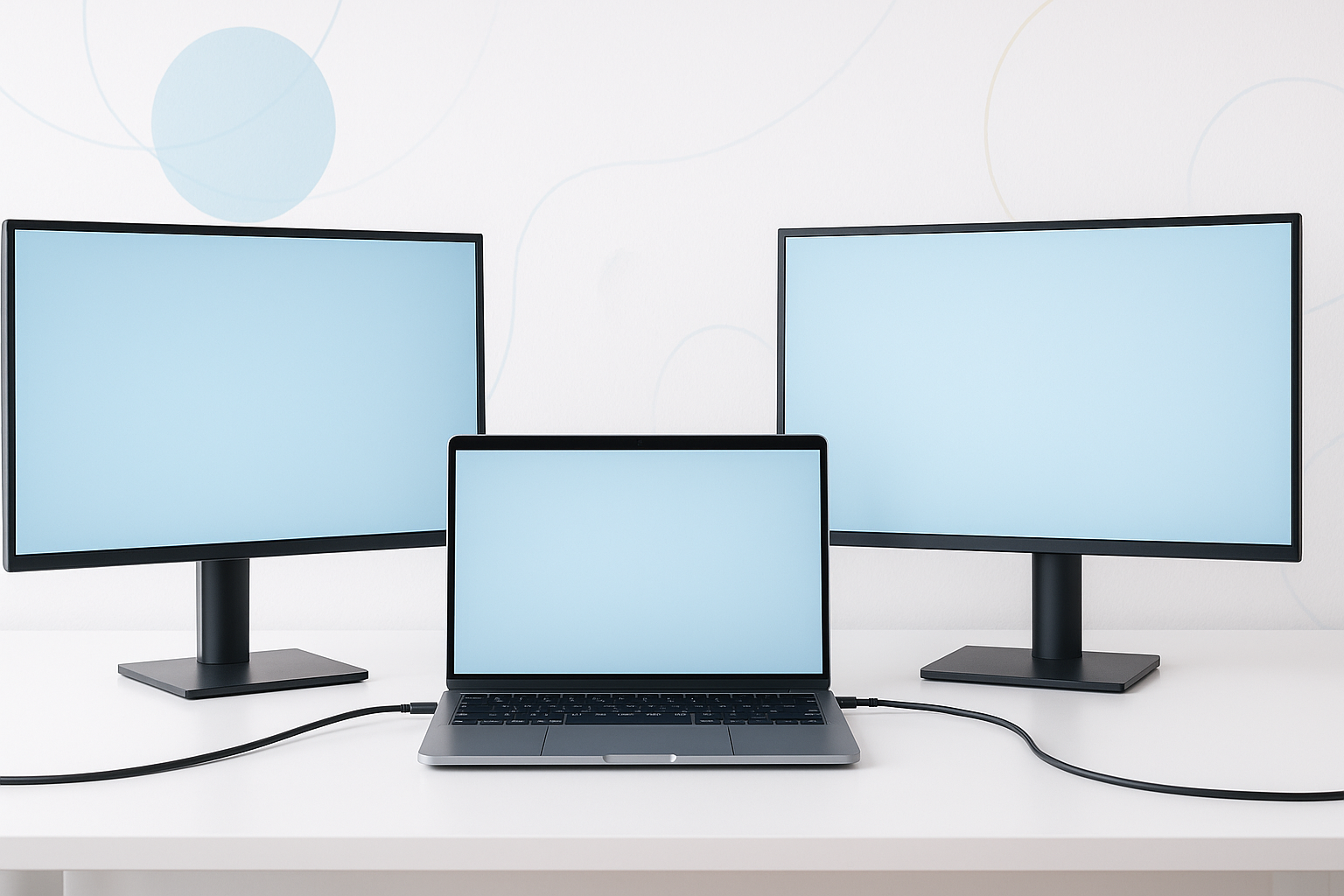
Setting up dual monitors with your laptop can transform your productivity, giving you the screen real estate you need for multitasking, coding, design work, or simply enjoying a better entertainment experience. Many people assume this setup requires technical expertise, but connecting two monitors to a laptop is surprisingly straightforward once you understand your options.
The key lies in knowing what ports your laptop has, choosing the right cables and adapters, and configuring your display settings properly. Let’s walk through everything you need to make this happen.
Check Your Laptop’s Available Ports
Before buying any cables or monitors, examine your laptop’s ports carefully. Modern laptops typically feature a mix of connection options:
- HDMI ports – Most common on laptops manufactured in the last decade
- USB-C/Thunderbolt 3 or 4 – Standard on newer laptops, especially ultrabooks
- DisplayPort – Less common but found on some gaming and business laptops
- VGA ports – Mostly on older laptops
- DVI ports – Rare on modern laptops
Count how many video output ports you have. If your laptop only has one video port, don’t worry – there are still several ways to connect two external monitors.
How to Connect Two Monitors to a Laptop: Multiple Methods
Method 1: Using Two Separate Video Ports
If your laptop has two video output ports (like HDMI + USB-C), this is the simplest approach:
- Connect your first monitor to the HDMI port using an HDMI cable
- Connect your second monitor to the USB-C port using a USB-C to HDMI/DisplayPort cable
- Power on both monitors
- Configure your display settings (we’ll cover this below)
Method 2: Daisy Chaining with DisplayPort MST
Some monitors support Multi-Stream Transport (MST), allowing you to chain monitors together:
- Connect your laptop to the first monitor via DisplayPort
- Connect the first monitor to the second monitor using another DisplayPort cable
- Enable MST mode in your first monitor’s settings menu
- Configure display settings on your laptop
Note that both monitors must support MST for this method to work.
Method 3: USB-C Hub or Docking Station
A USB-C hub with multiple video outputs can connect to your laptop’s USB-C port and provide HDMI, DisplayPort, or VGA connections for multiple monitors.
- Connect the hub to your laptop’s USB-C port
- Plug both monitors into the hub’s video ports
- Ensure the hub supports dual displays (not all do)
Method 4: USB Display Adapters
USB-to-HDMI adapters can turn any USB port into a video output, though performance may be limited:
- Install the adapter’s drivers on your laptop
- Connect the adapter to a USB port
- Connect your monitor to the adapter
- Use your laptop’s built-in video port for the second monitor
Essential Equipment You’ll Need
Beyond the monitors themselves, gather these items based on your chosen connection method:
- HDMI cables – Standard for most setups
- USB-C to HDMI adapters – If using USB-C ports
- DisplayPort cables – For daisy chaining or direct connections
- USB-C hub or docking station – For laptops with limited ports
- USB display adapters – As a backup option
Make sure your cables match your monitors’ input ports. Many modern monitors accept both HDMI and DisplayPort, giving you flexibility in your setup.
Configuring Your Display Settings
Once everything is physically connected, you’ll need to configure how your displays work together.
Windows Configuration
- Right-click on your desktop and select “Display settings”
- Click “Detect” if your monitors don’t appear automatically
- Arrange your displays by dragging the numbered rectangles to match your physical setup
- Choose your display mode:
- Extend – Spreads your desktop across all three screens
- Duplicate – Shows the same content on all screens
- Second screen only – Turns off laptop screen, uses externals only
- Set your primary display (where your taskbar appears)
- Adjust resolution and scaling for each monitor individually
macOS Configuration
- Open System Preferences > Displays
- Click “Detect Displays” if needed
- Use the “Arrangement” tab to position your displays
- Drag the white bar to set your primary display
- Uncheck “Mirror Displays” to extend your desktop
Troubleshooting Common Connection Issues
When monitors don’t work as expected, try these solutions:
Monitor not detected: Check cable connections, try different ports, or use the “Detect” function in display settings. Some laptops require you to press Fn + F4 (or similar) to activate external displays.
Poor image quality: Verify you’re using the correct resolution for each monitor. Cheap adapters can also cause quality issues, so invest in well-reviewed accessories.
Flickering or unstable display: This often indicates insufficient power delivery through USB-C hubs. Try a powered hub or use direct connections when possible.
One monitor works, second doesn’t: Your laptop’s graphics card might not support multiple external displays. Check your graphics card specifications or consider USB display adapters.
Performance Considerations and Limitations
Running multiple monitors impacts your laptop’s performance, particularly graphics processing and battery life.
Integrated graphics cards (Intel UHD, AMD Radeon Graphics) can typically handle dual 1080p monitors for office work but may struggle with 4K displays or graphics-intensive tasks. Dedicated graphics cards (NVIDIA GeForce, AMD Radeon discrete) offer better performance for demanding applications.
Battery drain increases significantly with dual external monitors. Keep your charger handy for extended work sessions.
Some older laptops have hardware limitations that prevent dual external display support. If you’re having persistent issues, check your laptop’s specifications or contact the manufacturer.
Optimizing Your Multi-Monitor Workspace
Position your monitors to reduce neck strain. The top of each screen should be at or slightly below eye level, with screens angled slightly inward toward your seating position.
Consider monitor sizes and resolutions carefully. Mixing different sized monitors can work, but matching displays provide a more seamless experience.
Take advantage of window management tools. Windows 11’s Snap Layouts and macOS’s Mission Control become much more powerful with multiple displays.
Budget-Friendly Alternatives
If buying two external monitors strains your budget, consider these alternatives:
- Start with one external monitor and add a second later
- Look for refurbished business monitors, which often offer great value
- Use a tablet as a secondary display with apps like Duet Display or Sidecar (Mac)
- Consider ultrawide monitors as an alternative to dual displays
Making the Most of Your Setup
Successfully connecting two monitors to a laptop opens up new possibilities for productivity and entertainment. Whether you’re coding with documentation on one screen and your IDE on another, managing multiple spreadsheets, or simply enjoying a more immersive gaming experience, the extra screen space pays dividends.
Remember that the best setup is one that matches your workflow and hardware capabilities. Start with the simplest connection method your laptop supports, and don’t hesitate to experiment with different arrangements until you find what works best for your needs.
