

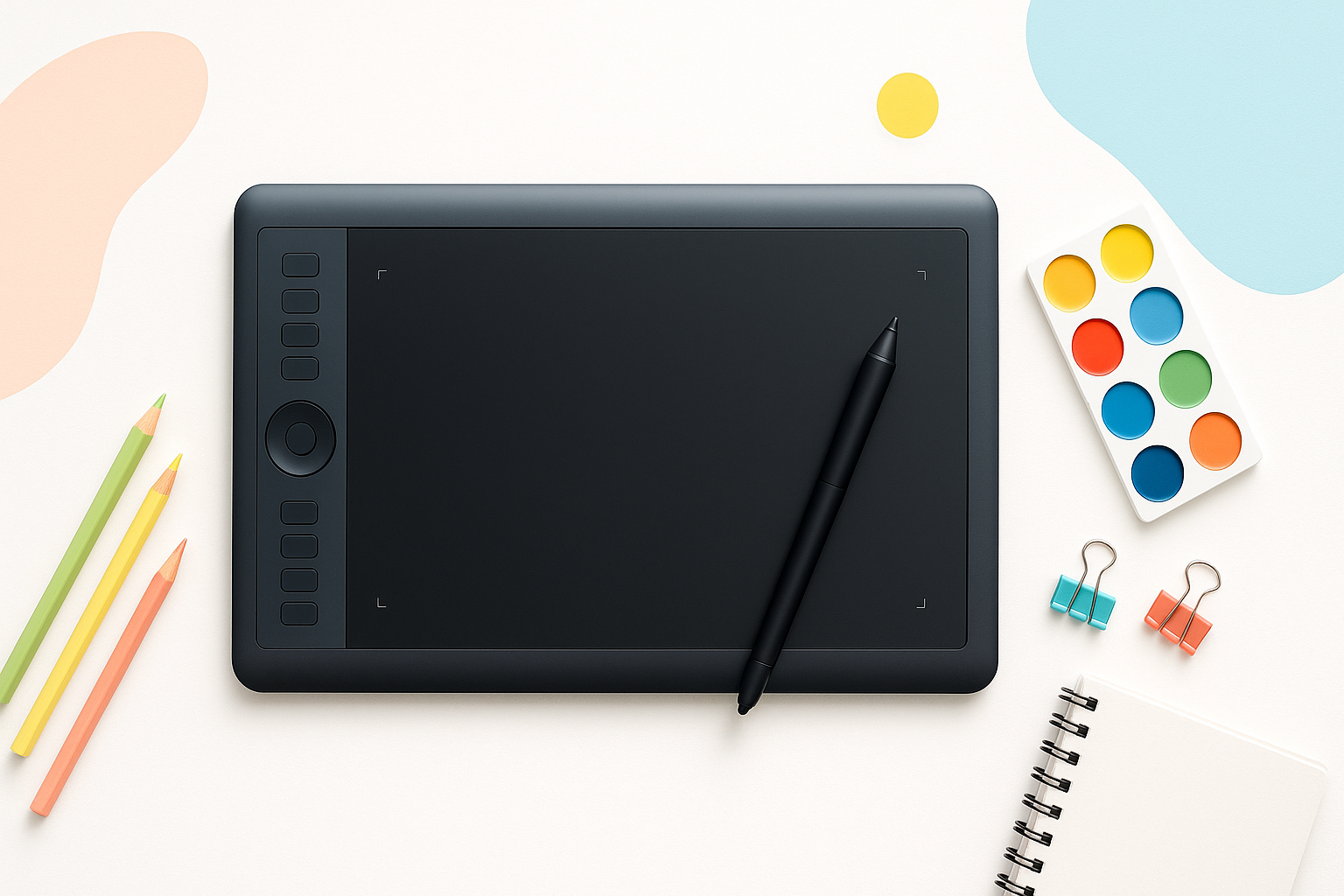
Your Digital Art Journey Starts with the Right Tool
Switching from paper to digital art feels overwhelming when you’re staring at dozens of drawing tablets with confusing specs and price tags that range from $50 to $500. The good news? You don’t need the most expensive tablet to create stunning digital artwork. Finding the best drawing tablet for beginners comes down to understanding what features actually matter for learning and which ones are just marketing fluff.
Most beginners make the mistake of either buying the cheapest option available (which leads to frustration) or splurging on professional-grade equipment they’re not ready to use. The sweet spot lies in understanding your learning style, budget, and artistic goals before making a purchase.
What Makes a Drawing Tablet Perfect for New Artists
Not all drawing tablets are created equal, especially when you’re just starting out. Here are the key features that separate beginner-friendly options from professional powerhouses:
Pressure Sensitivity That Actually Responds
Pressure sensitivity determines how your tablet translates the force of your stylus strokes into line thickness and opacity. While professional tablets boast 8,192 pressure levels, beginners can work comfortably with 2,048 levels. The difference becomes noticeable only when you’re doing highly detailed work or have developed advanced brush control techniques.
What matters more is consistent pressure response. A tablet that accurately detects light touches and responds smoothly to pressure changes will serve you better than one with high pressure levels but poor sensitivity calibration.
Active Area Size and Comfort
The active drawing area directly impacts your comfort and drawing style. Small tablets (around 6×4 inches) work well for digital sketching and detail work, but can feel cramped during longer drawing sessions. Medium-sized tablets (10×6 inches) offer the best balance for beginners, providing enough space for natural arm movements without overwhelming your desk setup.
Consider your monitor size too. A tiny tablet paired with a large monitor creates an awkward drawing-to-cursor ratio that takes time to adjust to.
Driver Support and Software Compatibility
Reliable drivers make the difference between smooth creative sessions and troubleshooting nightmares. Established brands like Wacom, Huion, and XP-Pen maintain regular driver updates and offer better customer support when issues arise.
Check compatibility with your preferred drawing software before purchasing. Most tablets work with popular programs like Photoshop, Clip Studio Paint, and Procreate, but some budget options may have limited functionality with certain applications.
Top Drawing Tablets That Won’t Overwhelm Beginners
After testing dozens of tablets with new digital artists, these models consistently deliver the best learning experience:
Wacom Intuos: The Reliable Starter Choice
Wacom’s reputation isn’t just marketing hype. The Intuos offers rock-solid build quality, precise tracking, and comes bundled with software that’s actually useful for beginners. The pen feels natural in your hand, and the tablet’s surface provides just enough texture to simulate paper without wearing down pen nibs quickly.
The main drawbacks? It’s pricier than competitors, and the active area feels small if you’re used to drawing on large paper sheets. However, the learning curve is minimal, and you’ll spend more time creating art instead of fighting technical issues.
Huion H610 Pro: Budget-Friendly Without Major Compromises
The H610 Pro delivers impressive performance at roughly half the price of comparable Wacom models. The large active area (10×6.25 inches) gives you plenty of room to work, and the pressure sensitivity feels responsive across different drawing applications.
Setup requires a bit more patience than plug-and-play Wacom tablets, but Huion’s driver software has improved significantly in recent years. The pen requires a battery, which some artists find slightly cumbersome, but battery life extends well beyond typical drawing sessions.
XP-Pen Deco 03: Modern Features at Beginner Prices
XP-Pen strikes an excellent balance between affordability and modern features. The Deco 03 includes a battery-free pen, customizable shortcut keys, and works seamlessly with both Windows and Mac systems. The tablet’s slim profile makes it highly portable, perfect for students or artists who work in multiple locations.
The surface texture feels slightly more plastic-like compared to Wacom’s paper-like finish, but this becomes less noticeable as you develop your digital drawing techniques.
Screen vs. Non-Screen: Which Path Should Beginners Take?
This decision shapes your entire learning experience, so it’s worth understanding the trade-offs clearly.
Non-Screen Tablets (Traditional Drawing Tablets)
Drawing on a tablet while watching your monitor creates a disconnect that initially feels awkward. However, this setup offers several advantages for beginners:
- Significantly lower cost for equivalent features
- Better ergonomics since you’re not hunched over a screen
- Longer lifespan with fewer components that can break
- Forces you to develop better hand-eye coordination
Most professional digital artists use non-screen tablets, and the adjustment period typically lasts just a few weeks of regular practice.
Display Tablets (Pen Displays)
Drawing directly on the screen feels more intuitive and creates an immediate connection to your artwork. However, beginner-friendly display tablets come with important considerations:
- Entry-level models often have color accuracy issues
- Screen glare and heat can cause eye strain during long sessions
- Significantly higher cost for similar pressure sensitivity and features
- More cables and setup complexity
If you’re set on a display tablet, budget at least $300 for a model that won’t frustrate you with poor screen quality or tracking issues.
Essential Accessories That Actually Matter
Skip the expensive bundles and focus on accessories that genuinely improve your drawing experience:
Replacement Pen Nibs
Pen nibs wear down with use, especially if you press hard while drawing. Having replacements on hand prevents interruptions to your creative workflow. Most tablets include a few spare nibs, but ordering an additional pack saves money compared to emergency purchases later.
Drawing Glove
A simple artist glove prevents palm rejection issues and reduces friction as your hand moves across the tablet surface. You can find effective options for under $10 – this isn’t an area where expensive equals better.
Tablet Stand or Adjustable Mount
Proper ergonomics prevent wrist strain and improve line control. A basic tablet stand that angles your drawing surface slightly upward mimics traditional drawing posture and feels more comfortable during extended sessions.
Software Pairings That Accelerate Learning
Your tablet choice should align with the software you plan to use most frequently:
For illustration and concept art: Clip Studio Paint offers the most bang for your buck, with incredible brush engines and beginner-friendly tutorials. Adobe Photoshop remains the industry standard but has a steeper learning curve.
For digital painting: Corel Painter provides the most realistic traditional media simulation, while Krita offers professional-level painting tools completely free.
For animation: If you’re interested in movement and storytelling, TVPaint or Toon Boom Harmony pair well with responsive tablets that handle rapid gesture drawing.
Common Beginner Mistakes to Sidestep
Learning from others’ experiences saves both money and frustration:
Buying too small: Tiny tablets seem convenient but often lead to cramped drawing and poor line quality. Medium-sized tablets provide better value long-term.
Obsessing over pressure levels: The difference between 2,048 and 8,192 pressure levels won’t make your art better. Focus on tablets with smooth, consistent pressure response instead.
Ignoring driver quality: Unreliable drivers create more problems than outdated hardware. Research driver stability before purchasing lesser-known brands.
Rushing the adjustment period: Even the most intuitive tablet requires practice to master. Commit to using your new tablet for at least two weeks before deciding if it’s right for you.
Making Your Final Decision
The best drawing tablet for beginners matches your learning goals, workspace, and budget without overwhelming you with unnecessary features. If you value reliability and don’t mind spending extra for peace of mind, Wacom’s Intuos delivers consistent performance. Budget-conscious artists will find excellent value in Huion’s H610 Pro or XP-Pen’s Deco series.
Remember that your first tablet won’t be your last. Focus on models that let you learn digital art fundamentals without technical frustrations. As your skills develop, you’ll have a clearer understanding of which advanced features actually benefit your artistic workflow.
The tablet that gets you drawing today beats the perfect tablet you’ll buy someday. Start creating, stay consistent, and upgrade when your current tools become the limiting factor in your artistic growth.
