

You’ve been scrolling through your iPhone, searching for that one app you swear you downloaded last week. Maybe it’s a game you meant to show a friend, or perhaps it’s a productivity app you suddenly need for work. The frustrating reality hits you—your app seems to have vanished into thin air.
Don’t panic. Your app hasn’t actually disappeared. If you know how to unhide apps on iPhone, you’ll discover that iOS has several places where apps can hide, and getting them back is easier than you might think.
Let’s explore exactly where your missing apps might be lurking and how to bring them back to your home screen where they belong.
Why Apps Go Missing on Your iPhone
Before diving into solutions, it’s helpful to understand why apps seem to disappear in the first place. Your iPhone doesn’t randomly delete apps, but several features can make them seem invisible:
- Screen Time restrictions can hide apps during certain hours or after usage limits
- App Library organization might tuck apps into folders you don’t regularly check
- Home screen pages can get shuffled, moving apps to screens you rarely visit
- Folder reorganization might bury apps deep within other folders
- Offloaded apps appear dimmed and might seem missing
The good news? Each of these situations has a straightforward fix.
How to Unhide Apps Using Spotlight Search
The fastest way to locate any app on your iPhone is through Spotlight Search. This method works regardless of where your app is hiding.
- Swipe down from the middle of your home screen to open Spotlight Search
- Type the name of your missing app
- When the app appears in search results, tap and hold its icon
- Select “Add to Home Screen” from the popup menu
This approach bypasses all the hiding spots and puts your app directly back on your main home screen. If the app doesn’t appear in search results, it might be restricted by Screen Time settings.
Checking Your App Library
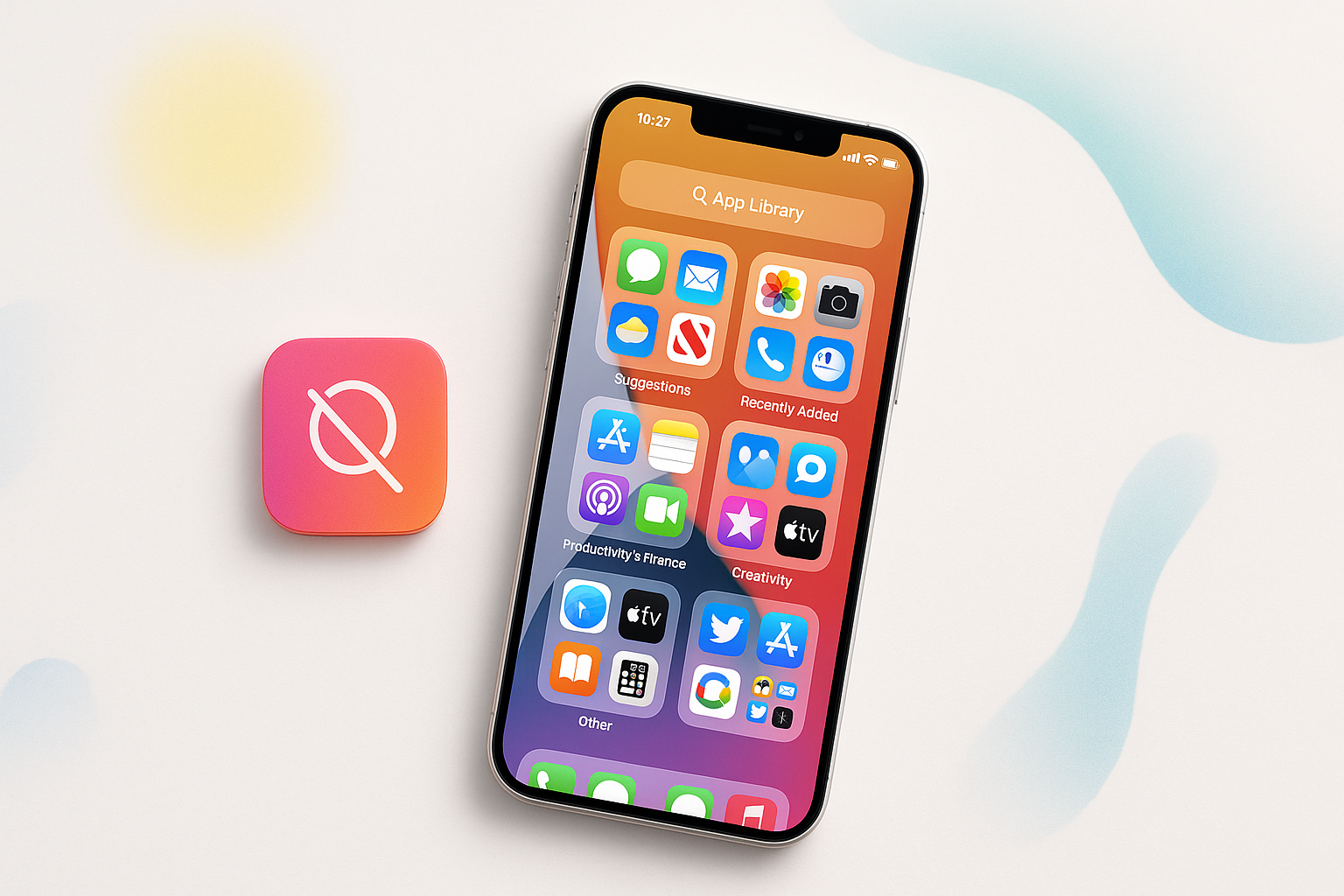
iOS automatically organizes all your apps in the App Library, located on the rightmost screen of your iPhone. Apps sometimes get buried here in category folders.
To access your App Library:
- Swipe left through your home screen pages until you reach the App Library
- Look through the category folders like “Social,” “Entertainment,” or “Utilities”
- Tap on any folder to see all apps within that category
- Use the search bar at the top to quickly find specific apps
Once you find your app in the App Library, you can add it back to your home screen by tapping and holding the app icon, then selecting “Add to Home Screen.”
Removing Screen Time App Restrictions
Screen Time can hide apps completely when restrictions are active. If you’ve set up app limits or downtime, certain apps won’t appear anywhere on your device during restricted hours.
Here’s how to check and modify these settings:
- Open the Settings app
- Tap “Screen Time”
- Select “App Limits” to see if your missing app has time restrictions
- Tap “Content & Privacy Restrictions”
- Go to “Allowed Apps” and ensure your app is toggled on
If you find your app listed under restrictions, simply toggle it back on or remove the time limit to make it visible again.
Searching Through Home Screen Pages and Folders
Sometimes apps get accidentally moved to different home screen pages or buried within folders during reorganization.
To systematically search your home screens:
- Swipe through each home screen page slowly
- Open every folder by tapping on it
- Pay attention to folders that might logically contain your app
- Check if apps got moved to less obvious folder locations
Remember that iOS folders can contain multiple pages. If a folder has more than nine apps, swipe left within the folder to see additional pages.
Dealing with Offloaded Apps
iOS can automatically offload unused apps to save storage space. Offloaded apps appear as dimmed icons with a cloud symbol, and their data remains intact even though the app itself isn’t fully installed.
To reinstall an offloaded app:
- Find the dimmed app icon on your home screen or App Library
- Tap the icon once
- Wait for the app to download and reinstall
You can also check which apps have been offloaded by going to Settings > General > iPhone Storage, where you’ll see a list of offloaded apps with reinstall options.
Using Settings to Locate Hidden Apps
Your iPhone’s Settings app maintains a comprehensive list of every installed app, making it another reliable way to locate missing applications.
- Open Settings
- Scroll down to see your alphabetical app list
- Look for your missing app in this list
- If you find it, the app is installed but hidden somewhere on your device
This method helps confirm whether an app is actually installed or if it was deleted entirely.
Restoring Apps from Purchase History
If your app truly isn’t on your device anymore, you can reinstall it from your App Store purchase history without paying again.
- Open the App Store
- Tap your profile icon in the top right corner
- Select “Purchased”
- Browse your purchase history or use the search function
- Tap the cloud icon next to any app to reinstall it
This works for all previously downloaded apps, including free apps you’ve installed before.
Preventing Apps from Hiding in the Future
Once you’ve recovered your missing apps, you can take steps to prevent this frustration from happening again.
Consider these organizational strategies:
- Create clearly labeled folders for different app categories
- Keep your most important apps on the first home screen page
- Regularly review and organize your app layout
- Be mindful when moving apps to avoid accidental hiding
- Check Screen Time settings periodically if you use restrictions
You might also want to disable automatic app offloading if you prefer to manually manage your storage. Go to Settings > App Store and turn off “Offload Unused Apps.”
When Apps Still Won’t Appear
In rare cases, you might encounter persistent issues with app visibility. If none of the above methods work, try these additional troubleshooting steps:
- Restart your iPhone by holding the power button and volume button
- Check for iOS updates in Settings > General > Software Update
- Sign out and back into your Apple ID in Settings
- Reset your home screen layout in Settings > General > Reset > Reset Home Screen Layout
The last option will return your home screen to its default organization, which can resolve stubborn visibility issues but will require reorganizing your apps afterward.
Learning how to unhide apps on iPhone saves time and reduces frustration when your favorite applications seem to disappear. Whether your apps are hiding in Screen Time restrictions, buried in the App Library, or simply moved to an unexpected location, these methods will help you track them down quickly. With a bit of organization and awareness of iOS features, you can keep your apps exactly where you want them.
