

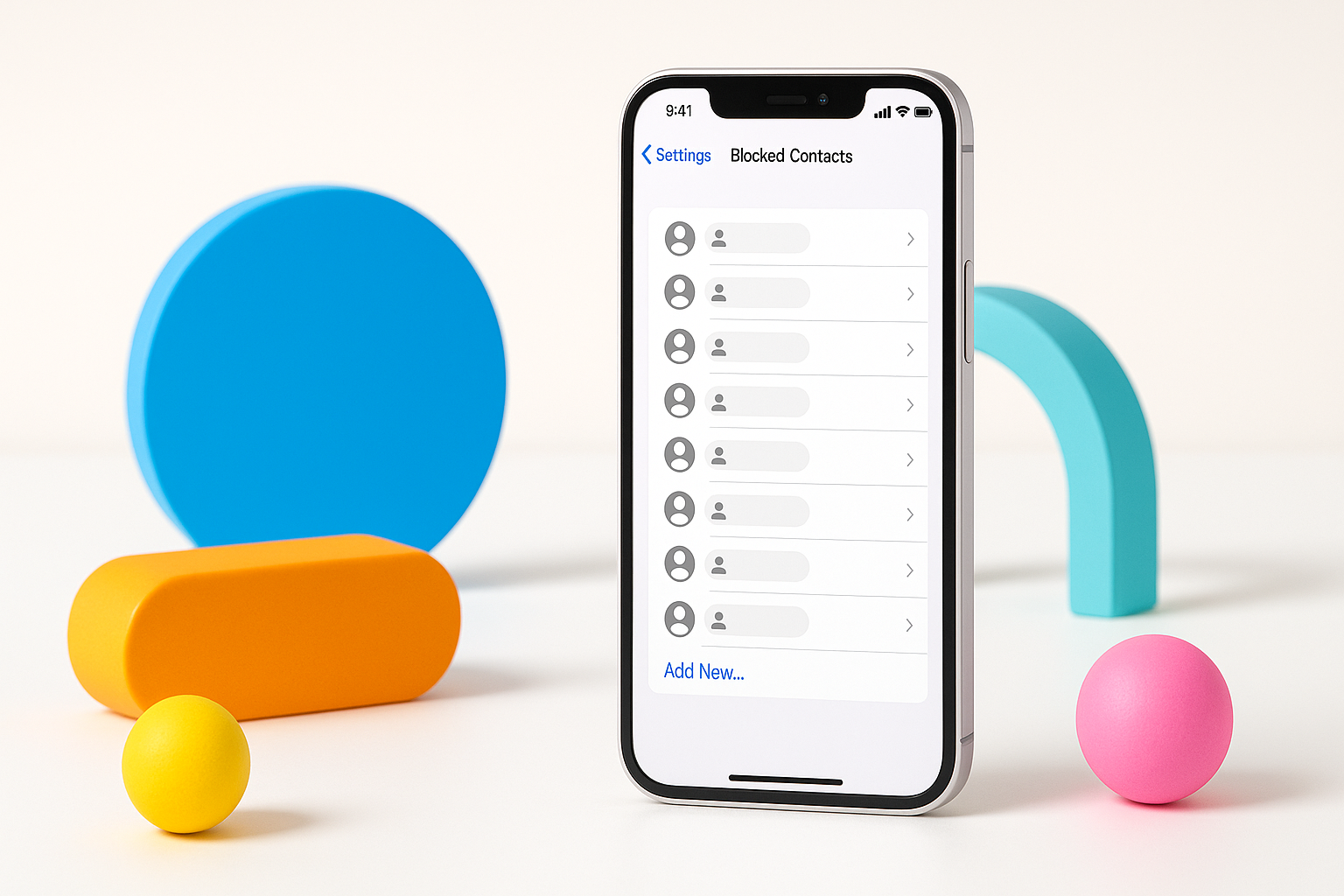
Blocking unwanted contacts on your iPhone offers peace of mind, but what happens when you need to review who you’ve blocked? Maybe you want to unblock someone, or you simply can’t remember if you blocked a particular number. Finding your blocked contacts list isn’t immediately obvious in iOS, but once you know where to look, checking how to see blocked contacts on iPhone becomes straightforward.
Your iPhone maintains a comprehensive list of all blocked phone numbers, email addresses, and contacts across multiple apps. This centralized blocking system works seamlessly with Phone, Messages, Mail, and FaceTime, ensuring blocked contacts can’t reach you through any of these channels.
Where Your iPhone Stores Blocked Contacts
Apple consolidates all blocked contacts into a single location within your Settings app. This unified approach means when you block someone in Messages, they’re automatically blocked in Phone and FaceTime too. The same principle applies regardless of which app you use to initiate the block.
Your blocked list includes several types of entries:
- Phone numbers (including international numbers)
- Email addresses
- Saved contacts from your address book
- Unknown numbers you’ve blocked
Step-by-Step Guide to View Your Blocked List
Accessing your blocked contacts requires navigating through your iPhone’s Settings. Here’s the exact path to follow:
- Open the Settings app on your iPhone
- Scroll down and tap Phone
- Look for Blocked Contacts and tap it
- Your complete blocked list will appear
Alternative routes exist depending on your needs. If you’re specifically concerned about blocked contacts in Messages, you can also reach the same list by going to Settings > Messages > Blocked Contacts. Both paths lead to the identical master list.
Understanding What You’ll See in Your Blocked List
Your blocked contacts list displays entries in different formats depending on how they were originally blocked. Contacts saved in your address book appear with their full names and associated phone numbers or email addresses. Unknown numbers show up as just the phone number itself.
International numbers retain their country codes, making them easy to identify. Email addresses appear in full, which proves particularly useful if you’ve blocked someone who was sending unwanted emails through Mail.
The list organizes entries chronologically, with the most recently blocked contacts appearing at the bottom. This ordering helps you quickly identify recent blocks if you need to reverse a decision.
How to See Blocked Contacts on iPhone Through Individual Apps
While the Settings method shows your complete blocked list, you can also view blocked contacts within specific apps. This approach works well when you’re already using the app and want quick access.
Viewing Blocked Contacts in Messages
Open Messages, then tap your profile picture or initials in the upper left corner. Select “Blocked Contacts” from the menu. This route takes you to the same master list accessible through Settings.
Checking Blocked Numbers in Phone
Within the Phone app, tap “Recents” at the bottom, then tap the “i” icon next to any number. If that number is blocked, you’ll see “Unblock this Caller” as an option. However, this method only works for numbers that appear in your recent calls.
Managing Your Blocked Contacts List
Once you can see your blocked contacts, you might want to make changes. The blocked contacts list isn’t just for viewing – it’s also your control center for managing these restrictions.
To unblock someone, swipe left on their entry and tap “Unblock.” Alternatively, tap “Edit” in the upper right corner, then tap the red minus sign next to any contact you want to remove from the blocked list.
Adding new blocked contacts directly from this list is also possible. Tap “Add New” at the bottom of the blocked contacts screen, then select contacts from your address book or manually enter phone numbers or email addresses.
What Happens When Contacts Are Blocked
Understanding the blocking mechanism helps explain why finding this list matters. When you block someone on your iPhone, they experience specific limitations:
- Phone calls go directly to voicemail without ringing your device
- Text messages are received but stored in a separate “Filtered Messages” folder
- FaceTime calls cannot connect
- Emails from blocked addresses go to your trash folder automatically
Importantly, blocked contacts don’t receive any notification that they’ve been blocked. From their perspective, calls simply go to voicemail and messages appear delivered.
Troubleshooting Common Issues
Sometimes your blocked contacts list might not appear as expected. If you don’t see the “Blocked Contacts” option in Settings > Phone, ensure your iOS is updated to a recent version. Older iOS versions organized this feature differently.
If someone you’re certain you blocked continues reaching you, check that you blocked the correct number or email address. People sometimes have multiple phone numbers or email accounts, and blocking one doesn’t automatically block others associated with the same person.
For contacts with both phone numbers and email addresses, you may need to block each method separately if they’re contacting you through multiple channels.
Privacy and Security Considerations
Your blocked contacts list contains sensitive information about your communication preferences and potentially problematic relationships. This data syncs across your Apple devices when you’re signed into iCloud, meaning your blocked list remains consistent across your iPhone, iPad, and Mac.
If you share your Apple ID with family members, they won’t see your blocked contacts list unless they have access to your specific device. Blocked contacts are tied to individual devices rather than shared through Family Sharing.
When You Might Need to Check Your Blocked List
Several scenarios make reviewing your blocked contacts practical. Maybe you’re expecting an important call from a number you might have blocked previously. Perhaps you blocked someone during an argument and want to reverse that decision. Sometimes you need to verify whether a persistent caller is already blocked or if you need to take that step.
Business users often need to review their blocked lists to ensure they haven’t accidentally blocked legitimate contacts. If you use your iPhone for work, periodically reviewing blocked contacts helps prevent missed opportunities.
Knowing how to access and manage your blocked contacts gives you complete control over who can reach you through your iPhone. Whether you need to unblock someone, verify a block, or simply clean up your blocked list, the Settings > Phone > Blocked Contacts path puts you in charge of your device’s communication boundaries.
